
VentraConnect Social Login – Full Feature Overview
VentraConnect Social Login gives you Social Login, Magic Link, and Email OTP in one plugin, plus deep integrations for WooCommerce, memberships, LMS platforms, and comments. This page walks through everything that’s included in the free plugin and what VentraConnect Pro adds on top.
Features are labeled as Free, Pro, or Free · Pro where both tiers include something.
Table of Contents

Login methods
Free
Social Login with 15+ providers, plus Magic Link and Email OTP for passwordless access.

Passwordless control
Pro
Off, Recommended, and Strict modes, with rules for where new accounts can be created.

Works across your stack
Pro
WooCommerce, memberships, LMS, and comments – control where buttons appear without custom code.
Security & redirects
Free · Pro
Safe redirects, redirect blocklists, signup rules, and a clear privacy story for social data.

Analytics & diagnostics
Free · Pro
High-level login stats plus health checks, self-tests, and copy-paste diagnostics for support.

For site builders & developers
Free · Pro
Shortcodes, context-based placement, debug mode, and integration debug for complex builds.
Login methods
Free · Pro
VentraConnect combines Social Login, Magic Link, and Email OTP in one plugin. All three methods share the same rules, redirects, and integrations, so you don’t end up managing three different login systems.
Social Login - 15+ providers
Free · Pro
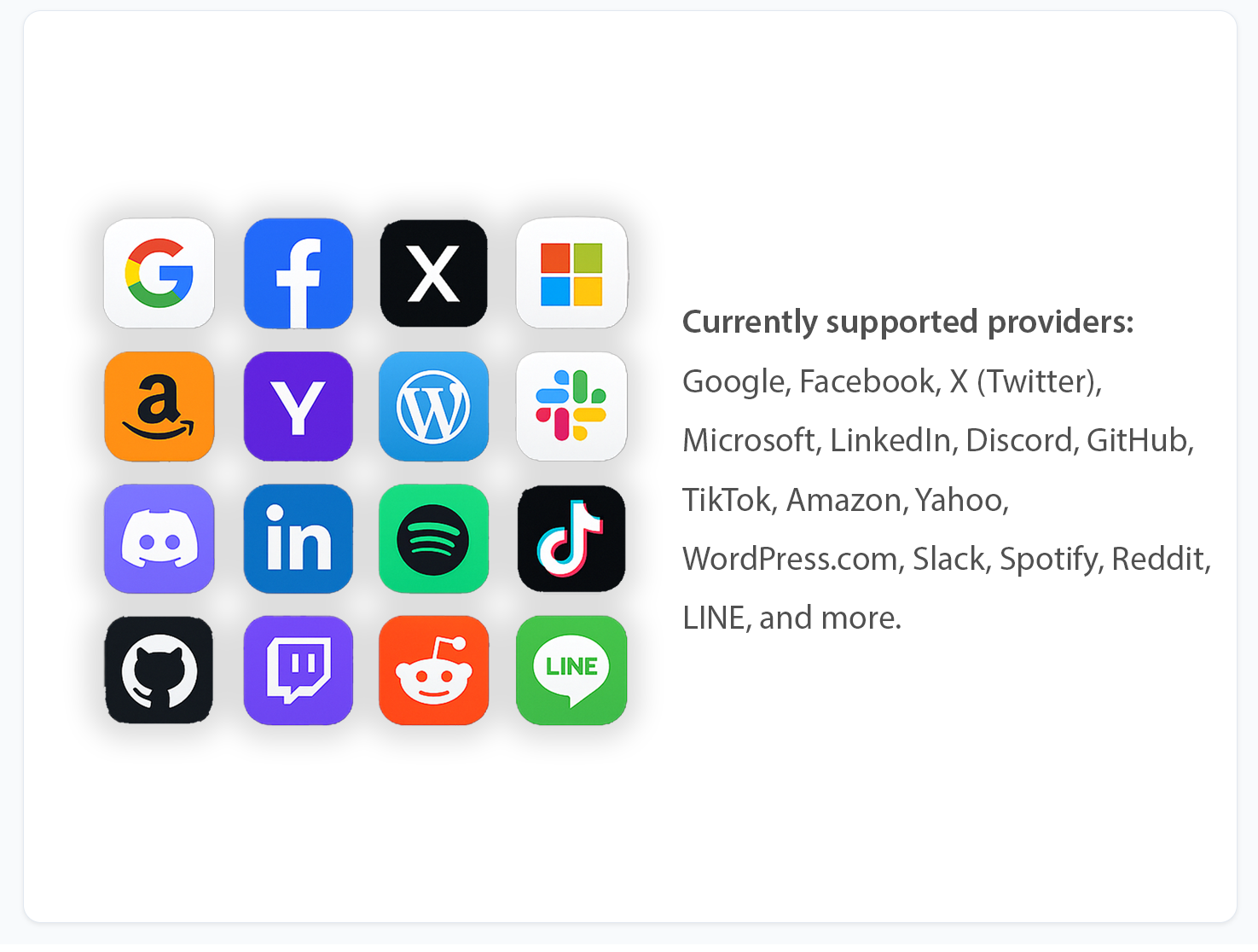
Let users sign in with Google, Facebook, X (Twitter), Microsoft, Discord, and more. Social Login is the core of VentraConnect and works out of the box in the free plugin, with extra control unlocked in Pro.
What Free includes:
- 15+ social providers – enable or disable each provider from a single “Login methods” panel.
- WordPress login & register – add social buttons on the standard
wp-login.phpand registration screens.
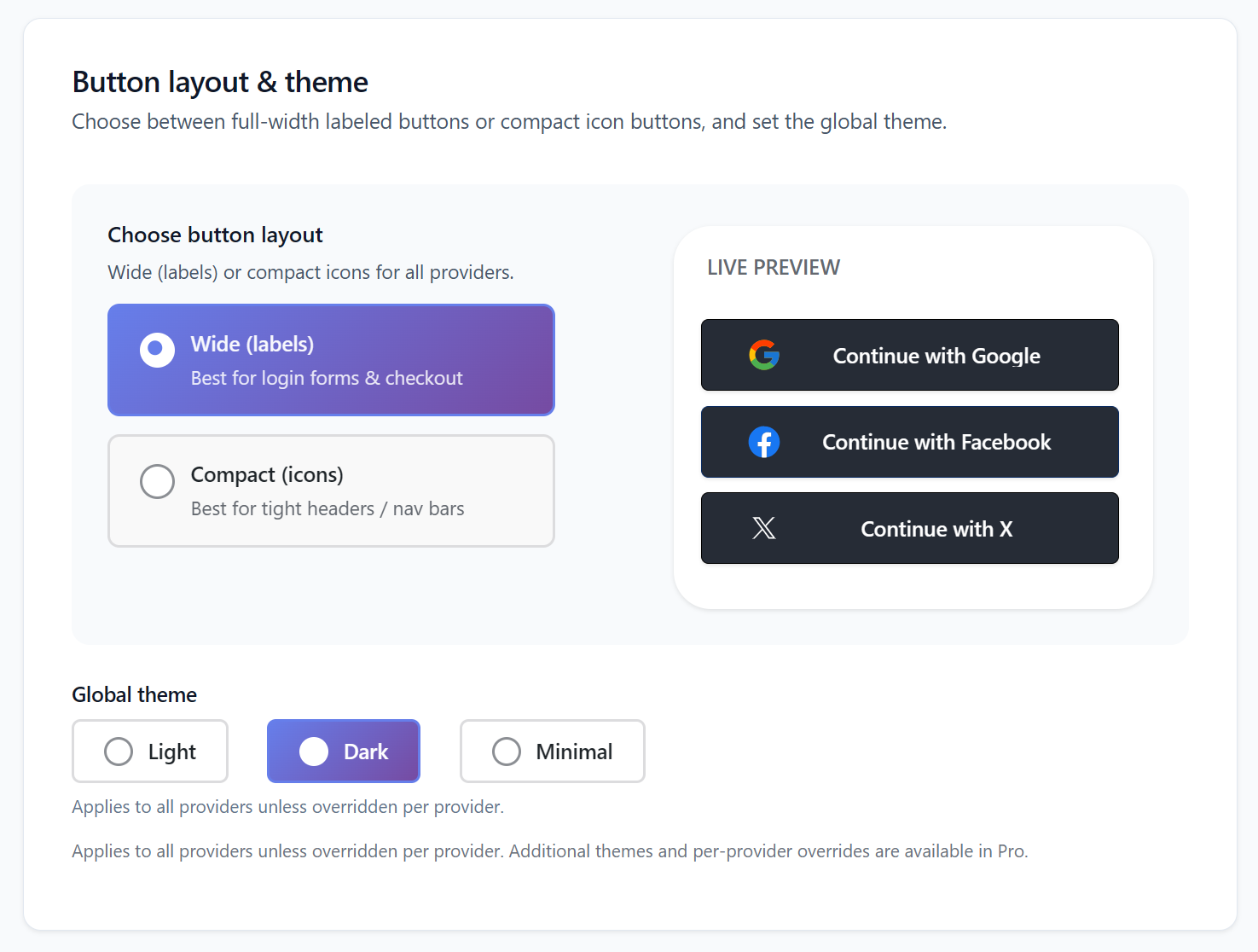
- Global button layout – choose between wide labeled buttons or compact icon-only buttons for all providers.
- Global themes Light, Dark, or Minimal styles that apply across every provider.
- Provider diagnostics – test each provider with Verify settings and Run diagnostics right from its settings page.
- Basic profile sync — pull avatar, display name, first/last name, and email to fill in missing user data without overwriting existing fields.
What Pro adds on top:
- Per-provider button styles – override the global layout and theme for individual providers and customize their button text.
- Advanced sync policies – choose per field whether to never update, fill blanks only, or always overwrite with fresh profile data.
- WooCommerce field mapping – map selected profile fields (like name, location) to WooCommerce billing fields where relevant.
- Bulk resync jobs – run safe, batched resyncs that update existing customers based on their linked social accounts.
Magic Link - passwordless from the inbox
Free
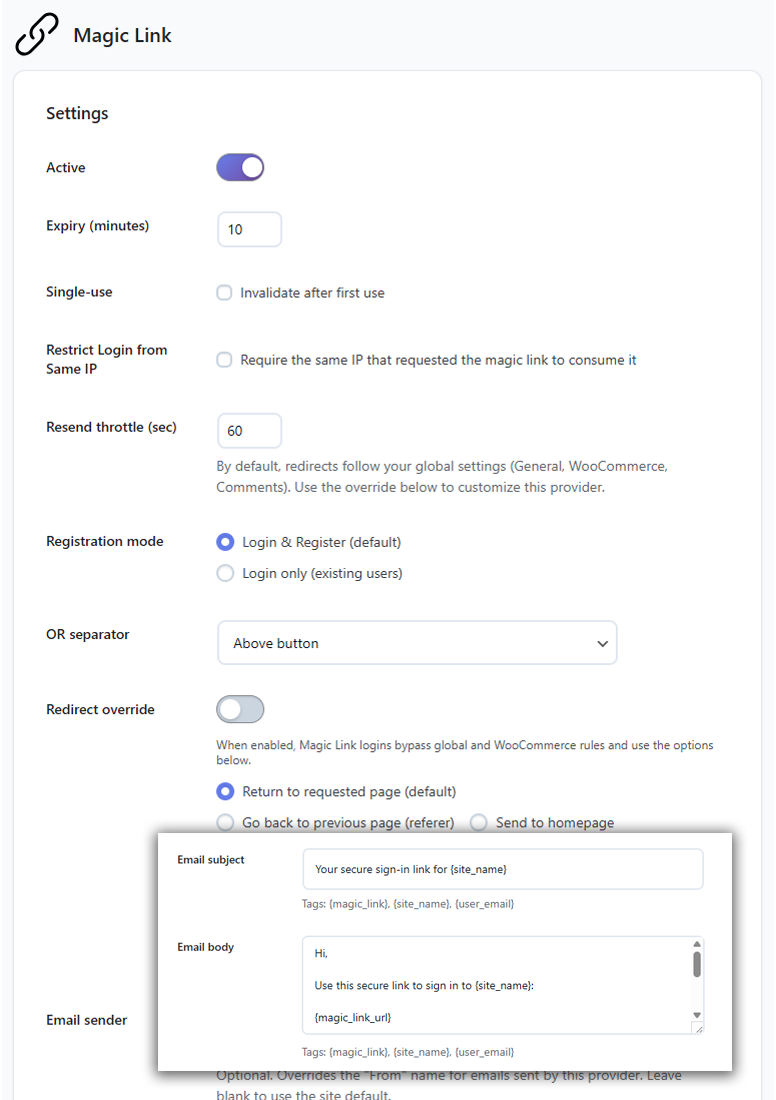
Magic Link lets users log in or sign up with a secure, single-use link sent to their email — no password fields needed on the form.
- Email-only login and signup – users enter their email and click a one-time link to access their account.
- Single-use, time-limited links – every link can be used once and expires after a window you control.
- Optional same-IP enforcement – require the same IP to request and consume the link for extra protection.
- Registration mode control – run Magic Link in Login & Register or Login only (existing users) mode.
- Per-method redirects – send Magic Link users back to the page they came from, to the homepage, or to a custom URL.
- Custom email template – edit sender, subject, and body using tags like
{magic_link}{site_name}, and{user_email}.
- Preview & test – adjust the button label and send yourself a test email directly from the settings screen.
Email OTP – short codes instead of passwords
Free
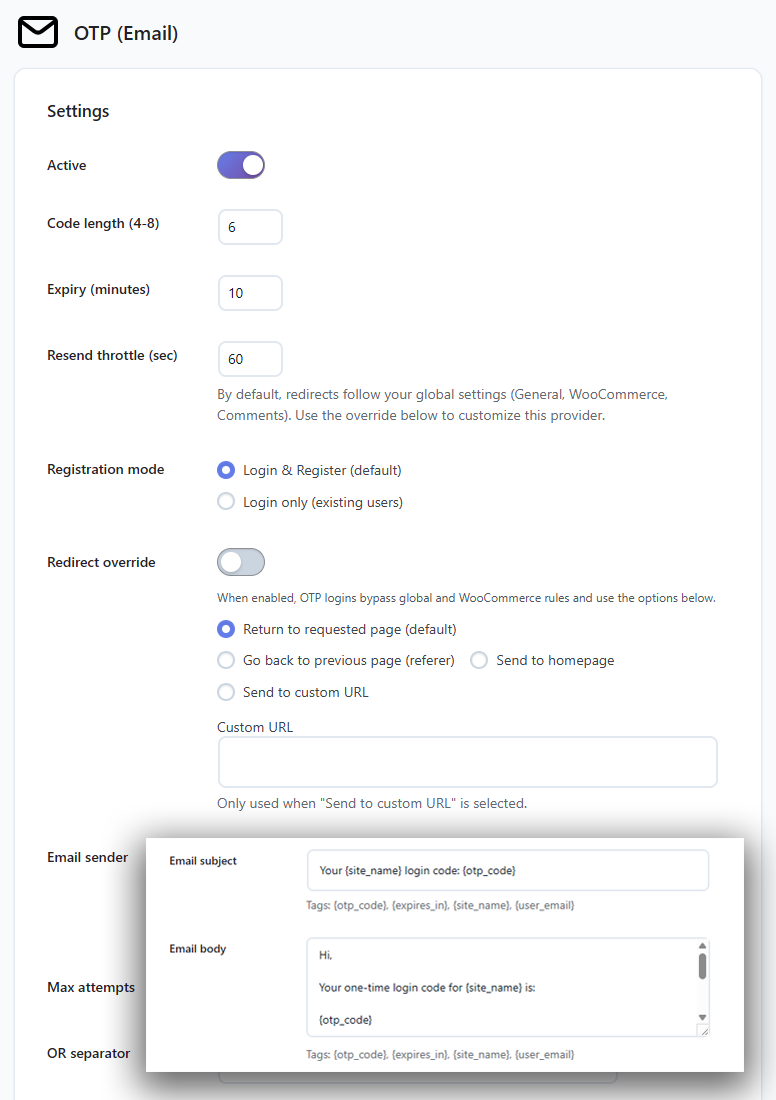
Email OTP (one-time password) gives you a PIN-style login for users who prefer codes: they receive a short code by email and enter it on the site to continue.
- Login and signup with one-time codes – users enter a 4–8 digit code sent to their email instead of a password.
- Configurable code length and expiry – decide how many digits the code has and how long it stays valid.
- Resend throttling & attempt limits – set how often a code can be resent and how many attempts are allowed before lockout.
- Registration mode control – choose whether OTP allows new account creation or is limited to existing users.
- Per-method redirects – use the same redirect options as Magic Link, independent of normal Social Login.
- Custom OTP email – define sender, subject, and body with tags like
{otp_code}and{expires_in}.
- Preview & test – update the button label and send a test OTP email from the admin panel.
Passwordless control
Pro
Decide how aggressively you want to phase out passwords on your site. Use Social Login, Magic Link, and Email OTP as the primary login methods, while keeping a safe fallback for admins and edge cases.
How passwordless works
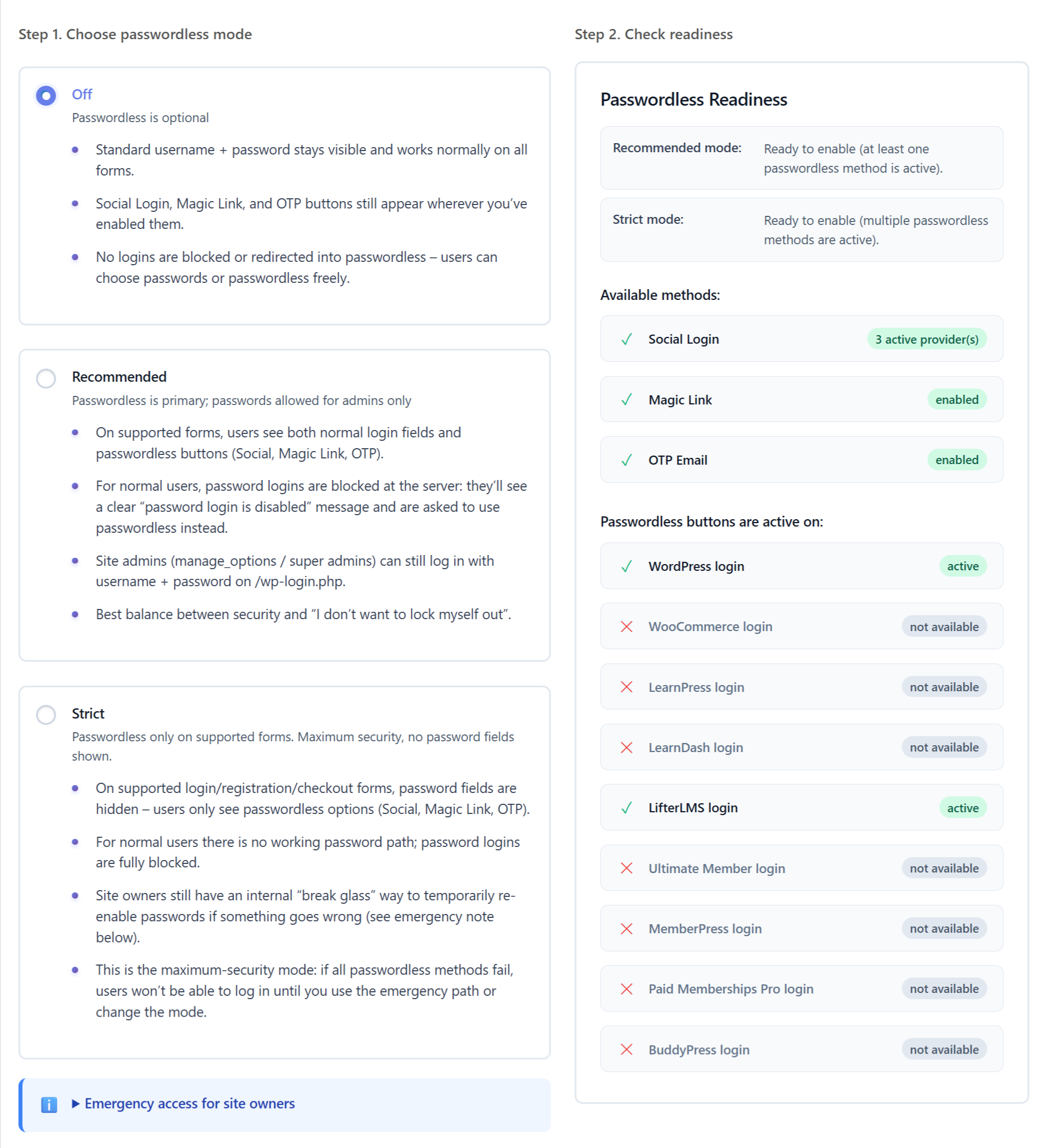
VentraConnect adds passwordless buttons to supported login and registration forms. Then you choose what happens to the old username/password fields – keep them, block them for normal users, or hide them completely with an emergency path for admins.
Three modes for phasing out passwords
Off
Passwordless is available but optional.
Standard username + password stay visible on all supported forms.
Social Login, Magic Link, and Email OTP buttons appear wherever you’ve enabled them.
No logins are blocked for using passwords – users choose passwordless or passwords freely.
Recommended
Best balance of security and “don’t lock myself out”.
On supported forms, users see both normal login fields and passwordless buttons.
Password logins are blocked at the server for normal users – they’ll see a clear “password login is disabled” message and are asked to use passwordless instead.
Site admins and super admins can still sign in with username + password on wp-login.php.
Strict
Maximum security for supported forms.
Password fields are hidden on supported login/registration/checkout forms – users only see passwordless options.
For normal users there is no working password path – password logins are fully blocked.
Site owners still have an internal “break glass” way to temporarily re-enable passwords if something goes wrong.
Readiness & safety nets
Passwordless readiness panel – see at a glance which login areas (WordPress, WooCommerce, LMS, membership, comments) are ready for Strict mode and where passwords are still required.
Per-form control – Passwordless only changes supported login/registration/checkout forms – your admin login path always stays safe.
Emergency access for site owners – built-in “break glass” flow so you can temporarily bring back passwords if you misconfigure a setting.
Works across your stack
Works wherever your users log in
VentraConnect plugs into your existing WordPress stack instead of forcing new login pages. Add Social Login, Magic Link, and Email OTP to WooCommerce, membership plugins, LMS platforms, and even comments – all with placement controls instead of custom code.
WooCommerce stores
Pro
Make checkout faster and reduce abandoned carts by adding one-click logins to WooCommerce login, registration, and checkout screens – with account-safe rules for when new customers can use social login.
What WooCommerce integration includes:
Enable WooCommerce Social Login – turn on a dedicated WooCommerce integration instead of relying on generic shortcodes.
Login & registration placement – choose where buttons appear on Woo login and registration forms: above the form, below the form, or not at all.
Checkout placement options – place buttons at key points on the checkout page:
very top (above the entire checkout form)
inside the form above customer details
between customer details and order summary
above payment methods
just above the “Place order” button
My Account integration – show social login buttons on the “Edit account” screen so returning customers can link or switch logins.
Hide buttons for logged-in customers – automatically hide social buttons when the customer is already signed in.
Custom helper message – add a short line of text above the buttons (e.g. “Log in with your favorite platform to checkout.”).
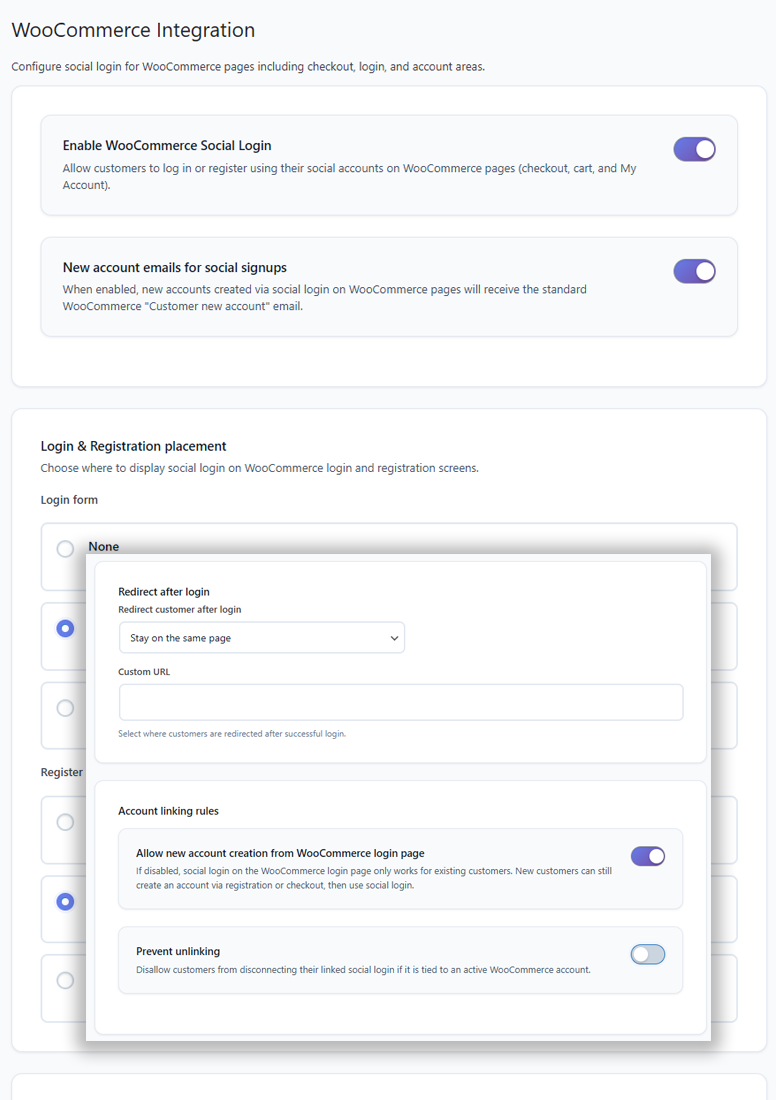
Post-login redirect control – decide where WooCommerce sends customers after login (stay on the same page, go to account, or a custom URL).
Account creation rules – choose whether new customers can create an account directly from the WooCommerce login page, or if social login is limited to existing customers only.
Prevent unlinking (optional) – lock social accounts to WooCommerce customers so they can’t disconnect a login that’s tied to an active store account.

Memberships & communities
Pro
Make it painless for members to log in and sign up across membership and community plugins. VentraConnect adds Social Login, Magic Link, and Email OTP to MemberPress, Paid Memberships Pro, Ultimate Member, and BuddyPress/BuddyBoss – no custom templates or theme hacks.
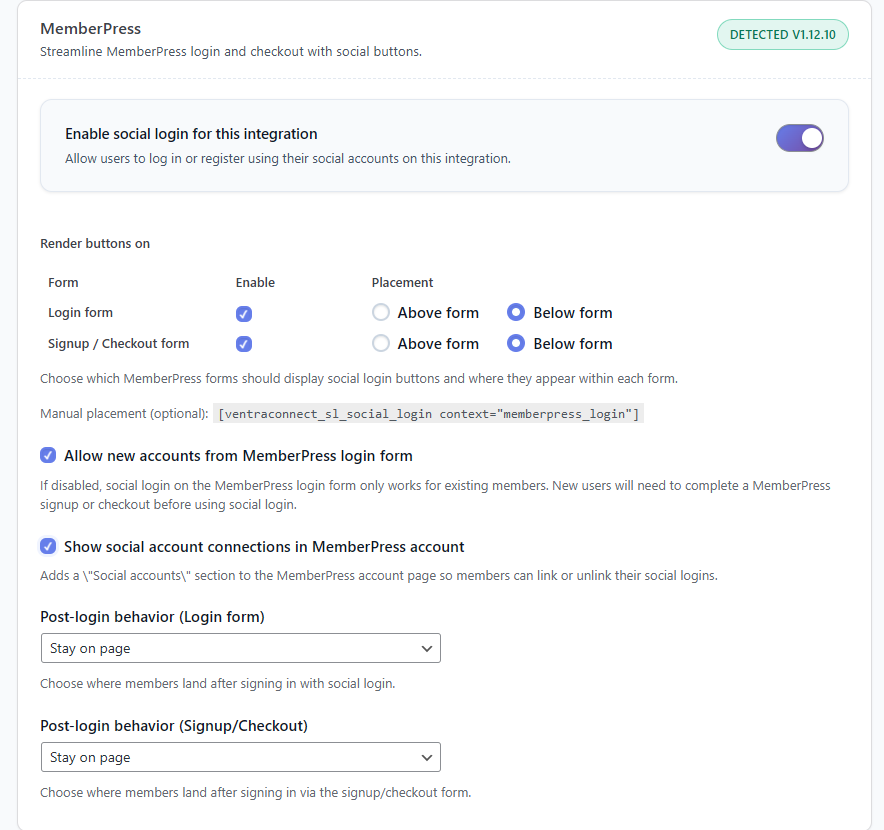
MemberPress example – add login buttons to member login, signup, checkout, and profile pages.




What memberships & communities integration includes:
Per-plugin toggles – enable social login separately for MemberPress, Paid Memberships Pro, Ultimate Member, and BuddyPress/BuddyBoss.
Form-level placement – choose exactly where buttons appear on each plugin’s forms:
Login forms
Registration / signup forms
Checkout / purchase forms (where available)
Above / below / inline options – place buttons above the form, below the form, or around submit buttons depending on the plugin, without touching code.
Profile “Social accounts” section – add a dedicated “Social accounts” area to member profiles so users can link or unlink their social logins themselves.
New account rules – control whether new members can sign up directly from a plugin’s login form, or if social login is limited to existing members only.
Post-login behaviour – choose what happens after a successful social login: stay on the same page, go to the member dashboard/profile, or another page.
Optional shortcodes – drop buttons into custom pages or widgets with context-aware shortcodes when you need full control over layout.
Courses & LMS
Pro
Make it easy for learners to log in, enroll, and come back to their courses without fighting passwords. VentraConnect adds Social Login, Magic Link, and Email OTP to LearnDash, LearnPress, and LifterLMS with proper placement controls instead of template hacks.
What Courses & LMS integration includes:
Per-LMS toggles – switch social login on or off separately for LearnDash, LearnPress, and LifterLMS.
Form-level placement – choose exactly where buttons appear on each LMS form:
Course / site login forms
Registration / signup forms
Checkout / purchase / enrollment forms (where available)
Above / below / inside form options – place buttons above the form, below the form, or inside the form near the main action area, without editing LMS templates.
Student profile “Social accounts” section – add a “Social accounts” area on LearnDash, LearnPress profiles and LifterLMS student dashboards so learners can link or unlink their logins themselves.
New student rules – decide whether new students can sign up directly from LMS login/register forms, or if social login is restricted to existing student accounts only.
Post-login behaviour – choose what happens after a successful social login: stay on the same page, send learners back to the course page, or redirect them to a student dashboard.
Checkout-safe flows – keep orders, memberships, and enrollments tied to the correct WordPress user while still letting learners use one-click login methods.
Optional shortcodes – use LMS-aware shortcodes when you need to place buttons manually inside custom course pages or sales pages.
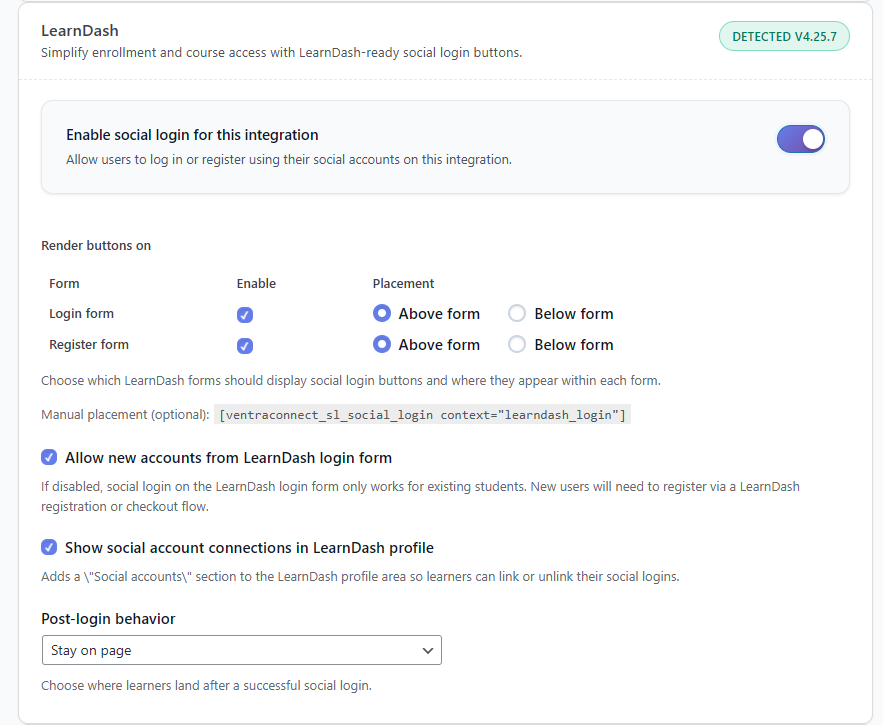
LearnDash example – add login buttons to course login, student signup, checkout/enrollment, and learner profile pages.



Comment
Pro
Make it easy (and safer) for visitors to join the conversation. VentraConnect adds Social Login, Magic Link, and Email OTP to the native WordPress comment form, with simple placement options and access rules.
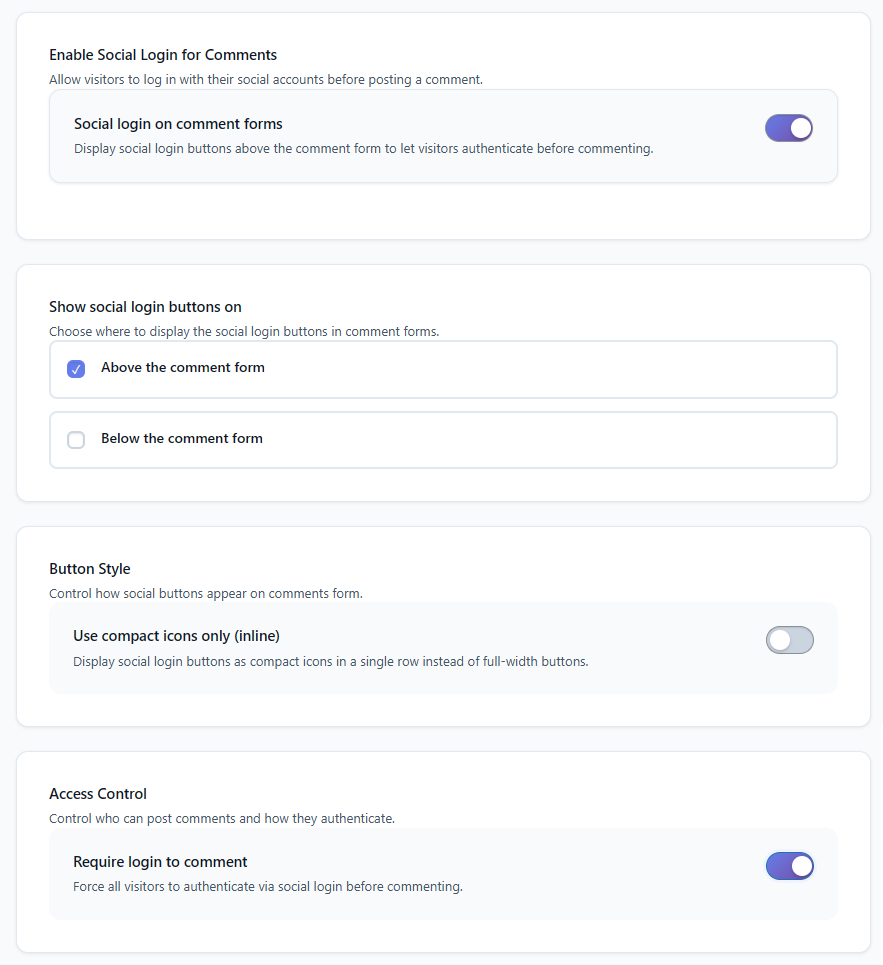
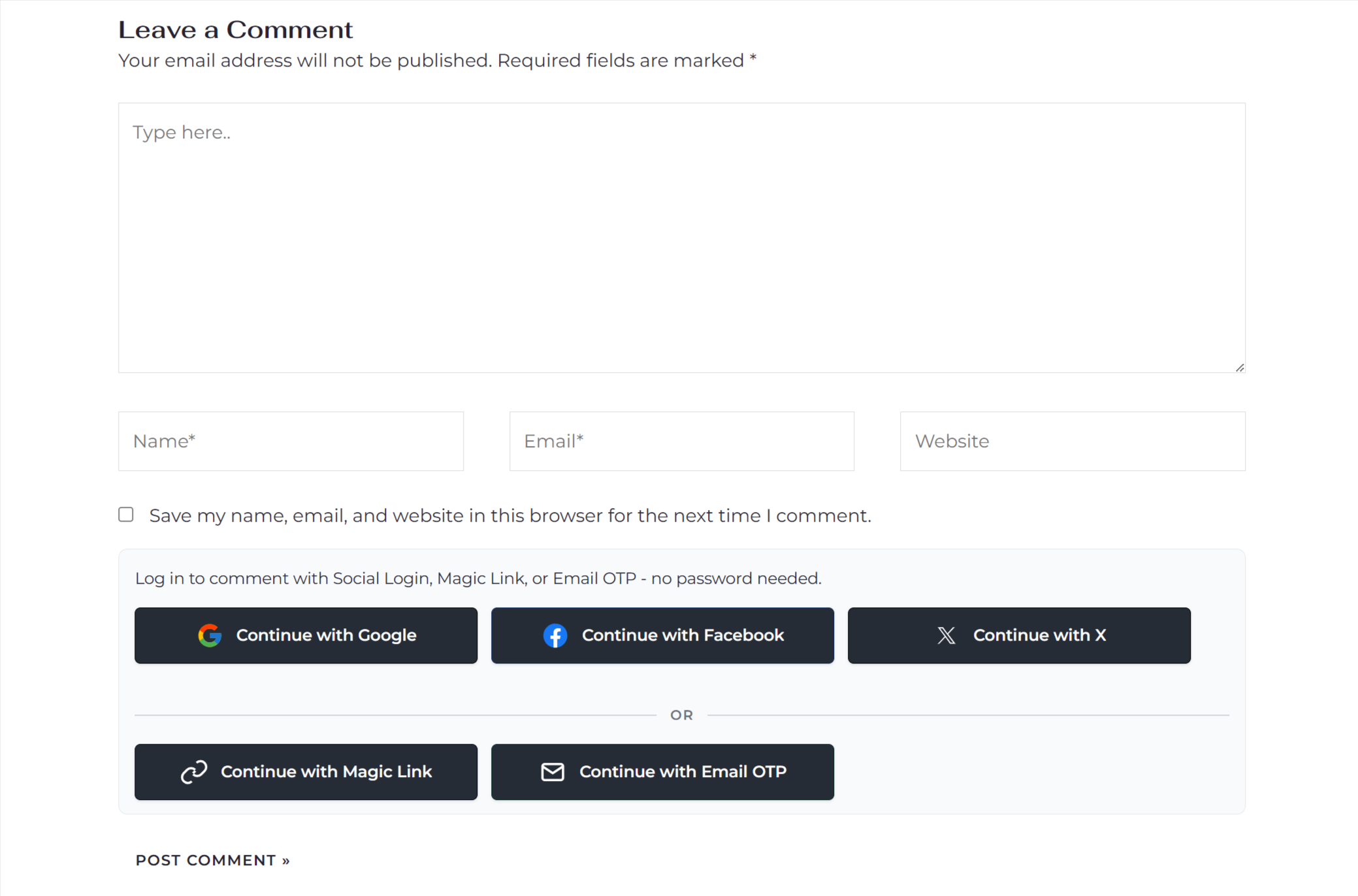
What comments integration includes:
Core comments toggle – turn Social Login, Magic Link, and Email OTP on for the standard WordPress comment form without editing your theme.
Button placement – choose whether login buttons appear above the comment form or below it, depending on your layout.
Compact icon mode – switch to a slim icons-only row so login buttons don’t overpower the article or comment thread.
Helper message – add a short line of copy above the buttons (e.g. “You can log in with social, Magic Link, or Email OTP before commenting.”) to guide visitors.
Require login to comment – optionally force visitors to authenticate with one of your enabled methods before they can post a comment.
Redirect after login – keep readers on the same page after login, or send them to a custom “thanks” or follow-up page.
Provider badges next to comments – show a small provider icon next to each commenter’s avatar so you can see at a glance who logged in via Google, Facebook, etc.
Page-builder friendly – uses the standard
comment_formoutput, so it plays nicely with page builders and custom theme templates without extra code.
Security & redirects
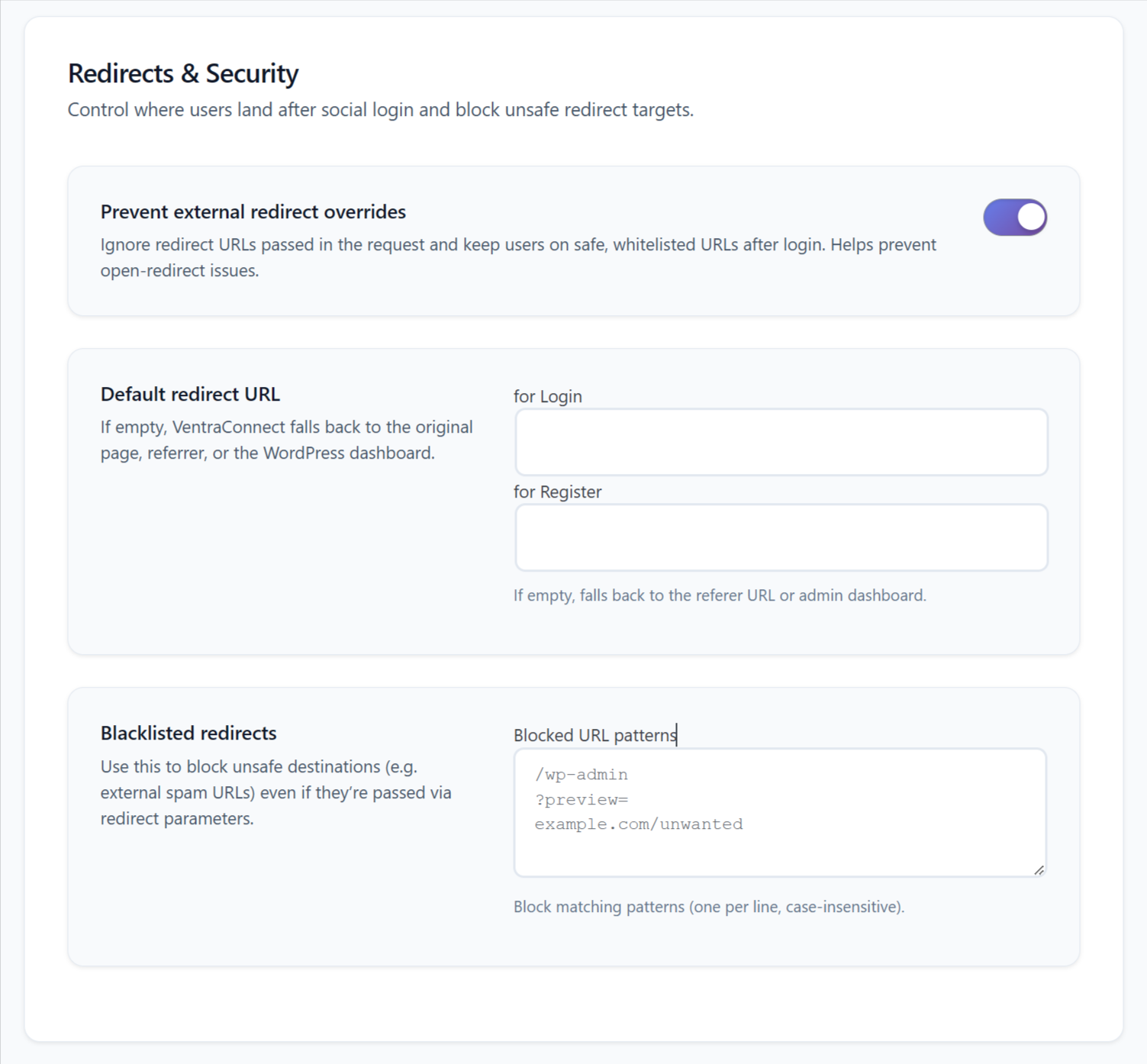
Keep users on safe pages after login and avoid nasty open-redirect surprises. VentraConnect gives you global rules for where people land after they sign in, plus guardrails against unsafe redirect URLs and spammy destinations.
Safe redirects (global rules)
Prevent external redirect overrides · Free · Pro
Block unsafe redirect_to values in the request and keep users on trusted URLs only. When this is enabled, VentraConnect ignores external redirect parameters and falls back to your safe defaults.
Default redirect URL · Free · Pro
Set a global “after login” and “after register” destination – for example a profile page, dashboard, or welcome page. If it’s left empty, VentraConnect falls back to the original page, referer, or the WordPress dashboard.
Redirect blocklist · Free · Pro
Maintain a simple list of blocked URL patterns (one per line). Any redirect matching one of these patterns is stopped, even if it’s buried inside query parameters.
Per-method overrides for Magic Link & OTP · Pro
Give Magic Link and Email OTP their own redirect behavior – return users to the same page, send them to the homepage, or route them to a custom URL independent of normal Social Login.
Signup & account rules
Control new account creation on core forms · Free · Pro
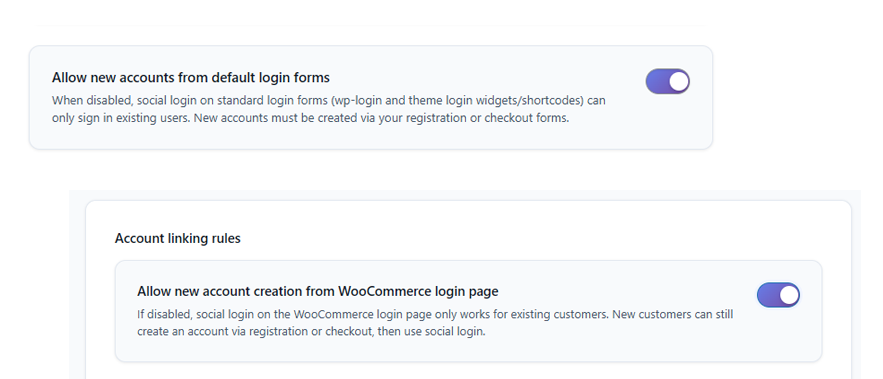
Decide whether new users can register directly from the standard WordPress login/register forms. Turn this off to let only existing users log in with Social Login, Magic Link, or OTP and push new signups through your main registration flow.
WooCommerce account rules · Pro
Choose whether checkout and account pages can create new customers via social login, or if social login is restricted to existing accounts only. Optional “Prevent unlinking” keeps store accounts tied to an active social profile so customers can’t accidentally break their login.
Comment-only access control · Pro
For sites that care about discussion quality, require users to authenticate via Social Login, Magic Link, or OTP before posting a comment – while still respecting your global redirect rules.
Privacy & data consent · Free · Pro
Confirm that your privacy policy explains what social data you collect (name, email, avatar, profile URL). VentraConnect surfaces a simple “I’ve updated my privacy policy” checklist in the settings, and all other privacy details stay in your policy – not hidden inside the plugin.
Analytics & diagnostics
See how people are logging in and get the tools you need to troubleshoot issues fast. VentraConnect tracks login activity per method, highlights top providers, and gives you health checks and diagnostics you can copy straight into a support ticket.
Analytics dashboard
Get a high-level view of how logins are performing over time:
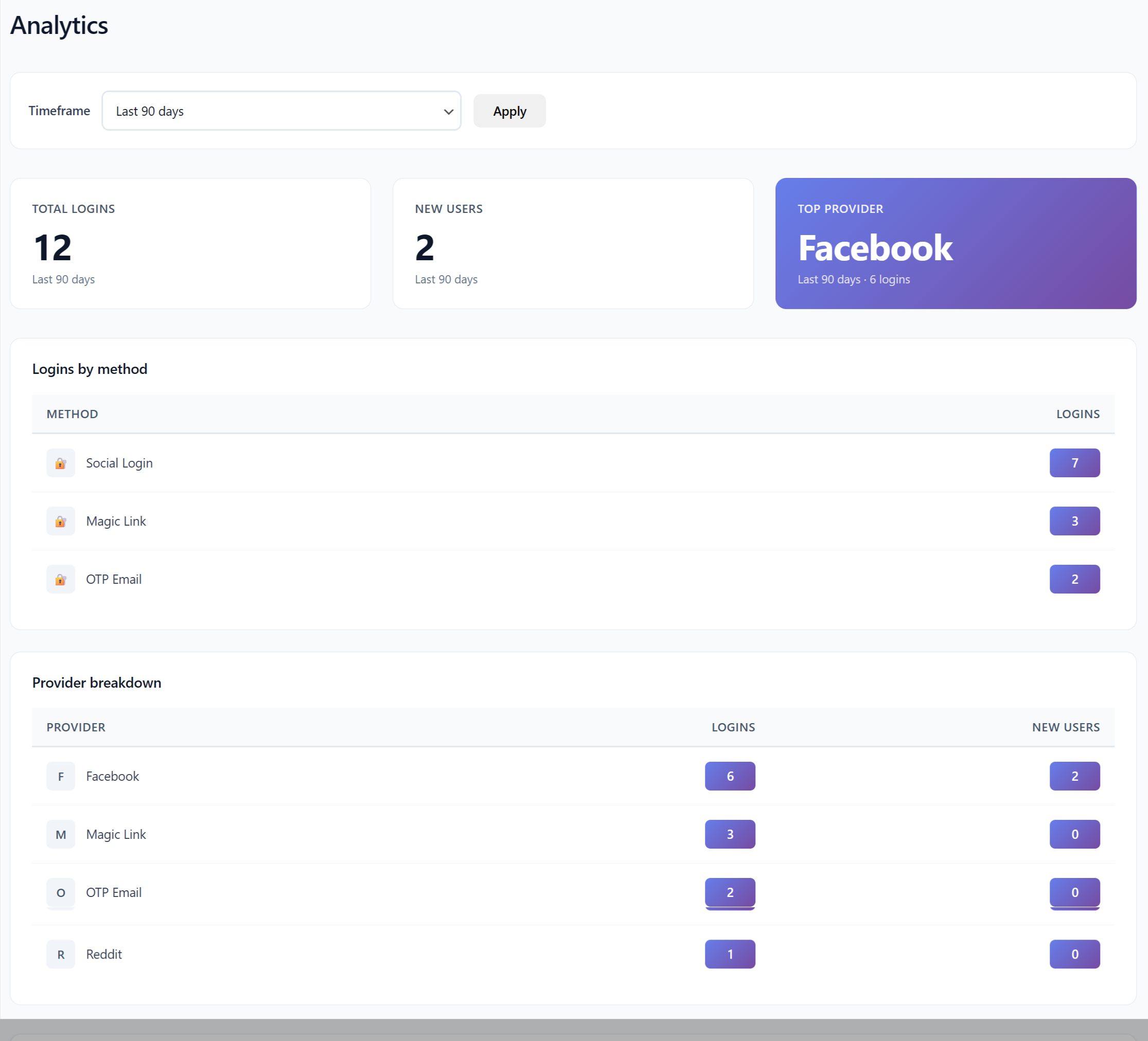
Total logins & new users – see how many logins and new accounts you’ve had in the selected timeframe (e.g. last 7 / 30 / 90 days).
Top provider spotlight – quickly see which provider sends you the most logins (e.g. “Facebook – 6 logins in the last 30 days”).
Logins by method – compare Social Login, Magic Link, and Email OTP side by side so you can see which login method your users actually prefer.
Provider breakdown – see per-provider counts for logins and new users (Google, Facebook, X, Discord, etc.) to understand where sign-ups are coming from.
Timeframe selector – switch between different date ranges without changing any settings.
Configurable data retention – pick how long aggregated analytics data is kept (for example, 3 months) and let old rows be removed automatically.
Debug log (per-login events)
When something goes wrong, you don’t want to guess:
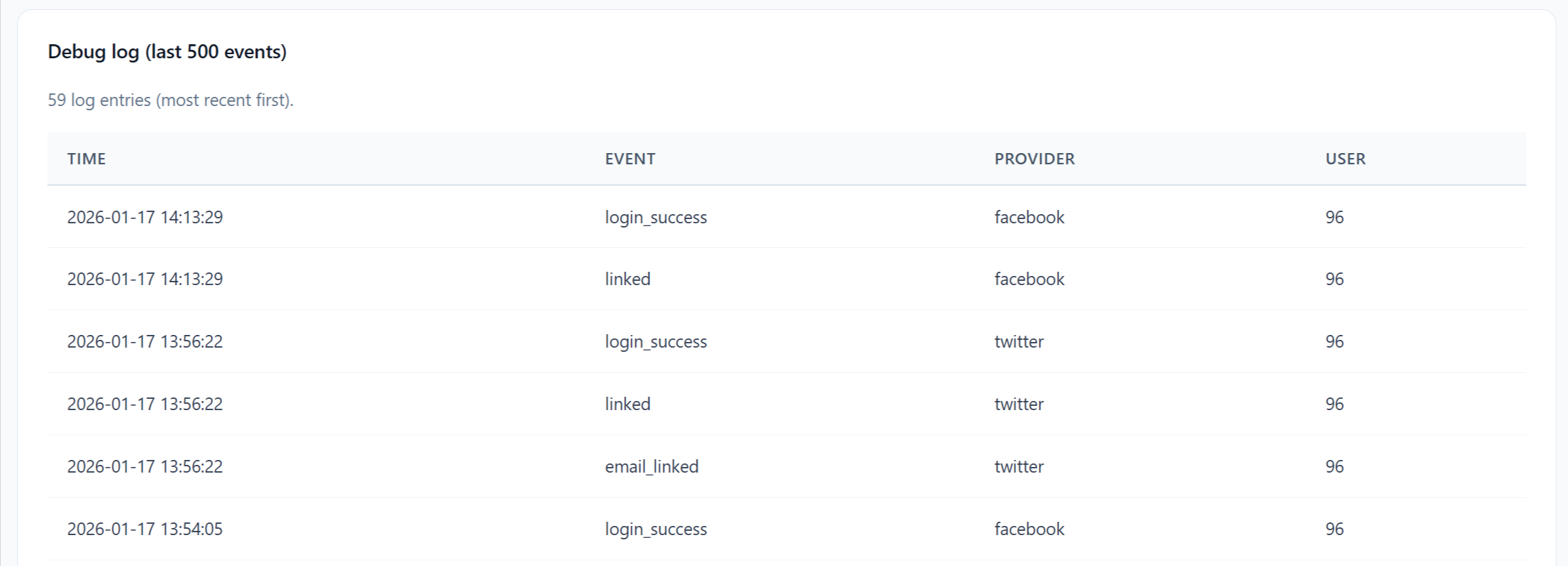
Rolling log of recent events – see the most recent login events (successes, failures, and provider “linked” actions) with time, provider, and user ID.
Method-aware entries – quickly tell whether an event came from Social Login, Magic Link, or Email OTP at a glance.
Error-ready for support – copy event details to include in a support request when a particular provider is misbehaving.
(This is the “Debug log (last 500 events)” area at the bottom of Analytics.)
Health overview & tools
VentraConnect also ships with a diagnostics panel so you can confirm your environment is ready:
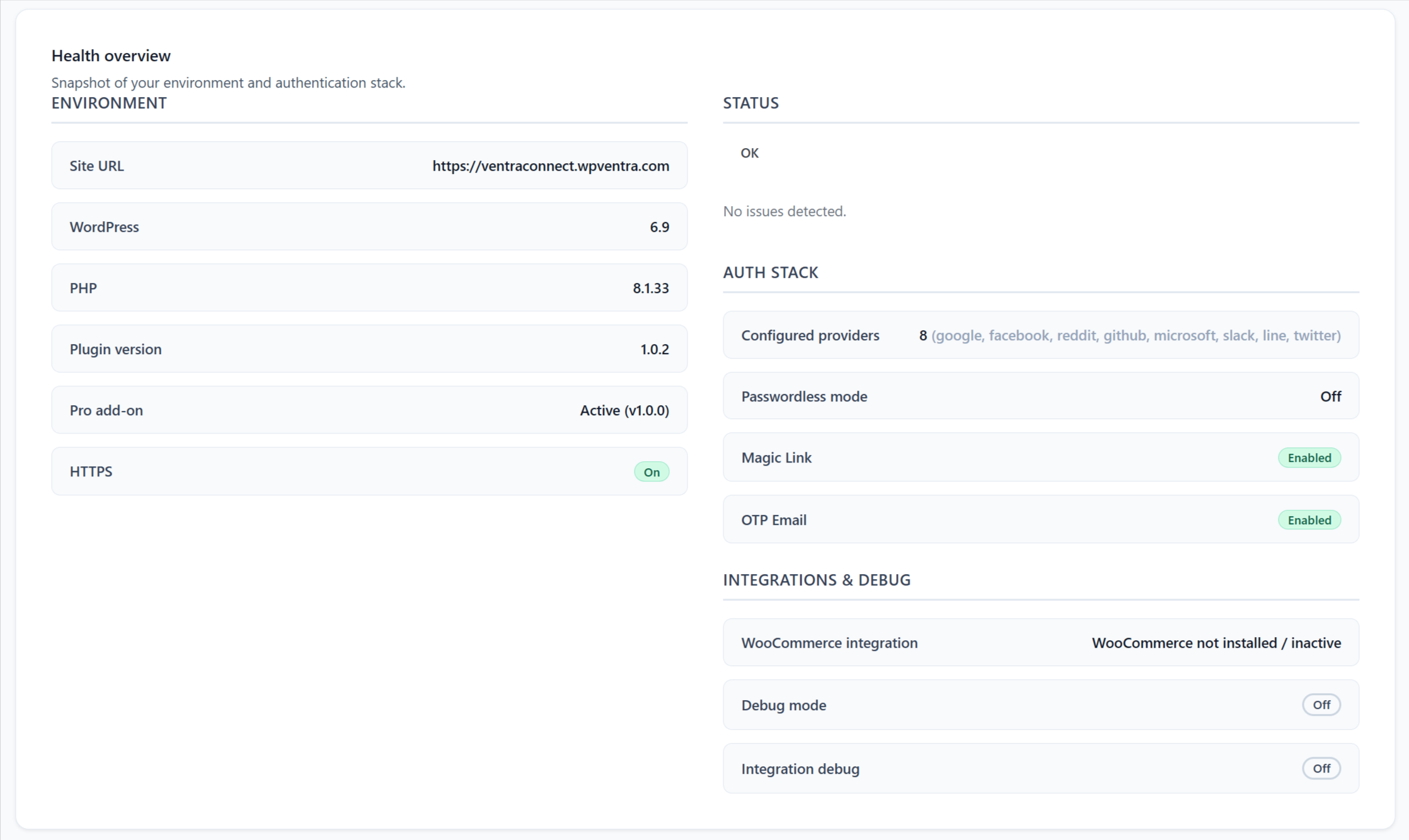
Environment snapshot – see WordPress, PHP, plugin version, HTTPS status, and whether the Pro add-on is active, all in one place.
Auth stack summary – quickly confirm which login methods are active (Social Login, Passwordless mode, Magic Link, Email OTP) and whether WooCommerce integration is enabled.
Tools & self-tests – run quick checks for external HTTP calls, options storage, and mail availability without touching code.
Integration detection (Pro) – view installed versions and connection status for supported plugins like WooCommerce, MemberPress, LearnDash, and more.
Copy-paste diagnostics blob – generate a single diagnostics text block you can paste into a support ticket so you (or your developer) don’t have to hunt for environment details.
For site builders & developers
VentraConnect is built to fit into real projects – page builders, custom templates, and complex stacks – without forcing you into a new login page or custom theme.
Shortcodes & template usage
Drop login methods anywhere you need them:
Main social login shortcode – use the primary shortcode to render all active providers, or a subset, inside pages, widgets, or block-based layouts.
Provider control – limit output to specific providers (for example, only Google + Facebook) when a form or page needs a smaller set of options.
Redirect control – override where users land after login with shortcode attributes, instead of editing global settings.
Works with page builders – place buttons inside Gutenberg, Elementor, or any builder that supports WordPress shortcodes – no custom widgets required.
(Use the Settings → “Shortcodes & Template Usage” screenshot here, cropped tight around the shortcode box + examples.)
Context-aware placement for complex builds
Fine-tune layout without hacking templates:
Per-location placement – choose where buttons appear on core forms (login, register, checkout, comments) from the settings UI instead of editing PHP.
Plugin-aware shortcodes – when you need more control, use the integration shortcodes shown in each panel (WooCommerce, MemberPress, LearnDash, etc.) to place login buttons exactly where your design needs them.
Safe defaults – if you never touch shortcodes, buttons still appear automatically in sensible locations based on your integration settings.
Debug mode & integration debug
See what’s happening without breaking production:
Debug mode (Free) – logs key errors to the PHP error log and surfaces extra details in admin notices so you can spot misconfigured providers or theme conflicts.
Integration debug (Pro) – enable deeper logging for WooCommerce and other integrations from the Diagnostics & Tools screen when a specific stack is acting up.
Copy-paste diagnostics – generate a single diagnostics blob with environment info, active integrations, and status flags you can paste into a support ticket or send to a developer.
(Use a Settings screenshot showing “Debug mode” + a cropped Diagnostics & Tools shot showing “Integration debug” and the diagnostics blob.)
Built for long-term projects
No theme lock-in – VentraConnect hooks into standard WordPress forms and popular plugins, so you can change themes or builders without re-doing your login system.
Safe to experiment – you can toggle login methods, placements, and debug options from the admin UI; there’s no need to ship risky code changes just to test a layout.
Supported platforms (and growing)