
WordPress Login Plugin Features:
Passkeys, Social Login, Magic Link & Email OTP
VentraConnect is a self-hosted WordPress authentication plugin that combines native Passkeys, Social Login with 15+ providers, Magic Link, and Email OTP in one login system. The free plugin supports standard WordPress login, registration, profile, and shortcode-based flows. VentraConnect Pro extends those methods into supported WooCommerce, membership, LMS, community, comment, and custom-layout experiences.
Features are labeled as Free, Pro, or Free · Pro where both tiers include something.
Table of Contents

Login methods
Free · Pro
Passkeys, Social Login, Magic Link and Email OTP in one unified WordPress login system, with standard password login still available where enabled.

Passwords Phaseout
Pro
Decide how far you want to phase out passwords. Use Social Login, Passkeys, Magic Link, and Email OTP as primary login methods while keeping safer fallback access for admins and edge cases.
Inline passwordless forms
Pro
Embed actual Magic Link and Email OTP forms directly inside pages, Elementor popups, account dropdowns and custom login layouts – no extra modal step.

Works across account stack
Pro
Extend VentraConnect into WooCommerce, membership, LMS, comments, and other account-heavy WordPress flows where login friction hurts conversions.

Analytics & diagnostics
Free · Pro
Track login activity, review method usage, troubleshoot provider issues and use diagnostics to confirm setup, redirects and integration behavior.

For site builders & developers
Free · Pro
Use main shortcode buttons, Pro inline forms, scoped CSS classes, diagnostics and integration-aware placement for custom WordPress builds.
Login methods
Free · Pro
Give users flexible ways to sign in: native Passkeys, Social Login, Magic Link, or Email OTP. Enable the methods that fit your site, keep passwords available where needed, or phase them out gradually with Pro.
Passkeys — passwordless sign-in built into WordPress
Free · Pro
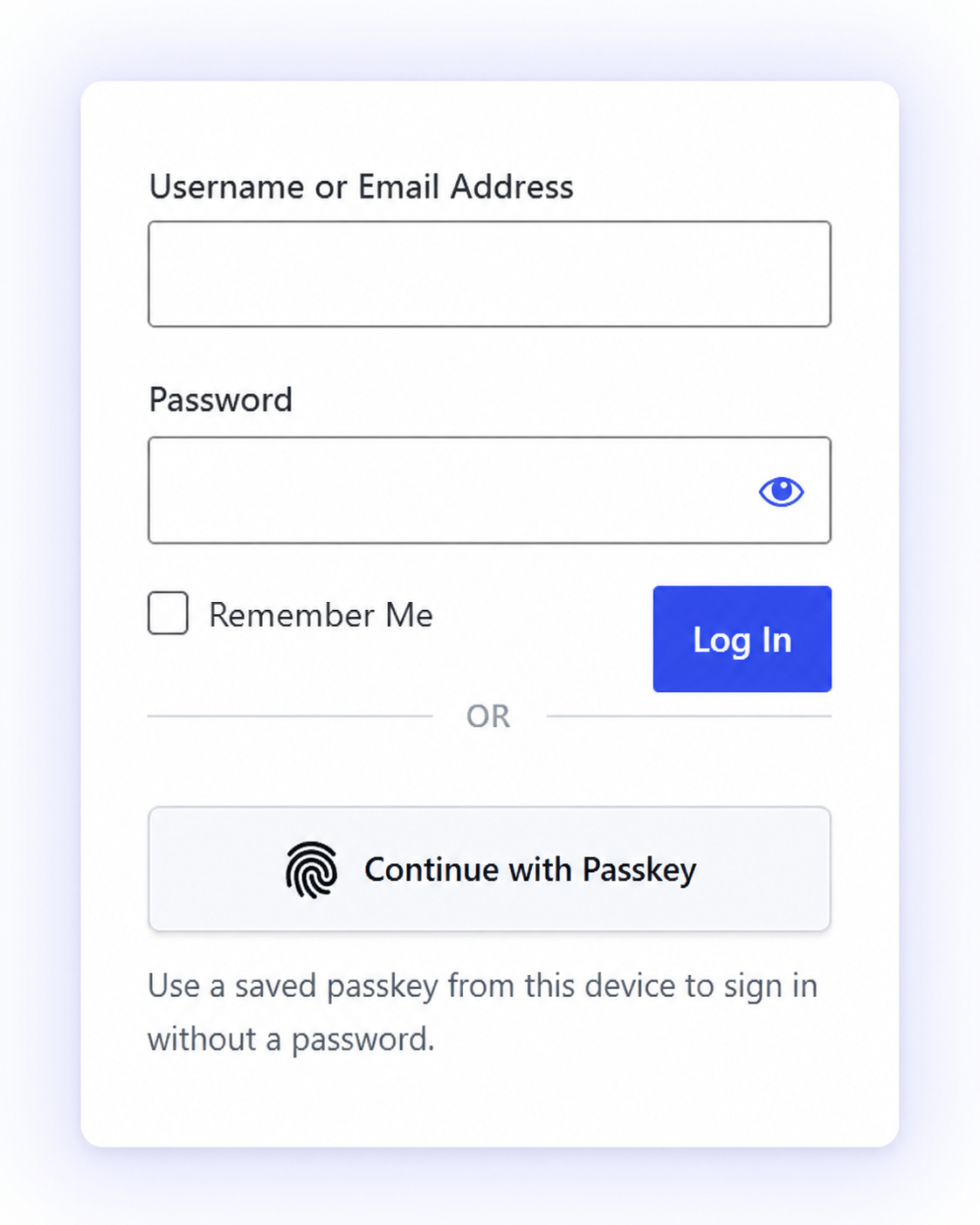
Passkeys let users sign in securely with Face ID, Touch ID, Windows Hello, device PINs, or supported security keys instead of remembering a password.
What Free includes:
- Native WordPress login and registration — let users create and use Passkeys on supported standard WordPress login and registration flows.
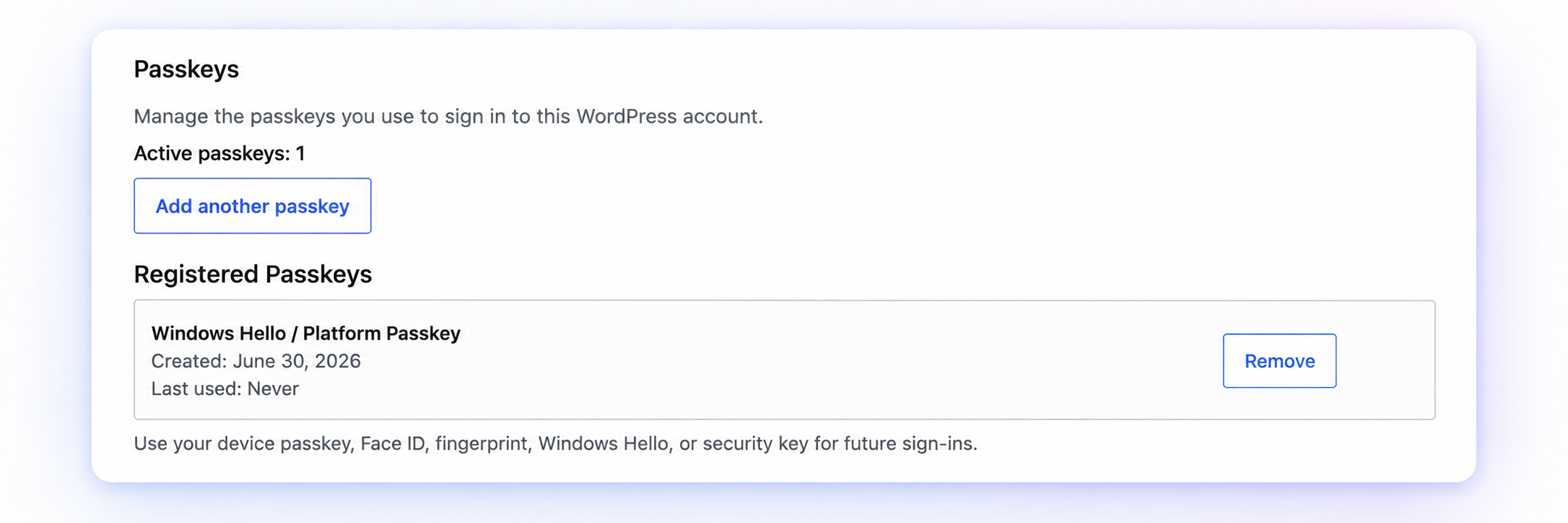
- Profile Passkey management — users can add or remove Passkeys from their WordPress profile.
- Shortcode support — include Passkey sign-in in standard VentraConnect shortcode-based login forms.
- Secure WebAuthn authentication — uses browser and device-supported Passkey technology rather than storing a reusable password.
- Existing account support — returning users can add a Passkey to an existing WordPress account and use it for future sign-ins.
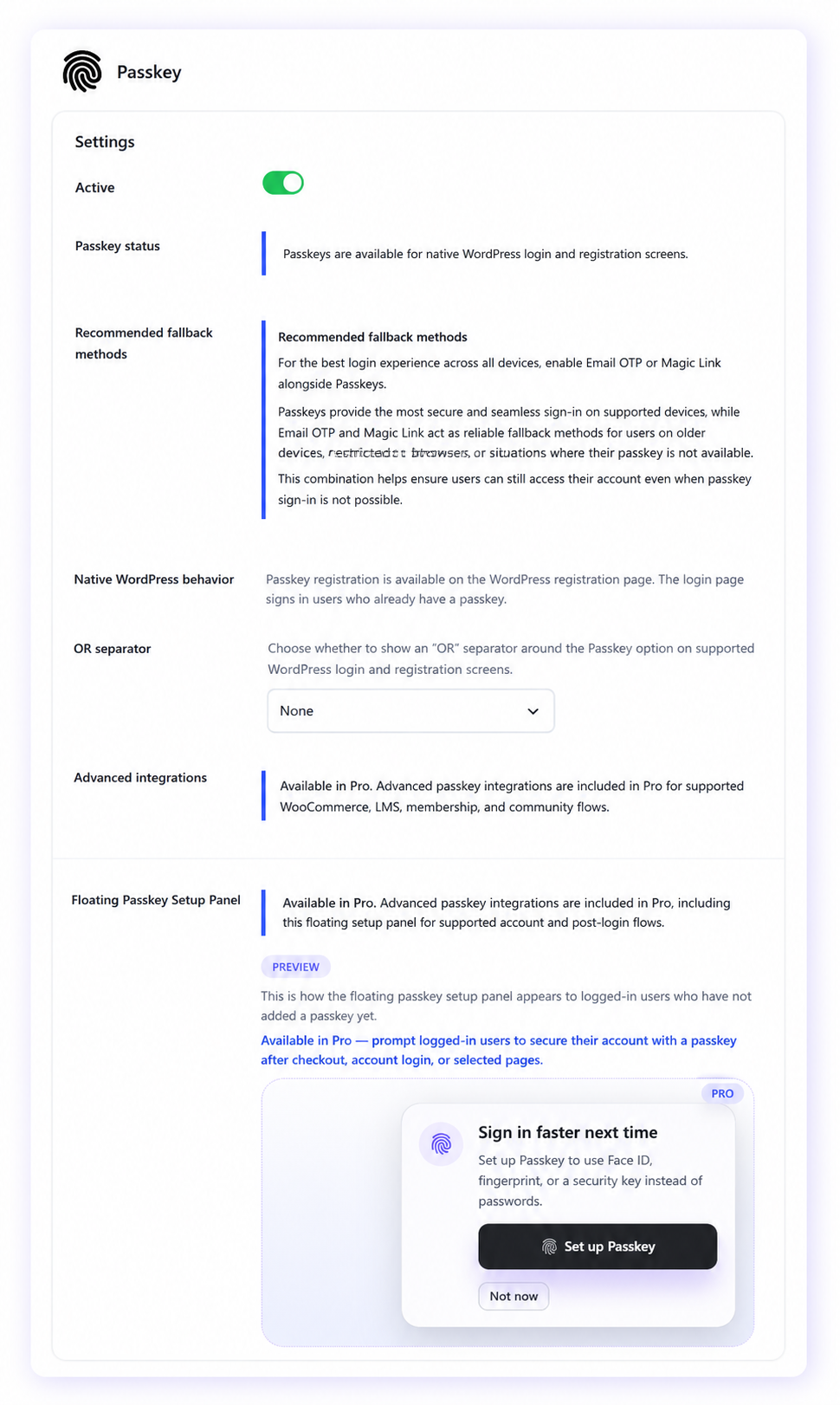
- Passkey activity visibility — see Passkey usage and account details from the WordPress admin area.
What Pro adds:
- WooCommerce Passkey placements — supported login, checkout, registration, My Account, and post-purchase flows.
- Membership and community integrations — supported Passkey placements for MemberPress, Paid Memberships Pro, Paid Membership Subscriptions, Ultimate Member, BuddyPress, and BuddyBoss.
- LMS integrations — supported Passkey placements for LearnDash, LearnPress, LifterLMS, and Tutor LMS.
- Advanced login placement controls — use Passkeys alongside other VentraConnect methods on supported third-party integration surfaces.
- Floating Passkey setup panel — prompt logged-in users who have not added a Passkey to secure their account after supported checkout, account-login, and selected post-login flows.
- Passwords Phaseout compatibility — guide users toward passwordless sign-in while keeping controlled fallback paths where needed.
Social Login - 15+ providers
Free · Pro
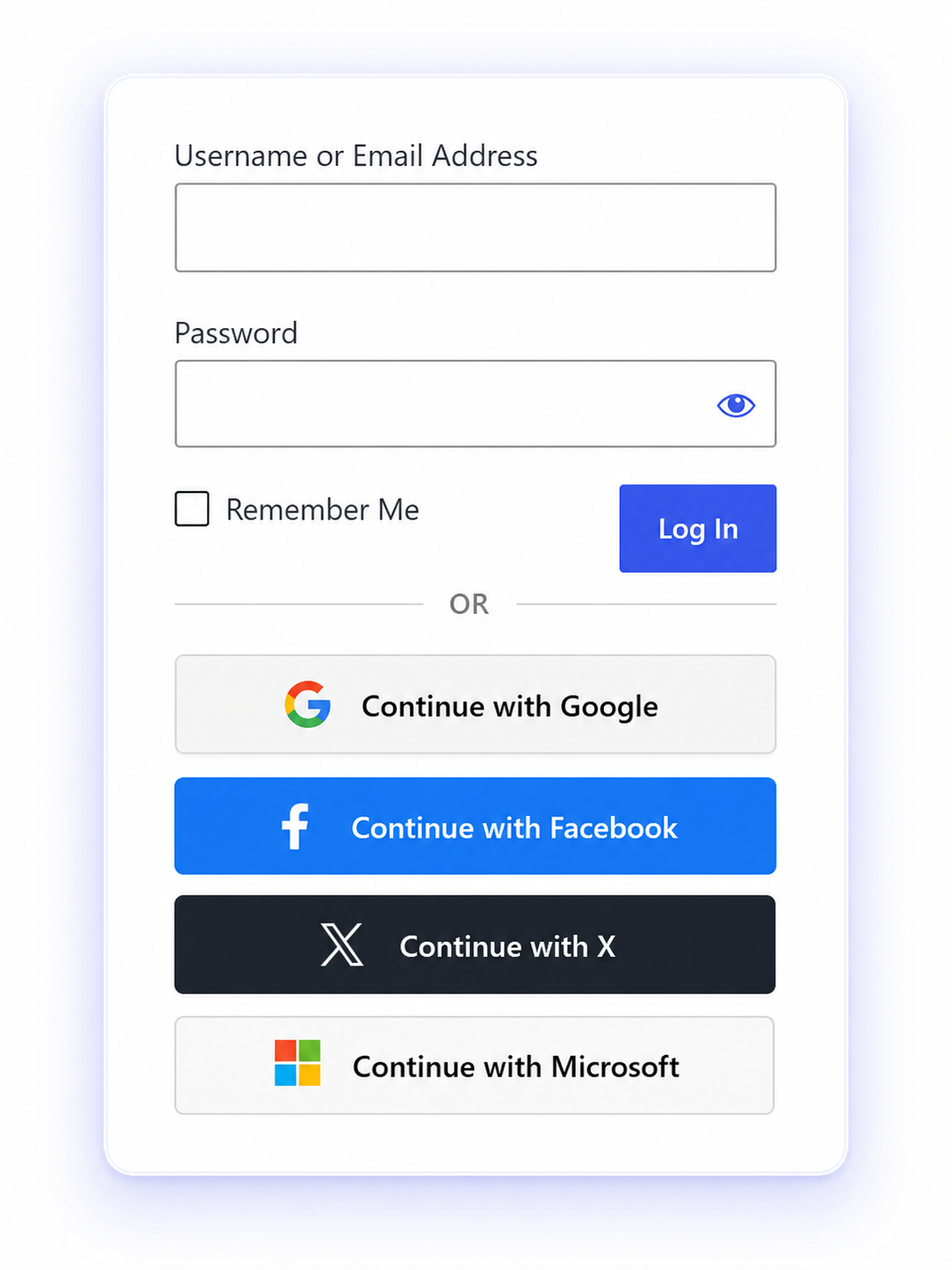
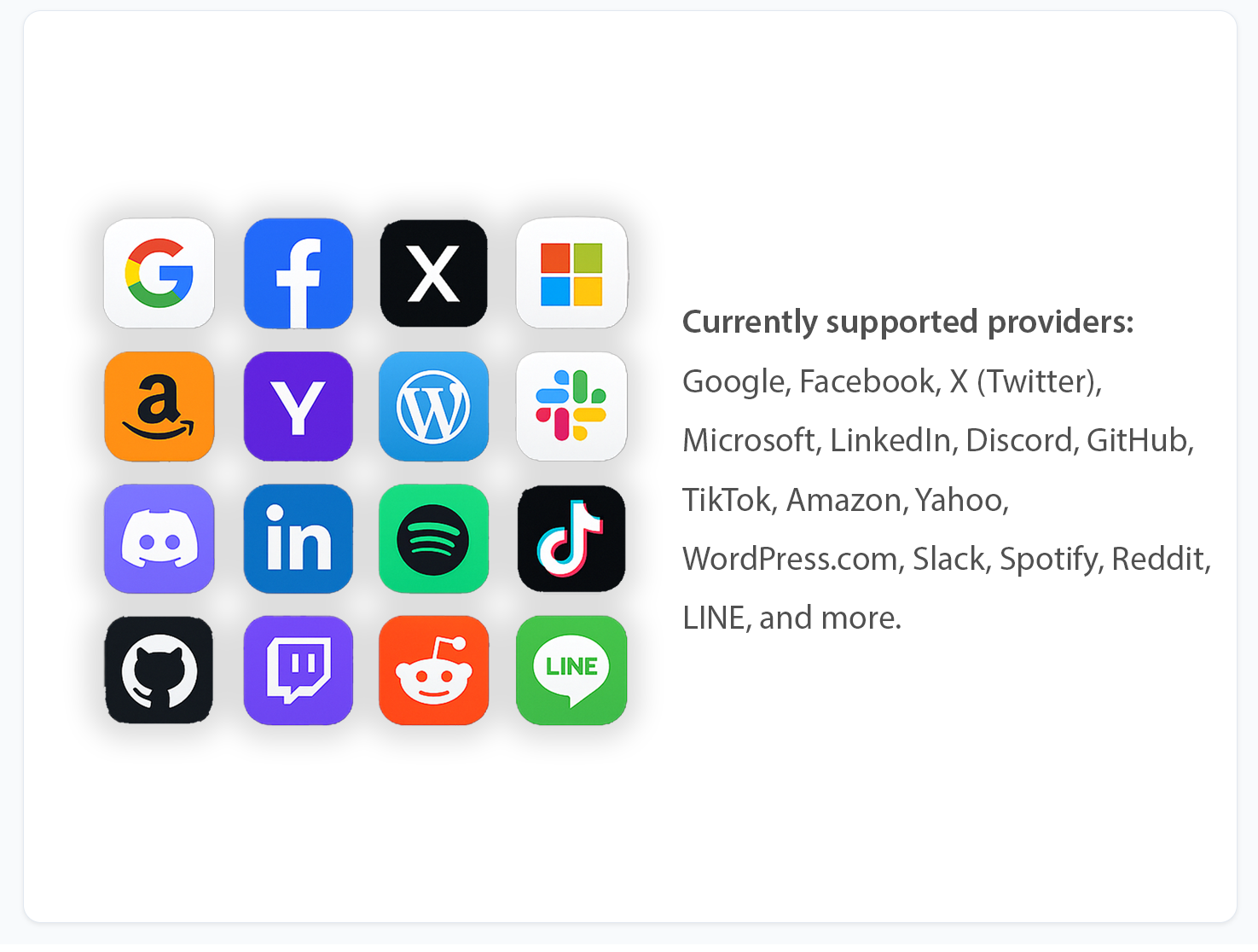
Let users sign in with Google, Facebook, X, Microsoft, Discord, and more. Social Login works out of the box in the free plugin for standard WordPress flows, while Pro extends it into supported WooCommerce, membership, LMS, community, comments, and other integration surfaces.
What Free includes:
- 15+ social providers – enable or disable each provider from a single “Login methods” panel.
- WordPress login & register – add social buttons on the standard
wp-login.phpand registration screens.
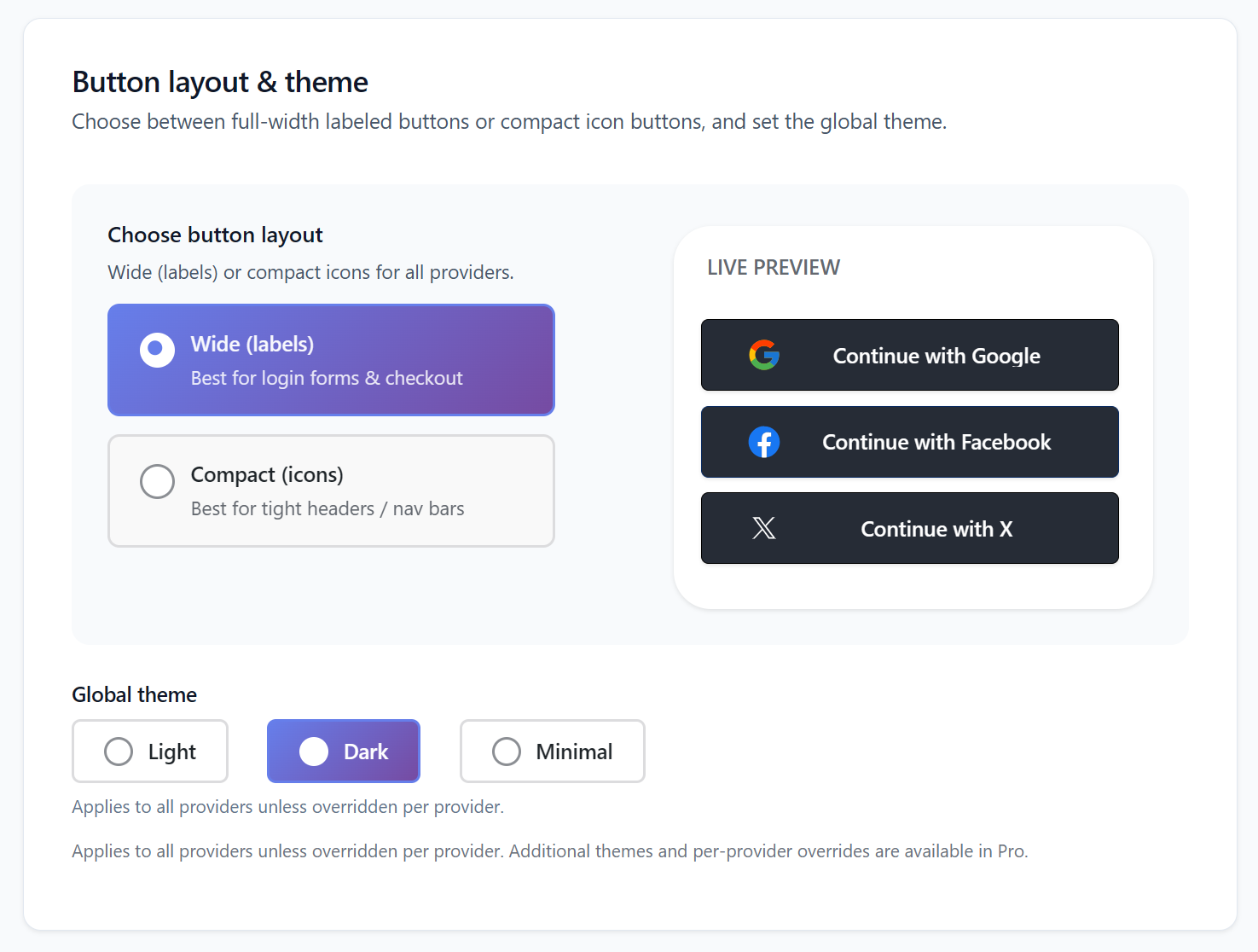
- Global button layout – choose between wide labeled buttons or compact icon-only buttons for all providers.
- Global themes Light, Dark, or Minimal styles that apply across every provider.
- Provider diagnostics – test each provider with Verify settings and Run diagnostics right from its settings page.
- Basic profile sync — pull avatar, display name, first/last name, and email to fill in missing user data without overwriting existing fields.
What Pro adds:
- Advanced integration placements — show Social Login on supported WooCommerce, membership, community, LMS, comment, and other third-party login and registration surfaces.
- WooCommerce support — add Social Login to supported WooCommerce login, registration, My Account, checkout, and account-related flows.
- Membership and community integrations — support Social Login across MemberPress, Paid Memberships Pro, Paid Membership Subscriptions, Ultimate Member, BuddyPress, and BuddyBoss login and registration experiences.
- LMS integrations — support Social Login across LearnDash, LearnPress, LifterLMS, and Tutor LMS student login and registration flows.
- Comments integration — let supported visitors sign in with a social account before commenting instead of creating or remembering a separate password.
- Per-provider button styles — override the global layout and theme for individual providers and customise button text.
- Advanced sync policies — choose per field whether to never update, fill blanks only, or always overwrite with fresh provider profile data.
- WooCommerce field mapping — map selected social-profile fields, such as name or location, to WooCommerce billing fields where relevant.
- Bulk resync jobs — safely update existing customers based on their linked social accounts.
Magic Link - passwordless from the inbox
Free · Pro
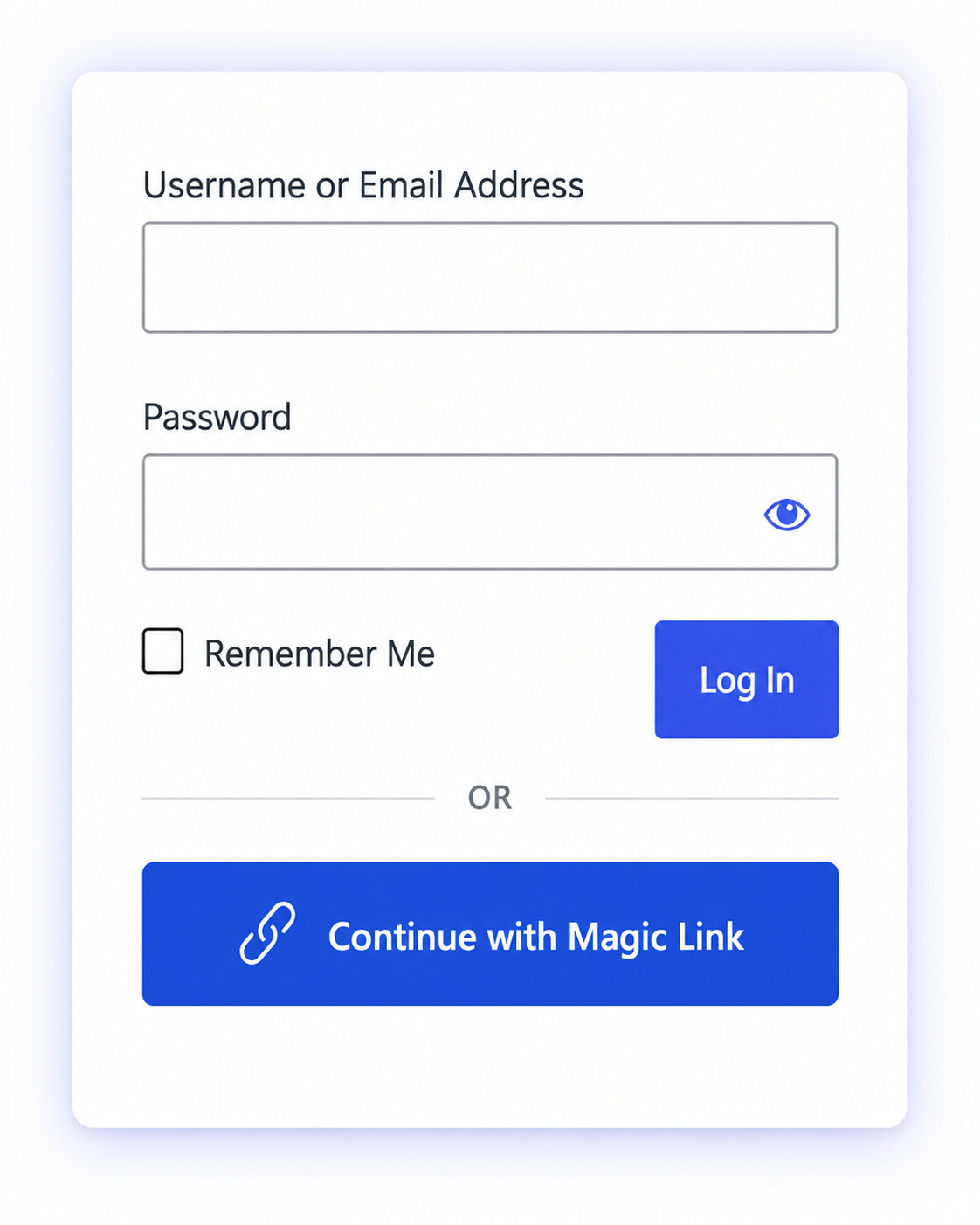
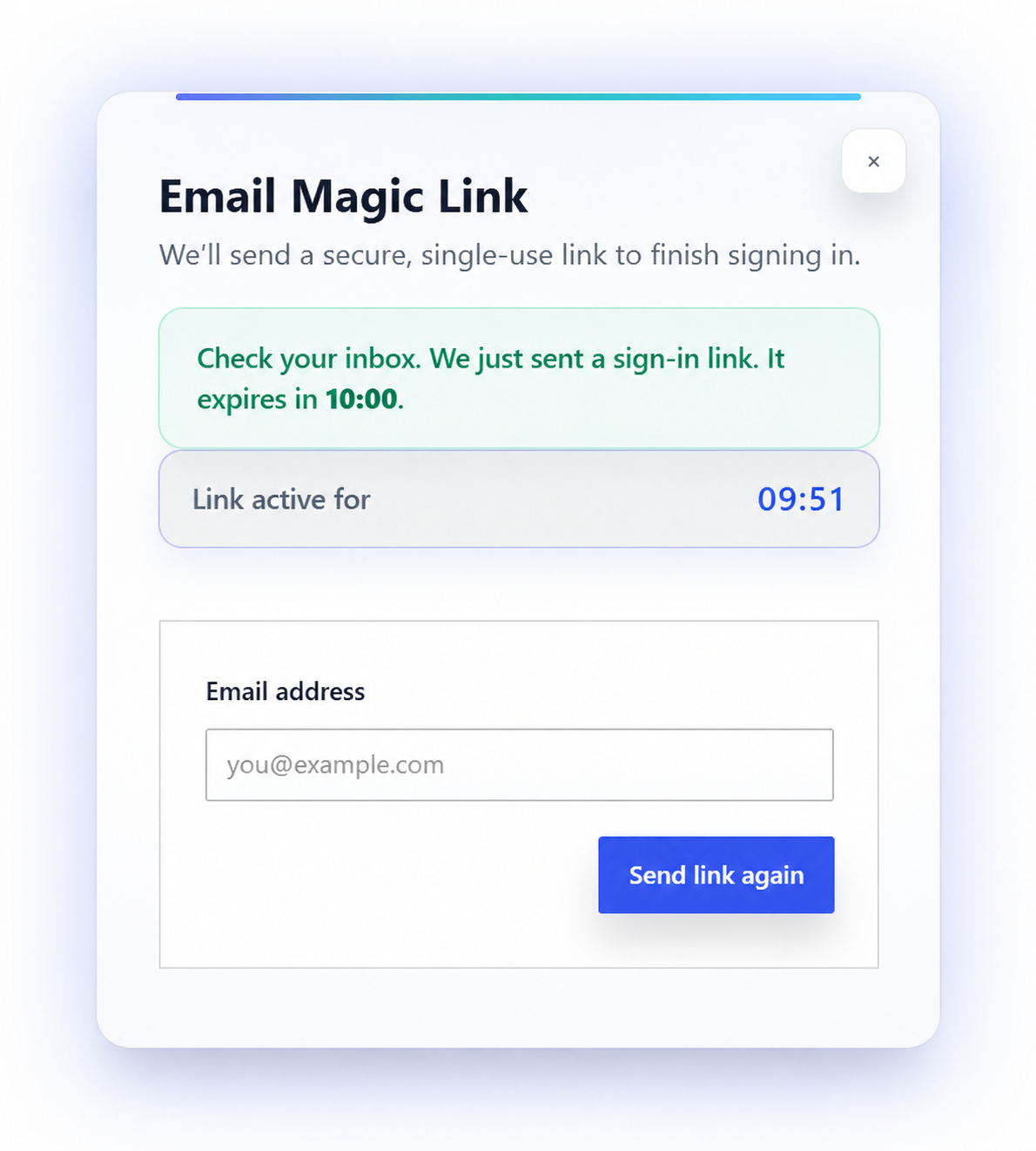
Magic Link lets users log in or sign up with a secure, single-use link sent to their email – no password field required.
What Free includes:
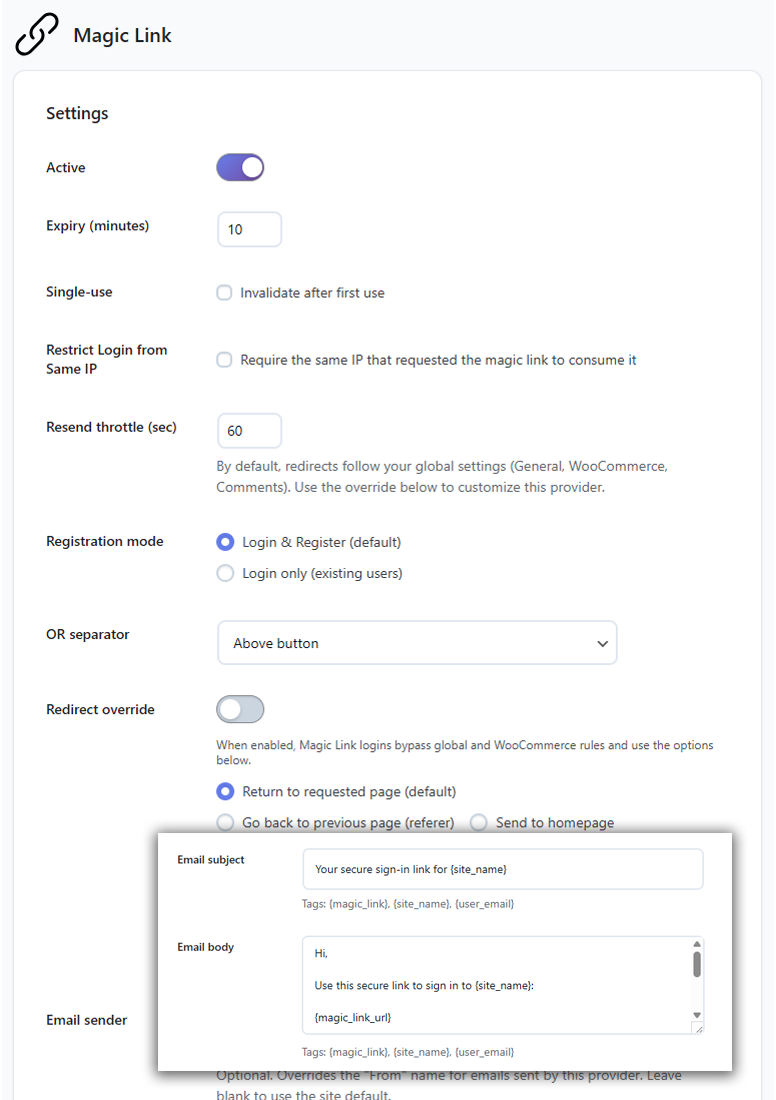
- Email-only login and signup – users enter their email and click a one-time link to access their account.
- Single-use, time-limited links – every link can be used once and expires after a window you control.
- Optional same-IP enforcement – require the same IP to request and consume the link for extra protection.
- Registration mode control – run Magic Link in Login & Register or Login only (existing users) mode.
- Per-method redirects – send Magic Link users back to the page they came from, to the homepage, or to a custom URL.
- Custom email template – edit sender, subject, and body using tags like
{magic_link}{site_name}, and{user_email}.
- Preview & test – adjust the button label and send yourself a test email directly from the settings screen.
What Pro adds:
- Advanced integration placements — show Magic Link on supported WooCommerce, membership, community, LMS, comment, and other third-party login and registration surfaces.
- WooCommerce support — add Magic Link to supported WooCommerce login, registration, My Account, checkout, and account-related flows.
- Membership and community integrations — support Magic Link across MemberPress, Paid Memberships Pro, Paid Membership Subscriptions, Ultimate Member, BuddyPress, and BuddyBoss login and registration experiences.
- LMS integrations — support Magic Link across LearnDash, LearnPress, LifterLMS, and Tutor LMS student login and registration flows.
- Inline Magic Link forms — place a real email field and send-link flow inside Elementor popups, custom pages, account dropdowns, and client layouts.
- Comments integration — let supported visitors request a Magic Link before commenting instead of creating or remembering a separate password.
- Branded authentication emails — add your site logo, brand colour, and custom footer text to Magic Link emails for a more consistent sign-in experience.
- Advanced placement controls — use Magic Link alongside Social Login, Passkeys, and Email OTP on supported third-party integration surfaces.
Email OTP – short codes instead of passwords
Free · Pro
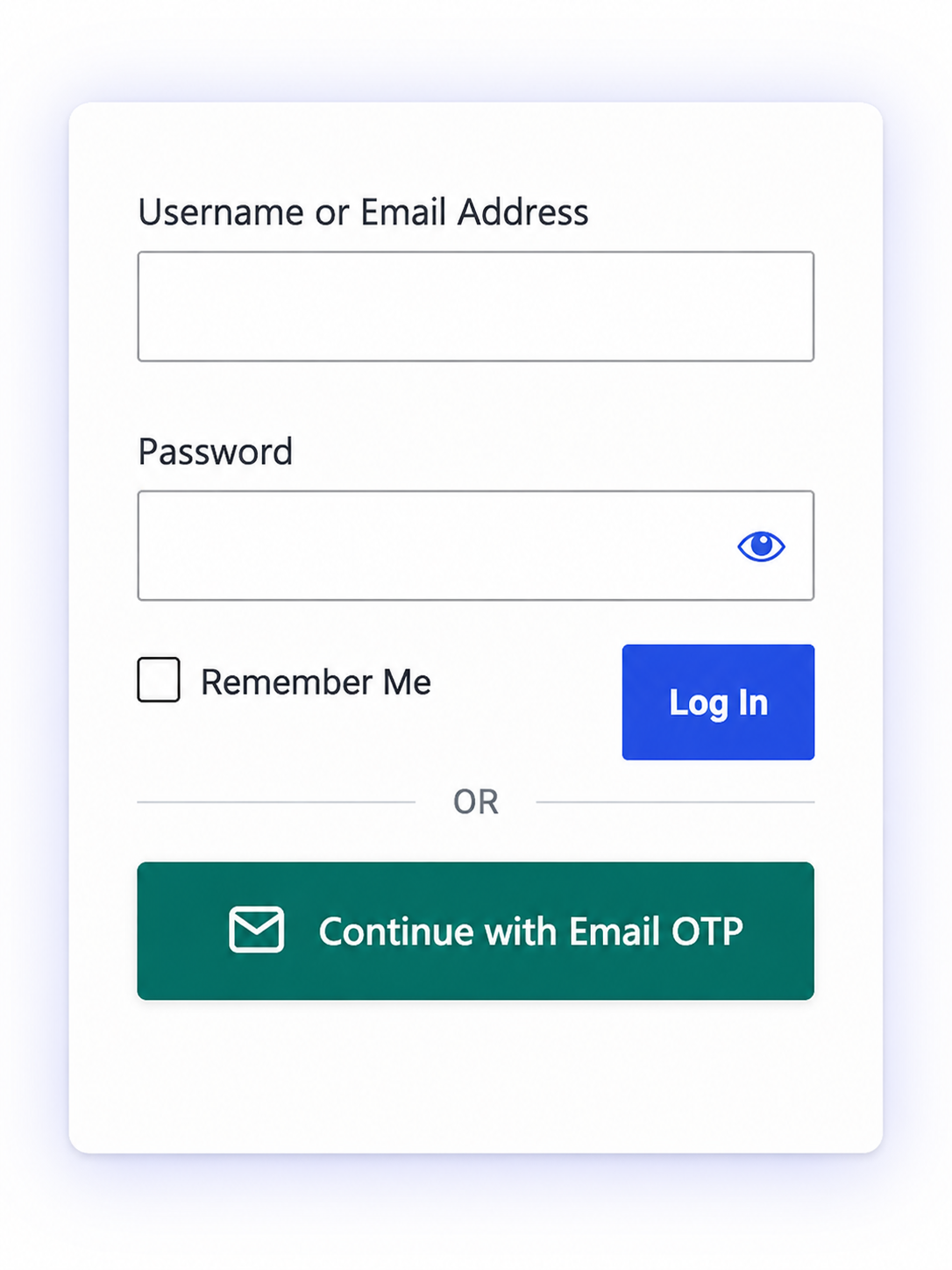
Let users sign in or create an account with a one-time code sent to their email — no password to remember, reset, or type.
What Free includes:
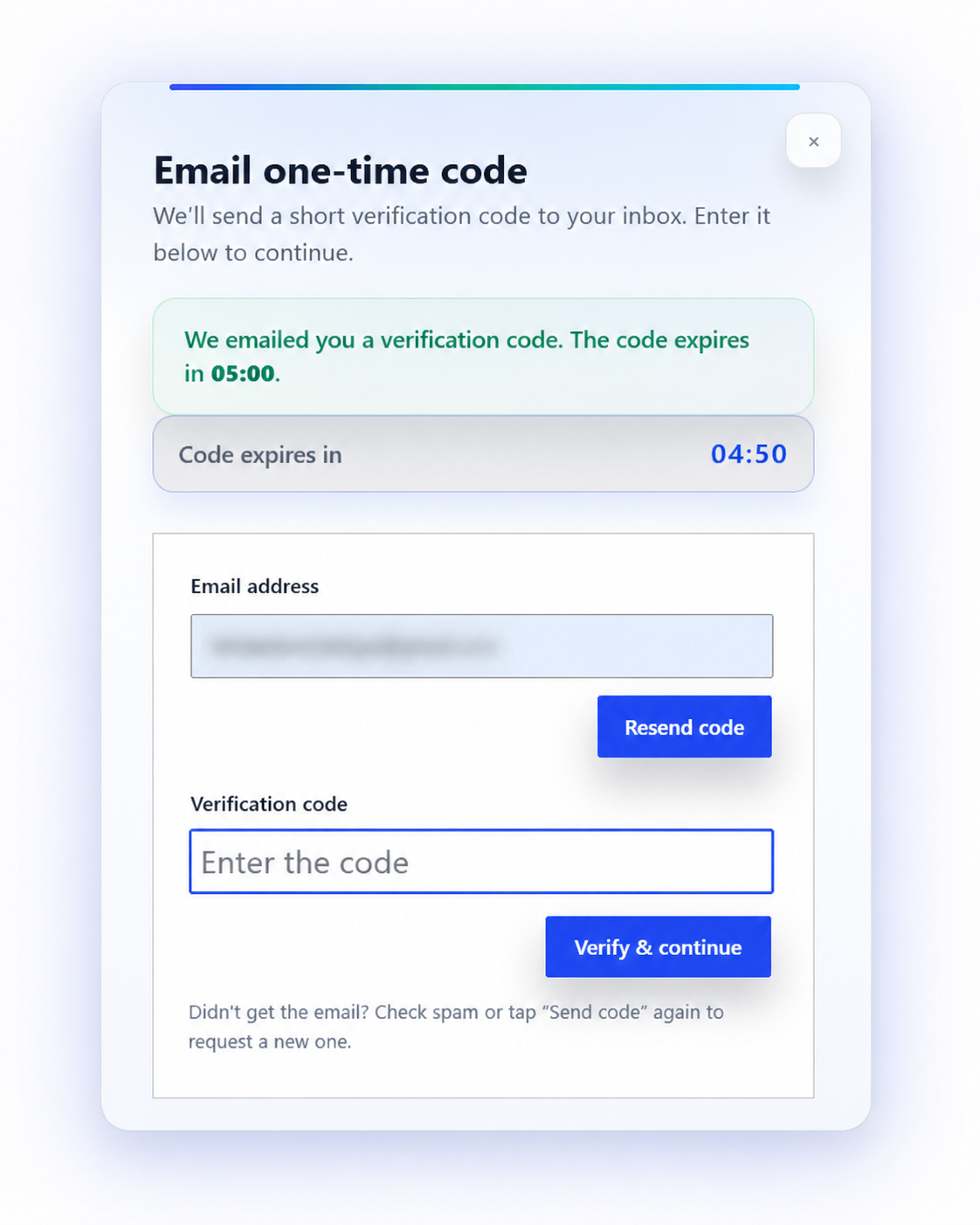
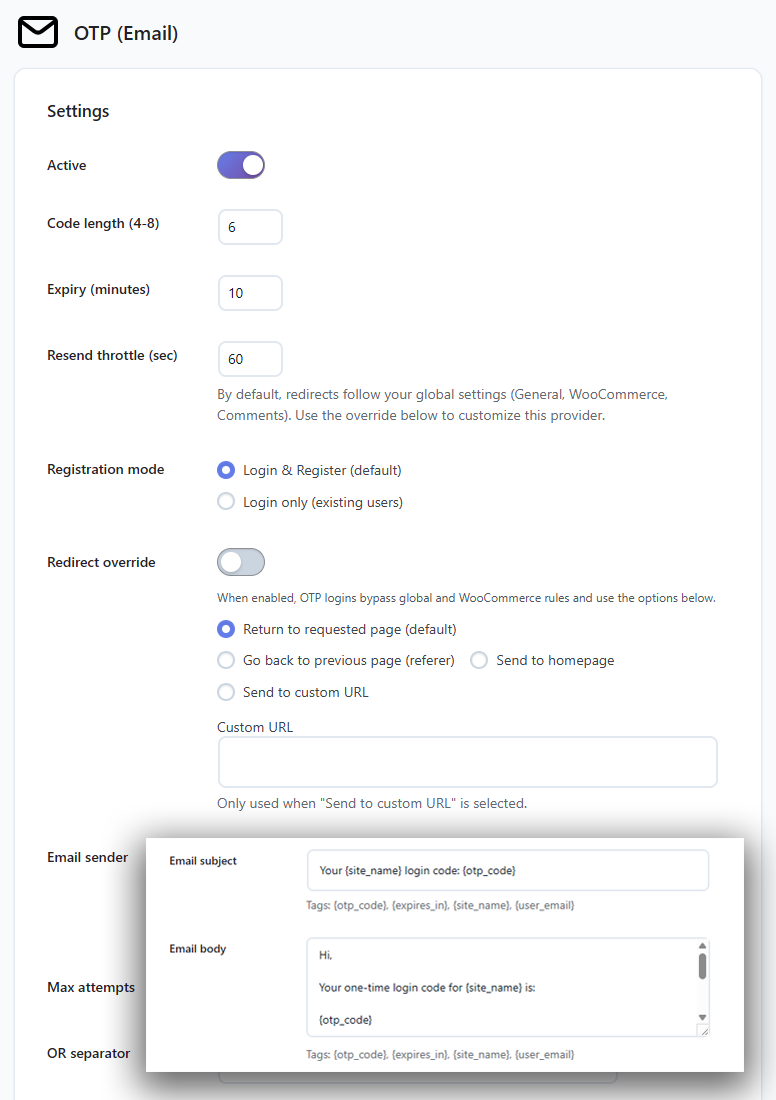
- Login and signup with one-time codes – users enter a 6–8 digit code sent to their email instead of a password.
- Standard WordPress and shortcode flows — use Email OTP on supported WordPress login, registration, and standard VentraConnect shortcode-based login forms.
- Configurable code length and expiry – decide how many digits the code has and how long it stays valid.
- Resend throttling & attempt limits – set how often a code can be resent and how many attempts are allowed before lockout.
- Registration mode control – choose whether OTP allows new account creation or is limited to existing users.
- Per-method redirects – use the same redirect options as Magic Link, independent of normal Social Login.
- Custom OTP email template – define sender, subject, and body with tags like
{otp_code}and{expires_in}.
- Preview & test – update the button label and send a test OTP email from the admin panel.
What Pro adds:
- Advanced integration placements — show Email OTP on supported WooCommerce, membership, community, LMS, comment, and other third-party login and registration surfaces.
- WooCommerce support — add Email OTP to supported WooCommerce login, registration, My Account, checkout, and account-related flows.
- Membership and community integrations — support Email OTP across MemberPress, Paid Memberships Pro, Paid Membership Subscriptions, Ultimate Member, BuddyPress, and BuddyBoss login and registration experiences.
- LMS integrations — support Email OTP across LearnDash, LearnPress, LifterLMS, and Tutor LMS student login and registration flows.
- Inline Email OTP forms — place a real email field and code-verification flow inside Elementor popups, custom pages, account dropdowns, and client layouts.
- Comments integration — let supported visitors request and verify an Email OTP before commenting instead of creating or remembering a separate password.
- Branded authentication emails — add your site logo, brand colour, and custom footer text to OTP emails for a more consistent sign-in experience.
- Advanced placement controls — use Email OTP alongside Social Login, Passkeys, and Magic Link on supported third-party integration surfaces.
Inline passwordless forms
Pro
Place Magic Link and Email OTP forms directly inside your own layouts — no extra modal step, no custom authentication code, and no separate login plugin needed.
VentraConnect Pro includes dedicated inline shortcodes for sites that need passwordless login inside Elementor popups, account dropdowns, WooCommerce account layouts, membership login pages, LMS screens, landing pages, or fully custom WordPress templates.
What inline forms let you build
Place Magic Link and Email OTP forms directly inside your own layouts instead of forcing users through an extra modal step.
Direct Email OTP forms
Users enter their email, receive a one-time code, enter it in the same form, and log in without leaving the page.
Direct Magic Link forms
Users enter their email and receive a secure sign-in link without opening a separate modal first.
Elementor popup login flows
Place the form inside a popup attached to an account icon, login button, or custom trigger.
Account dropdowns and custom login layouts
Embed passwordless forms where your theme or client design needs them.
Scoped styling hooks
Customize the surrounding layout or target the inline form classes without fighting global plugin styles.
Available inline shortcodes
Use the main VentraConnect shortcode when you want passwordless buttons that open the normal modal flow. Use inline shortcodes when you want the actual Magic Link or Email OTP form embedded directly inside your design.
[ventraconnect_magic_link_form]
[ventraconnect_email_otp_form]
Built on the same passwordless engine
Inline forms do not bypass your existing VentraConnect rules. They use the same login method settings, registration modes, Guardrails, token expiry, rate limits, redirects, WooCommerce/session behavior, and email delivery logic as the standard button/modal flow.
That means if Email OTP is set to Login only, the inline OTP form follows that rule too. If Magic Link has a redirect configured, the inline Magic Link flow uses that existing redirect behavior after login.
Want the full setup details for Magic Link, Email OTP, inline forms, and Passwordless Mode?
Best for
Passwords Phaseout
Pro
Choose how aggressively you want to phase out passwords on your site. Use Passkeys, Social Login, Magic Link, and Email OTP as alternative sign-in methods while keeping a controlled fallback path for admins and edge cases.
How passwordless works
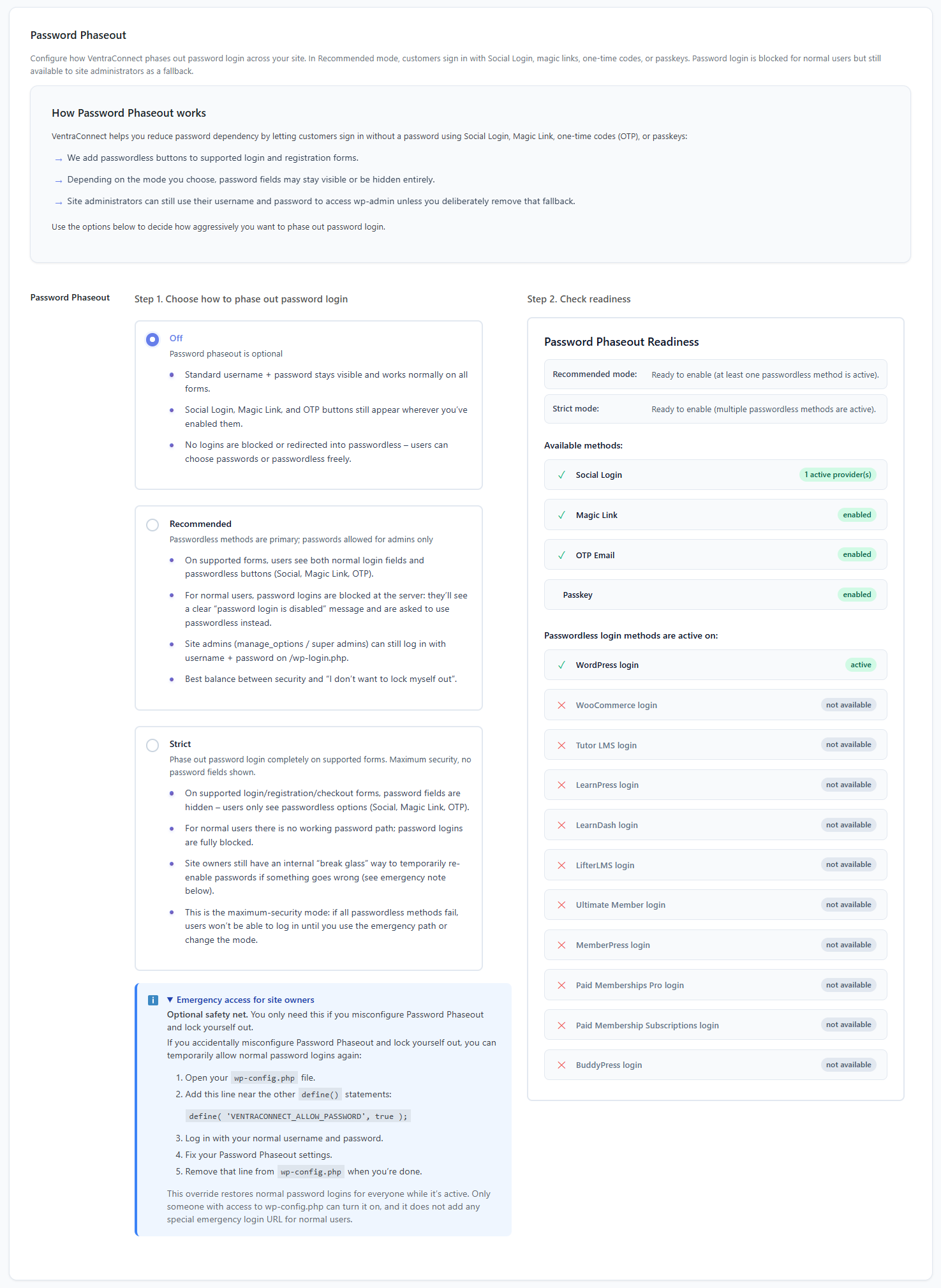
VentraConnect adds passwordless sign-in options to supported login and registration forms. Passwords Phaseout then controls what happens to the traditional username and password fields — keep them visible, block them for normal users, or hide them on supported forms while preserving an emergency recovery path for site owners.
Three modes for phasing out passwords
Off
Passwordless is available but optional.
Standard username + password stay visible on all supported forms.
Passkeys, Social Login, Magic Link, and Email OTP remain available wherever you have enabled them.
No logins are blocked for using passwords – users choose passwordless or passwords freely.
Recommended
Best balance of security and “don’t lock myself out”.
On supported forms, users see both normal login fields and passwordless options such as Passkeys, Social Login, Magic Link, and Email OTP.
For normal users, password logins are blocked at the server for supported forms — they see a clear “password login is disabled” message and are asked to use a passwordless method instead.
Site admins and super admins can still sign in with username + password on wp-login.php.
Strict
Maximum security for supported forms.
Password fields are hidden on supported login, registration, and checkout forms — users see only the enabled passwordless options such as Passkeys, Social Login, Magic Link, and Email OTP.
For normal users there is no working password path — password logins are fully blocked on supported forms.
Site owners still have an internal “break glass” way to temporarily re-enable passwords if something goes wrong.
Readiness & safety nets
Passwordless readiness panel — see at a glance which login areas have at least one enabled passwordless method, including Passkeys, Social Login, Magic Link, or Email OTP, and where passwords are still required.
Per-form control – Passwordless only changes supported login/registration/checkout forms – your admin login path always stays safe.
Emergency access for site owners – built-in “break glass” flow so you can temporarily bring back passwords if you misconfigure a setting.
Works across your stack
Works wherever your users log in
VentraConnect Pro brings Passkeys, Social Login, Magic Link, and Email OTP into the WordPress areas where your users already sign in — WooCommerce, membership plugins, LMS platforms, communities, comments, and custom layouts — without forcing separate login pages or custom code.
WooCommerce stores
Pro
Reduce checkout friction and account-login drop-off by adding Passkeys, Social Login, Magic Link, and Email OTP to supported WooCommerce login, registration, My Account, checkout, and post-purchase flows.
What WooCommerce integration includes:
Enable WooCommerce login methods — activate supported Passkey, Social Login, Magic Link, and Email OTP placements for WooCommerce instead of relying on generic shortcodes.
Login and registration placement— choose where enabled login methods appear on supported WooCommerce login and registration forms: above the form, below the form, or not at all.
Checkout placement options — place enabled login methods at supported points on the checkout page:
very top (above the entire checkout form)
inside the form above customer details
between customer details and order summary
above payment methods
just above the “Place order” button
My Account integration — show supported login methods on WooCommerce account areas, helping returning customers sign in, link social accounts, or add a Passkey where available.
- Checkout Passkey prompts — invite eligible customers to add a Passkey during supported checkout and account flows, helping make their next sign-in faster.
- Post-purchase Passkey setup — show the optional floating Passkey setup panel after supported checkout and selected post-login experiences for customers who have not added a Passkey yet.
Hide login methods for logged-in customers — automatically hide enabled sign-in options when the customer is already signed in.
Custom helper message — add a short line of guidance above enabled login methods, such as “Sign in faster with your preferred method.”
Post-login redirect control — decide where WooCommerce sends customers after supported sign-in, such as staying on the same page, going to My Account, or using a custom URL.
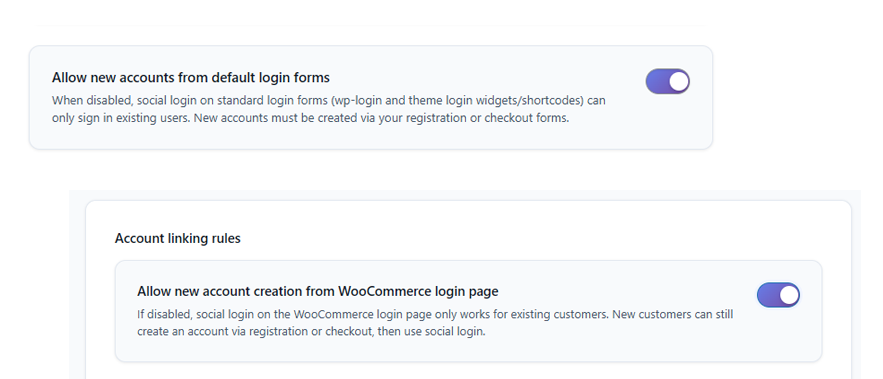
Social account creation rules – choose whether new customers can create an account directly from the WooCommerce login page, or if social login is limited to existing customers only.
Prevent social-account unlinking (optional) – lock social accounts to WooCommerce customers so they can’t disconnect a login that’s tied to an active store account.
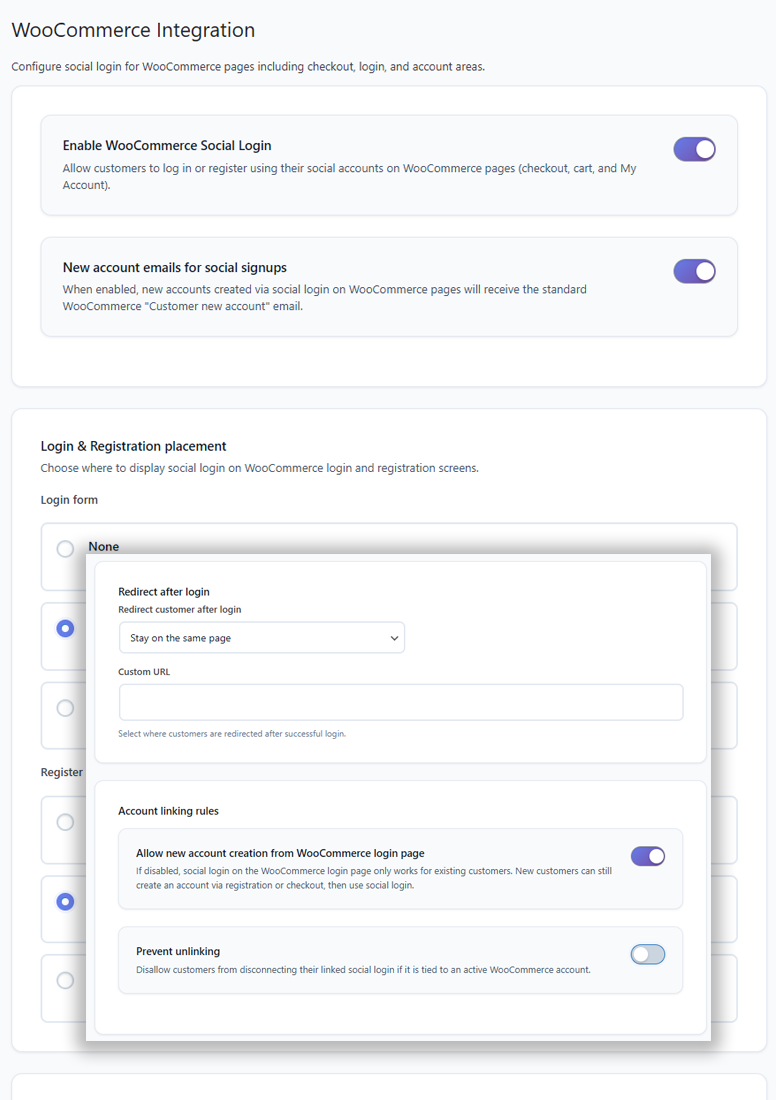

See how VentraConnect brings Passkeys, Social Login, Magic Link, and Email OTP into supported WooCommerce checkout, login, registration, and My Account flows.
Memberships & communities
Pro
Make sign-in and registration easier across supported membership and community plugins. VentraConnect Pro brings Passkeys, Social Login, Magic Link, and Email OTP into MemberPress, Paid Memberships Pro, Paid Membership Subscriptions, Ultimate Member, BuddyPress, and BuddyBoss — without custom templates or theme hacks.
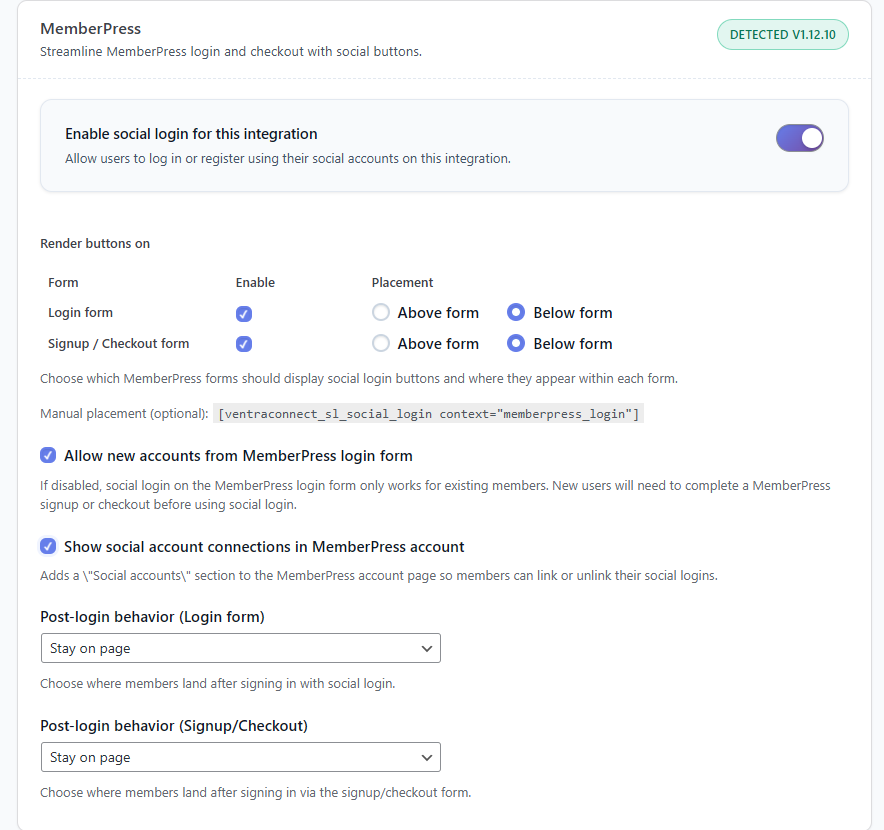
MemberPress example — configure supported VentraConnect login methods across member login, signup, checkout, and account flows.





What membership and community integrations include:
• Per-plugin controls — enable supported VentraConnect login methods separately for MemberPress, Paid Memberships Pro, Paid Membership Subscriptions, Ultimate Member, BuddyPress, and BuddyBoss.
• Form-level placement — choose where enabled login methods appear on supported plugin forms:
- Login forms
- Registration and signup forms
- Checkout or purchase forms, where available
• Above, below, or inline placement — place enabled login methods above the form, below the form, or around submit buttons depending on the integration, without touching code.
• Passkey support — add supported Passkey sign-in and setup flows across membership and community login, registration, account, and selected post-login experiences.
• Floating Passkey setup panel — prompt eligible logged-in members who have not added a Passkey to secure their account after supported account and post-login flows.
• Social account management — add a dedicated Social Accounts area where supported so members can link or unlink their connected social accounts.
• Account-creation rules — choose whether Social Login can create new member accounts directly from supported plugin forms or is limited to existing members.
• Post-login behaviour — choose what happens after supported sign-in, such as staying on the same page, going to a member dashboard or profile, or using another destination.
• Optional shortcodes — place VentraConnect login methods inside custom pages or widgets with context-aware shortcodes when you need more layout control.
Courses & LMS
Pro
Make it easier for learners to sign in, enrol, and return to their courses without fighting passwords. VentraConnect Pro brings Passkeys, Social Login, Magic Link, and Email OTP into supported LearnDash, LearnPress, LifterLMS, and Tutor LMS flows — without template hacks.
What Courses & LMS integrations include:
• Per-LMS controls — enable supported VentraConnect login methods separately for LearnDash, LearnPress, LifterLMS, and Tutor LMS.
• Form-level placement — choose where enabled login methods appear on supported LMS forms:
- Course or site login forms
- Registration and student signup forms
- Checkout, purchase, or enrolment forms where available
• Above, below, or inline placement — place enabled login methods above the form, below the form, or near the main action area depending on the LMS integration, without editing LMS templates.
• Passkey support — add supported Passkey sign-in and setup flows across LMS login, registration, learner account, and selected post-login experiences.
• Floating Passkey setup panel — prompt eligible logged-in learners who have not added a Passkey to secure their account after supported account and post-login flows.
• Social account management — add a dedicated Social Accounts area where supported so learners can link or unlink connected social accounts.
• Student account-creation rules — choose whether Social Login can create new learner accounts directly from supported LMS login and registration forms or is limited to existing students.
• Post-login behaviour — choose where learners go after supported sign-in, such as staying on the same page, returning to the course, or going to a learner dashboard.
• Checkout-safe flows — keep orders, memberships, and enrolments tied to the correct WordPress user while allowing supported passwordless sign-in methods.
• Optional shortcodes — place VentraConnect login methods manually inside custom course pages, sales pages, or LMS widgets when you need more layout control.
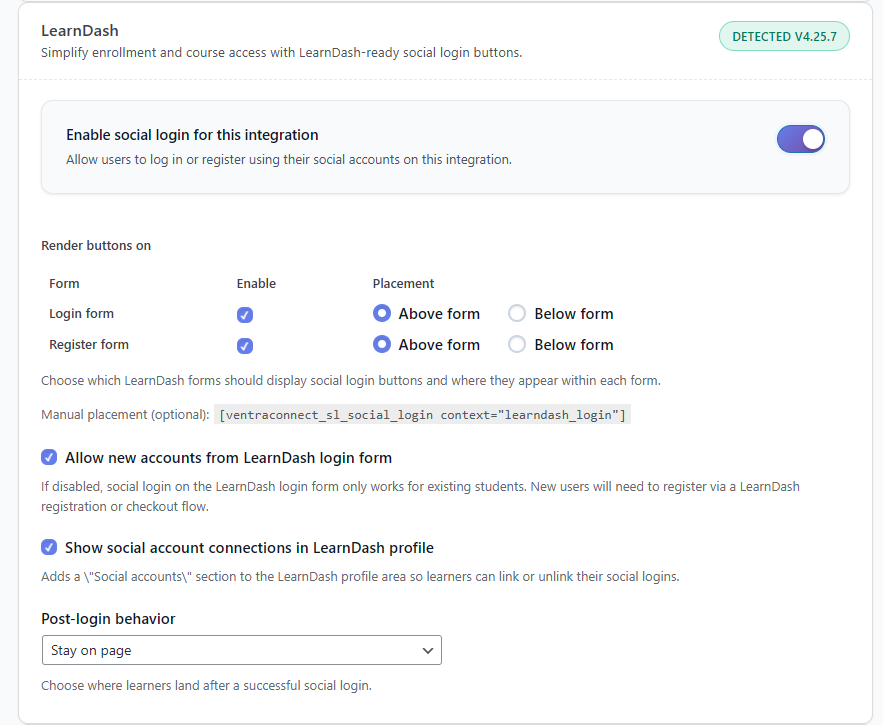
LearnDash example — configure supported VentraConnect login methods across course login, student signup, checkout or enrolment, and learner account flows.




Comment
Pro
Make commenting easier and safer for visitors. VentraConnect Pro adds Social Login, Magic Link, and Email OTP to the native WordPress comment form, with placement controls and optional access rules — no custom theme work required.
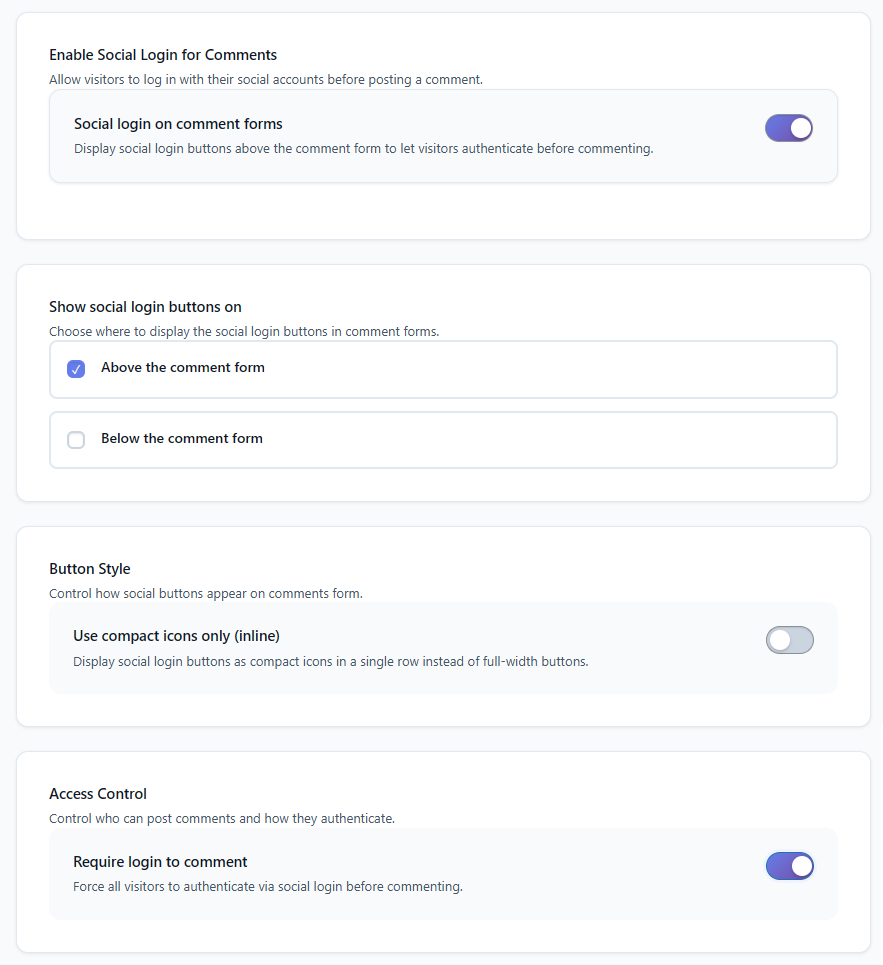
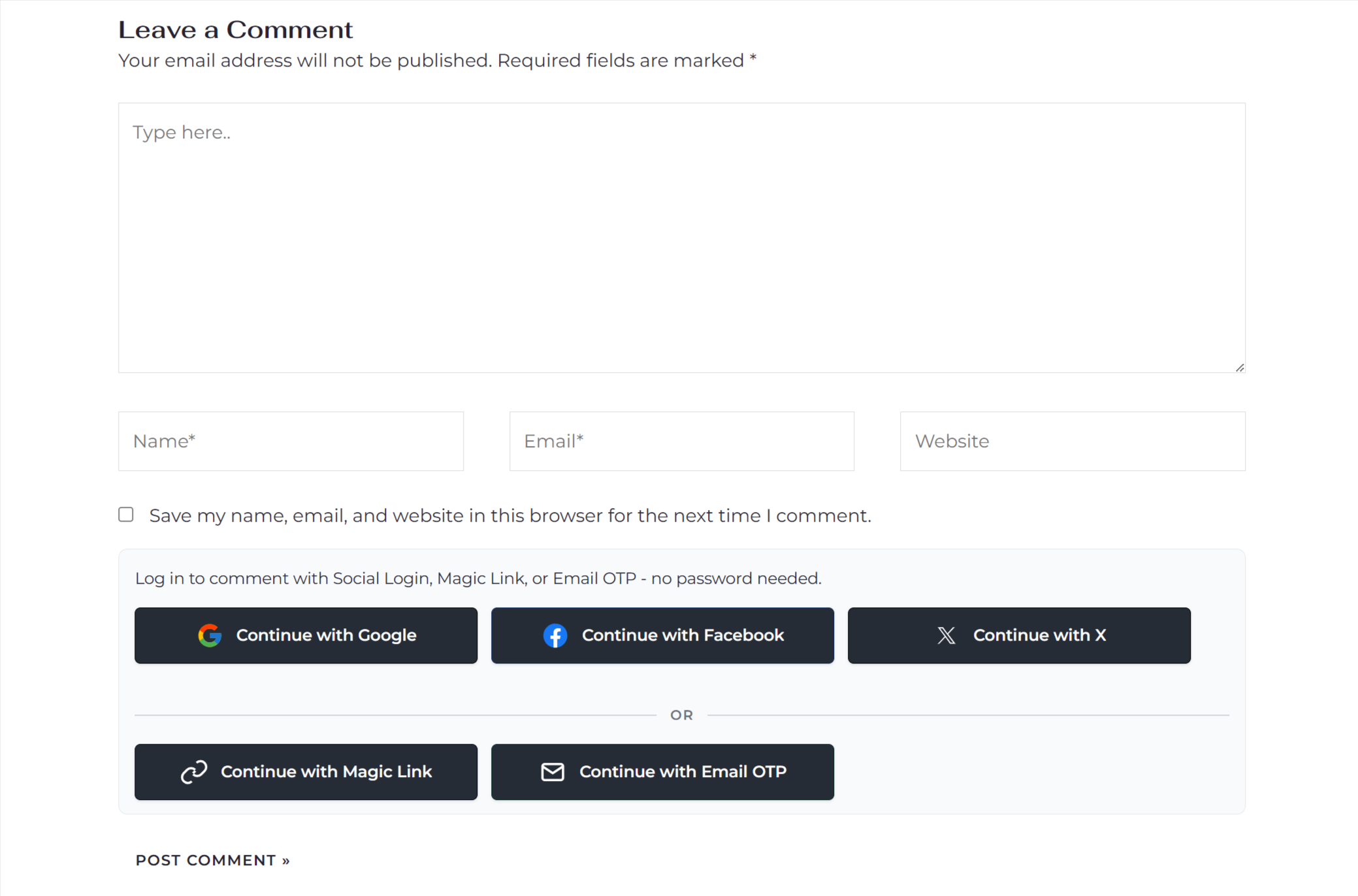
What comments integration includes:
• Comments integration toggle — enable Social Login, Magic Link, and Email OTP on the native WordPress comment form without editing your theme.
• Login-method placement — choose whether enabled sign-in methods appear above the comment form or below it, depending on your layout.
• Compact icon mode — use a slim icon-only layout for Social Login buttons so sign-in options do not overpower the article or comment thread.
• Helper message — add a short line above the login methods, such as “Sign in to comment with Social Login, Magic Link, or Email OTP.”
• Require login to comment — optionally require visitors to authenticate with one of your enabled sign-in methods before they can post a comment.
• Redirect after sign-in — keep readers on the same article after signing in, or send them to a custom thank-you or follow-up page.
• Social provider badges — show a small provider icon beside commenters who signed in through a linked social account, such as Google, Facebook, or X.
• Page-builder friendly — works with the standard WordPress comment form output, so it remains compatible with page builders and custom theme templates without extra code.
Security & redirects
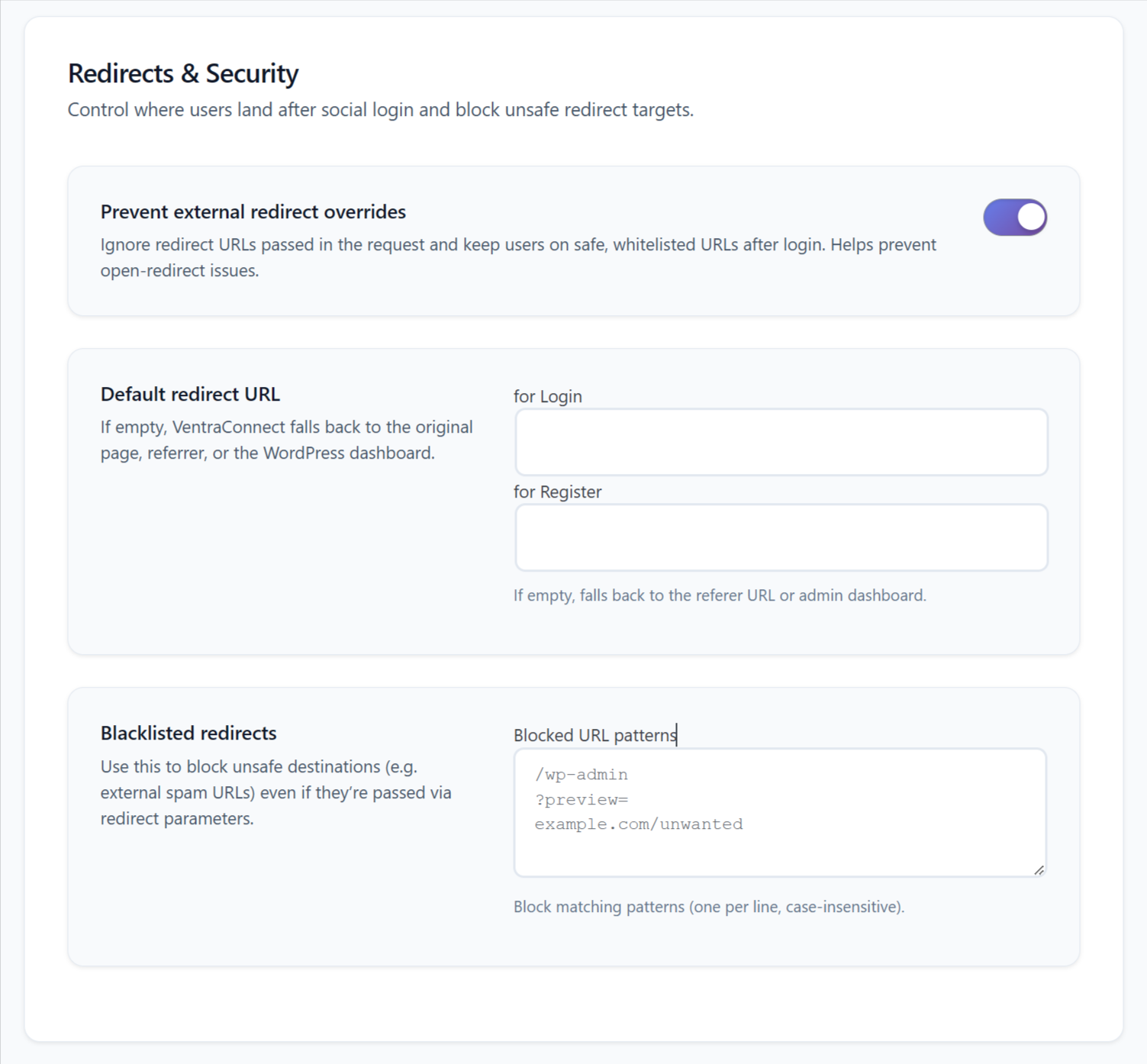
Keep users on safe pages after sign-in and avoid open-redirect surprises. VentraConnect gives you global redirect rules, Passkey redirect controls, and method-specific redirect behaviour for supported email-based sign-in methods, plus safeguards against unsafe URLs and spammy destinations.
Safe redirects (global rules)
Prevent external redirect overrides · Free · Pro
Block unsafe redirect_to values in the request and keep users on trusted URLs only. When this is enabled, VentraConnect ignores external redirect parameters and falls back to your safe defaults.
Default redirect URL · Free · Pro
Set a global “after login” and “after register” destination – for example a profile page, dashboard, or welcome page. If it’s left empty, VentraConnect falls back to the original page, referer, or the WordPress dashboard.
Redirect blocklist · Free · Pro
Maintain a simple list of blocked URL patterns (one per line). Any redirect matching one of these patterns is stopped, even if it’s buried inside query parameters.
Passkey redirect behaviour · Free · Pro
Choose whether Passkey sign-in follows your global redirect rules or uses its own redirect destination. Send users back to the requested page, the previous page, the homepage, or a custom URL.
Method-specific redirect overrides · Free · Pro
Give Magic Link and Email OTP their own redirect behaviour — return users to the same page, send them to the homepage, or route them to a custom URL independently of the global redirect settings.
Signup & account rules
Control where new accounts can be created and how authentication methods behave across your site. Keep standard WordPress registration open, limit signups to existing users, or apply stricter rules on supported integrations.
Core WordPress account creation rules · Free · Pro
Choose whether users can create a new account through supported standard WordPress login and registration flows. Turn this off when you want account creation handled only through your main registration process or restricted to existing users where supported.
Passkey registration behaviour · Free · Pro
Control how Passkeys work during supported native WordPress registration. New users can create a Passkey after verifying their account, while existing users can add a Passkey later from their profile for future sign-ins.
WooCommerce Social Login account rules · Pro
Choose whether new customers can create an account through Social Login on supported WooCommerce login and checkout flows, or restrict Social Login to existing customers only. Optional Prevent unlinking keeps store accounts tied to an active connected social account.
Membership, LMS, and community account rules · Pro
Choose whether supported membership, LMS, and community integrations allow new accounts through enabled login methods or limit sign-in to existing users, depending on the plugin flow and your site’s registration policy.
Comment-only access control · Pro
Require visitors to authenticate with Social Login, Magic Link, or Email OTP before posting a comment while still following your global redirect rules.
Social account linking safeguards · Free · Pro
Connect supported social accounts to existing WordPress users and reduce duplicate-account confusion when members return with a different sign-in method.
Privacy & data consent · Free · Pro
Explain which account and profile data your site collects and how it is used. VentraConnect can surface a simple privacy-policy reminder in settings, while your full privacy policy stays under your control.
• Privacy-policy reminder — show a simple settings reminder to confirm that your site’s privacy policy explains the information collected through VentraConnect.
• Social-profile data awareness — review the types of data returned by enabled social providers, such as name, email address, avatar, and profile URL.
• Authentication data clarity — make it clear when your site uses email addresses for Magic Link or Email OTP sign-in, or stores Passkey credentials for passwordless authentication.
• Site-controlled policy text — VentraConnect does not generate or host your privacy policy. You decide what your policy says and where it is published.
• Consent-friendly implementation — use your existing WordPress privacy policy page, registration notices, and consent workflows alongside VentraConnect where required.
Analytics & diagnostics
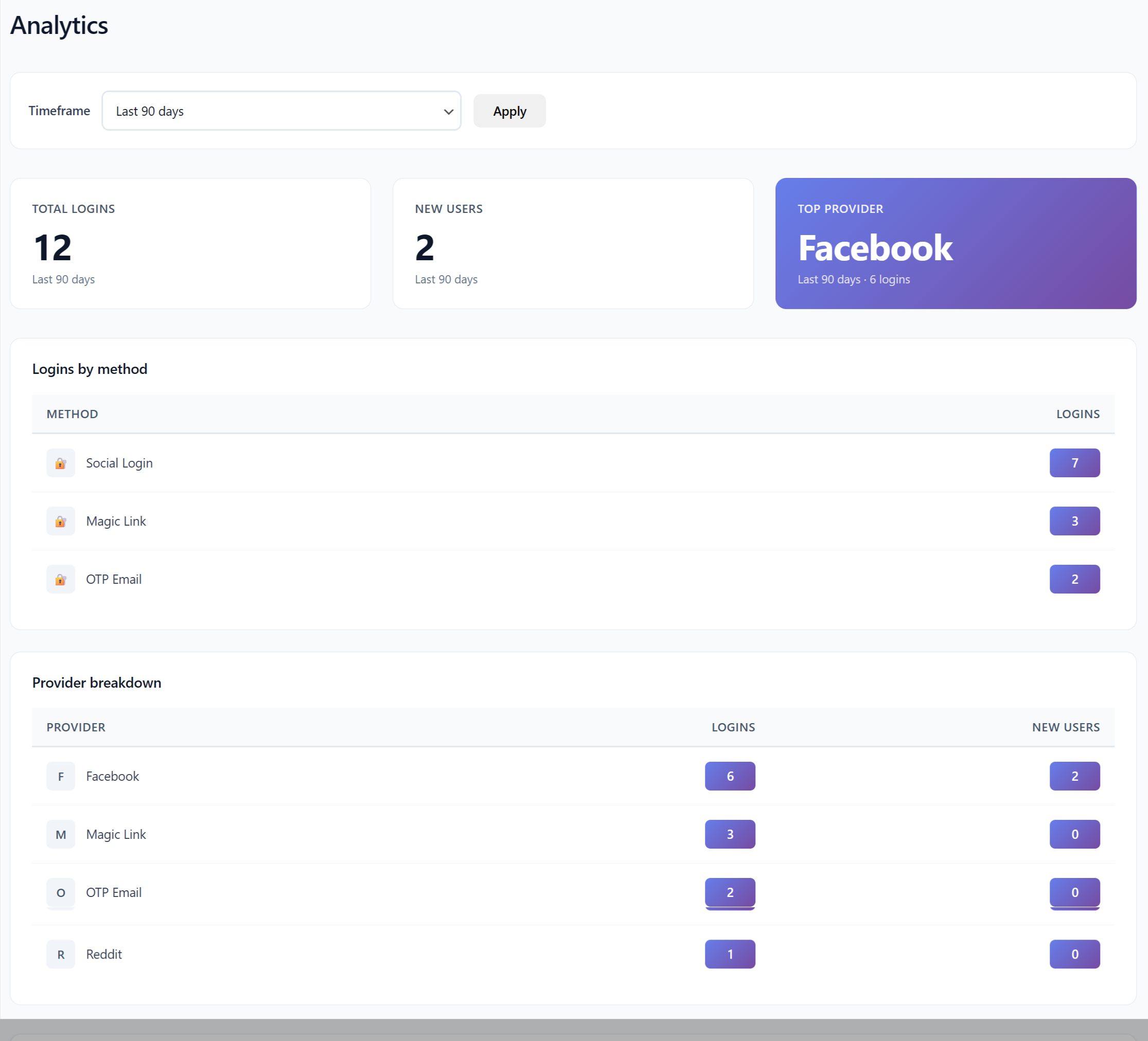
See how people are signing in and get the tools you need to troubleshoot issues fast. VentraConnect tracks login activity across Passkeys, Social Login, Magic Link, and Email OTP, highlights top social providers, and gives you health checks and diagnostics you can copy into a support ticket.
Analytics dashboard
Get a high-level view of how logins are performing over time:
• Total logins & new users — see how many successful sign-ins and new accounts you have had during the selected timeframe, such as the last 7, 30, or 90 days.
• Top social provider spotlight — quickly see which connected social provider sends you the most logins, such as Google, Facebook, or Microsoft.
• Logins by method — compare Passkeys, Social Login, Magic Link, and Email OTP to see which sign-in methods your users actually prefer.
• Social provider breakdown — see per-provider counts for social logins and new users, such as Google, Facebook, X, Discord, or LinkedIn, to understand where social sign-ins are coming from.
• Timeframe selector — switch between date ranges without changing your settings.
• Configurable data retention — choose how long aggregated analytics data is retained, then automatically remove older records.
Debug log (per-login events)
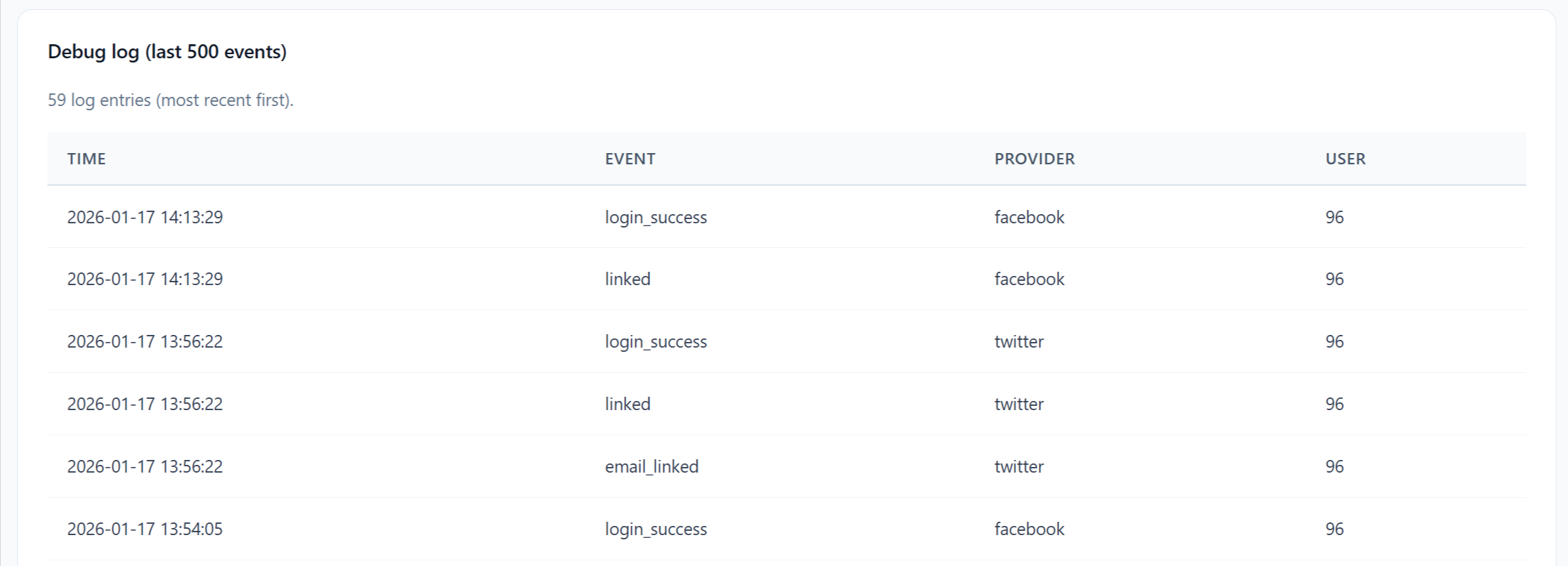
When something goes wrong, use the Debug log to review recent authentication events and identify where a sign-in flow failed.
• Rolling log of recent events — review recent authentication events, including successful sign-ins, failures, Passkey activity, and social-account linking actions, with time, method, provider, and user details.
• Method-aware entries — quickly see whether an event came from Passkeys, Social Login, Magic Link, or Email OTP.
• Provider detail where relevant — see the connected provider for Social Login events, such as Google, Facebook, X, or Microsoft.
• Error-ready for support — copy event details into a support request when a specific login flow or provider is misbehaving.
(This is the “Debug log (last 500 events)” area at the bottom of Analytics.)
Health overview & tools
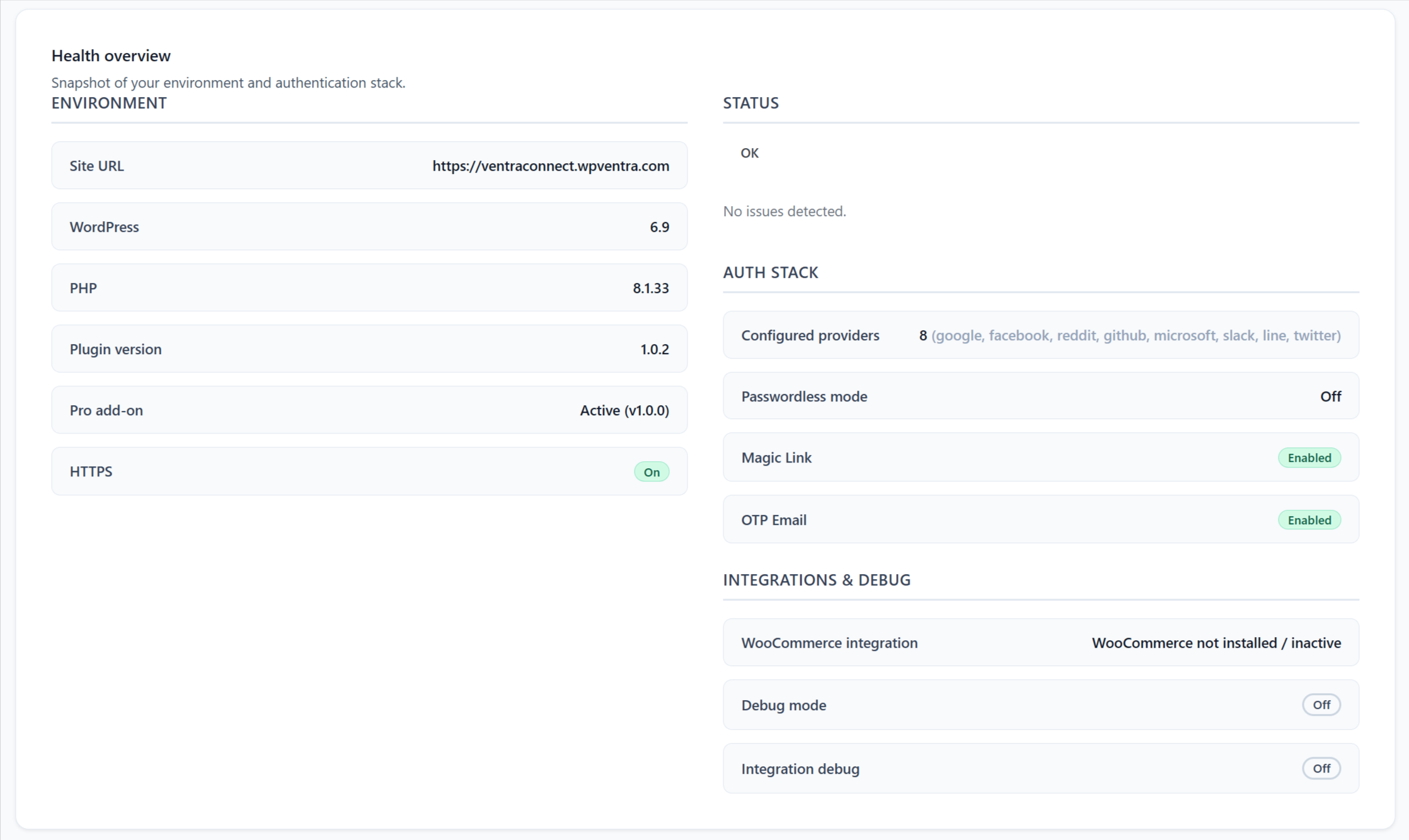
VentraConnect includes a diagnostics panel to help confirm that your WordPress environment, authentication methods, and supported integrations are ready to use.
• Environment snapshot — review WordPress, PHP, plugin version, HTTPS status, and whether the Pro add-on is active in one place.
• Authentication summary — confirm which login methods are active, including Passkeys, Social Login, Magic Link, and Email OTP.
• Passwords Phaseout status — see whether Passwords Phaseout is Off, Recommended, or Strict, along with relevant readiness information.
• Tools & self-tests — run checks for plugin configuration, HTTP calls, option storage, email availability, and related diagnostics without editing code.
• Integration detection — see installed versions and connection status for supported integrations such as WooCommerce, MemberPress, Paid Memberships Pro, Paid Membership Subscriptions, LearnDash, LearnPress, LifterLMS, Tutor LMS, and more.
• Copy-paste diagnostics blob — generate one diagnostics text block you can paste into a support ticket so you or a developer do not have to hunt for environment details.
For site builders & developers
VentraConnect is built for real WordPress projects — page builders, custom templates, and complex login flows — without forcing you into a separate hosted identity system or a rigid new login page.
Shortcodes & template usage
Use VentraConnect in standard WordPress pages, widgets, block-based layouts, and supported custom templates without rebuilding your site’s login experience.
- Standard login shortcodes — add enabled VentraConnect login methods to normal WordPress pages, widgets, and shortcode-compatible builders.
- Passkey shortcode support — include Passkey sign-in in standard VentraConnect shortcode-based login forms for supported core WordPress flows.
- Social provider controls — choose which Social Login providers appear when using Social Login shortcodes, such as showing only Google and Facebook on a compact landing page.
- Redirect controls — configure supported shortcode redirect behaviour without editing global settings or custom PHP.
- Page-builder compatible — use VentraConnect with Gutenberg, Elementor, and other builders that support standard WordPress shortcodes.
- Inline Magic Link and Email OTP forms · Pro — embed real email-entry and verification flows inside Elementor popups, account dropdowns, custom landing pages, and client-built layouts.
Integration-aware placement for advanced builds
Use integration settings for supported WooCommerce, membership, LMS, community, and comment flows instead of relying on generic shortcodes in places the plugin already manages.
- Per-integration placement controls · Pro — choose where supported login methods appear across WooCommerce, membership, LMS, community, and comment forms without editing templates.
- Supported login surfaces · Pro — place enabled methods on supported login, registration, checkout, enrolment, account, and comment flows based on the active integration.
- Integration-aware controls · Pro — configure method placement through the relevant integration settings rather than forcing generic shortcode output into plugin-owned forms.
- Context-aware shortcodes · Pro — use supported integration-specific shortcode options where available when a custom layout needs controlled output inside an approved integration surface.
- Safe defaults — when no custom placement is configured, VentraConnect follows the enabled method and integration settings instead of rendering unexpected login controls across your site.
Debug mode & integration debug
See what is happening without changing production code. VentraConnect includes built-in diagnostics for authentication methods, settings, and supported integrations.
- Debug mode · Free — log key configuration and runtime issues to the WordPress debug log and surface useful admin notices when supported authentication methods or settings need attention.
- Passkey diagnostics · Free — review Passkey readiness, supported browser and device requirements, relying-party configuration, and relevant authentication events.
- Integration debug · Pro — enable deeper logging for supported WooCommerce, membership, LMS, community, and comment integrations when a specific flow is not behaving as expected.
- Copy-paste diagnostics — generate a single diagnostics report containing environment details, active login methods, supported integrations, and key status flags for support requests.
Built for long-term projects
- No theme lock-in — VentraConnect works with standard WordPress login flows and supported integrations, so changing themes or builders does not require rebuilding your authentication stack.
- Safe to experiment — enable or disable login methods, placement rules, redirects, and diagnostics from the admin interface without shipping risky template or code changes.
- Progressive rollout support — start with standard WordPress flows, then extend authentication into WooCommerce, memberships, LMS platforms, communities, and other supported areas when your site needs it.
Supported platforms (and growing)