
WooCommerce Social Login with Guardrails and Passwordless Login, Built for Clean Customer Accounts
WooCommerce stores quietly lose sales at the login step: forgotten passwords, spam signups and carts abandoned because customers can’t get back into their account. VentraConnect Social Login Pro combines WooCommerce social login (15+ providers), passwordless login (Magic Link, Email OTP) and Guardrails in one plugin that works on checkout, My Account and your wider site. The result: more completed orders, fewer junk customer records and fewer “I can’t log in” support tickets.
In plain English, that means:
- More successful logins and checkouts – customers can use Google, Magic Link or OTP when they’ve forgotten their password.
- Fewer junk signups and spam accounts – Guardrails stop random visitors from turning login forms into registration forms.
- One place to manage login rules – WooCommerce, LMS, and membership logins all follow the same Guardrails, instead of each plugin doing its own thing.
If you run a WooCommerce store long enough, you see the same pattern:
- Customers forget their passwords right before checkout
- My Account quietly turns into a signup hole for random visitors
- Social login plugins happily create “customers” who never place an order
- Support gets dragged into “I can’t log in / I used the wrong account” tickets
VentraConnect Social Login Pro is different. It’s a login control layer for your store:
- Social login (15+ providers) plus passwordless options (Magic Link + Email OTP)
- Guardrails that decide where new accounts are allowed to exist
- One rules engine that works across WooCommerce, LMS, and membership plugins - not just the checkout page
The Real Problem with "Add Social Login to WooCommerce"
Search "WooCommerce social login" and you'll see the same recipe everywhere:
Install a plugin → connect Google/Facebook → slap buttons on My Account → done.
What those guides don't talk about is what your store looks like a few months later:
- Your Customers list is full of people who never ordered anything
- My Account quietly turned into a public sign-up page
- Some users log in with email/password, some with Google, some with both
- Support gets tickets like: "I logged in with Google but my order is under a different email, what do I do?"
Most WooCommerce social login plugins follow this logic:
If email doesn't exist → create a user → log them in.
And they do that everywhere they hook:
- wp-login.php
- WooCommerce My Account login
- Checkout login
- Any theme/widget login they attach to
That means:
- A random visitor hits My Account → "Login with Google" → boom, new WooCommerce customer, no order
- Someone tests social login on wp-login → they're now a "customer" in Woo
- Bots and low-quality visitors can create accounts simply by logging in once with social, Magic Link or OTP (if supported)
You didn't just "add WooCommerce social login".
You quietly opened multiple registration doors and hoped for the best.
What VentraConnect Does Differently (and What's Free vs Pro)
VentraConnect is built around a very simple idea:
Login pages should log people in. Checkout and real onboarding flows should create customers.
To support that, it has a split:
Free plugin (WordPress.org)
- Social login for core WordPress login forms
- Core guardrail for default login forms (wp-login.php, VentraConnect login widgets/shortcodes)
Pro add-on
Everything this article focuses on:
- WooCommerce integration (login, register, checkout, My Account)
- WooCommerce guardrail for the My Account login page
- Magic Link passwordless login
- Email OTP passwordless login
- Guardrails for LMS and membership platforms (LearnDash, LearnPress, LifterLMS, MemberPress, BuddyPress, etc.)
The key: all of this runs on unified account guardrails, so social + Magic Link + OTP all obey the same rules.
Related Guides:
WooCommerce Integration: What VentraConnect Can Actually Do
Once you've installed the free VentraConnect plugin and activated the Pro add-on with WooCommerce enabled, you get a dedicated VentraConnect → WooCommerce settings screen.
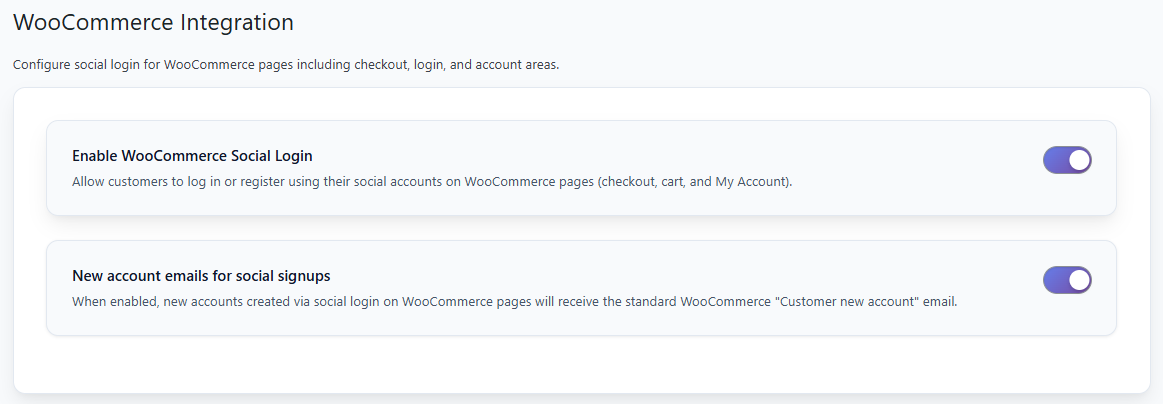
VentraConnect WooCommerce Settings Panel
From there you can:
Turn on WooCommerce Social Login
Show social login on:
- WooCommerce login form
- WooCommerce register form
- Checkout (with multiple position choices)
- My Account → Edit account form
Control display details
- Helper text above the buttons
- Whether to hide buttons for logged-in users
- What happens after login (stay on same page, go to My Account, or a custom URL)
And importantly
- Decide whether WooCommerce social logins should send the standard WooCommerce "Customer new account" email when a new customer is created via Woo pages
WooCommerce account linking: connect multiple social logins safely
When a customer is logged in, VentraConnect adds a Social Login section on the WooCommerce My account → Dashboard page.
- They can see which providers are already linked (for example Google).
- They can link additional accounts (e.g. Facebook, LinkedIn, Discord) without creating duplicate WooCommerce customers.
- If you’ve enabled the Prevent unlinking rule in the WooCommerce settings, they can’t disconnect the last provider that’s attached to an active WooCommerce account – which avoids the classic “I unlinked Google and now I can’t access my orders” support ticket.
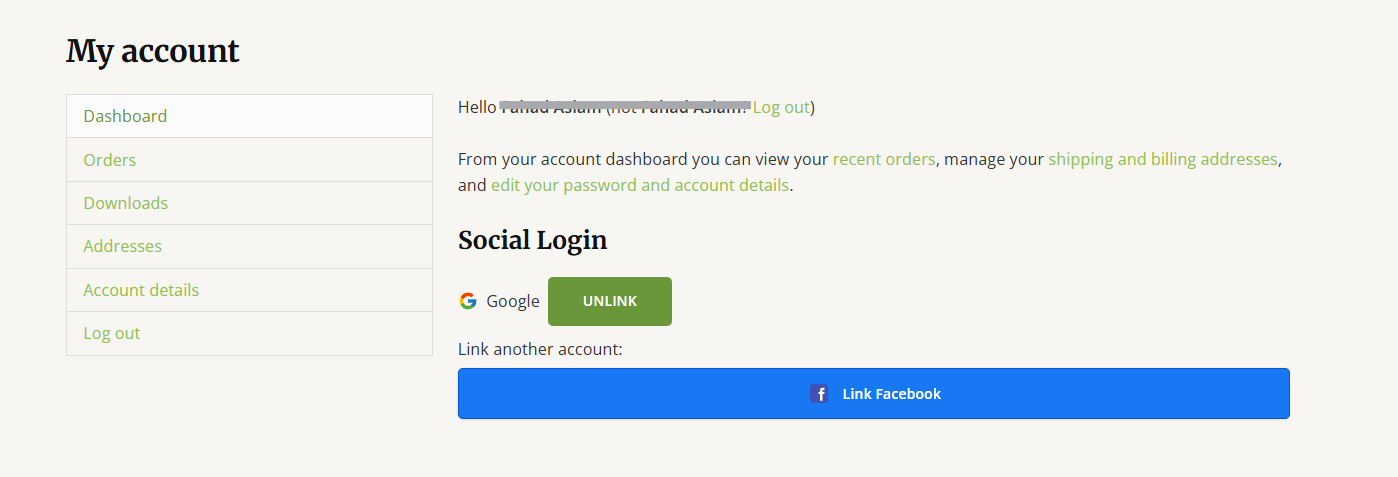
Social login section on the WooCommerce My Account page, existing customer with Google linked and option to link Facebook.
What actually happens on WooCommerce checkout
Here’s the real flow when someone uses VentraConnect on your checkout page:
- Customer clicks “Continue with Google” (or another provider) on checkout.
- VentraConnect checks if that email already belongs to an existing WooCommerce customer.
- If they already exist, they’re logged in and checkout continues normally - no password required.
-
If they’re new, Guardrails decide whether this checkout is allowed to create a new account:
- If allowed, a WooCommerce customer is created and linked to that social / Magic / OTP login.
- If not allowed, VentraConnect blocks account creation and shows a friendly message instead of silently creating a junk customer.
- The order is placed, and the customer sees their order in My Account as usual.
VentraConnect doesn’t fight WooCommerce’s own registration settings - it works with them. If you only allow registration at checkout, Guardrails respect that. If you keep the My Account login page as “existing customers only”, Guardrails enforce that for social login, Magic Link and OTP in exactly the same way.
All of this is pure UI: where to show buttons, what message to show, what redirect to use.
It does not decide who is allowed to become a customer. That's the guardrails' job.
Why Guardrails matter for WooCommerce stores
Most WooCommerce social login plugins do something very simple under the hood:
"If the email doesn’t exist, create a customer and log them in."
And they happily do that on:
wp-login.php- WooCommerce My Account login
- Any other login widget or form they hook into
That’s how you end up with:
- “Customers” in WooCommerce who never placed an order
- Students or members who never actually enrolled in anything
- A mess of duplicate accounts for the same person
Guardrails in VentraConnect fix this by answering one very specific question before any account is created:
"If this email doesn’t exist yet, is this screen allowed to create a new account?"
For WooCommerce, that lets you do things like:
- Allow social login only for existing customers - for example on invite-only or B2B stores.
- Force all new customers through checkout or a proper registration flow - no more drive-by signups on the My Account login page.
- Temporarily block new accounts from certain login forms during a spam wave, while existing customers can keep logging in via social, Magic Link or OTP.
Under the hood, it’s one Guardrails filter that runs before any new account is created. You can plug in your own business rules (for example, blocking certain email domains) without hacking WooCommerce or writing custom boilerplate for every login method.
Unified Guardrails: Who's Allowed to Become a Customer, Where
Guardrails are the rules that answer a single question:
"If this email doesn't exist yet, is this screen allowed to create a new account?"
They apply equally to:
- Social login
- Magic Link
- Email OTP
And they're configured in three main places relevant to WooCommerce:
- Core login guardrail (free) - protects wp-login.php and default login widgets
- WooCommerce login guardrail (Pro) - protects the My Account login page
- Registration modes for Magic Link & OTP (Pro) - decide if those methods are allowed to register users anywhere at all
Let's break those down.
1. Core WordPress guardrail (Free): stop junk from wp-login.php
This is the baseline you should be using on every site, store or not.
Toggle: "Allow new accounts from default login forms"
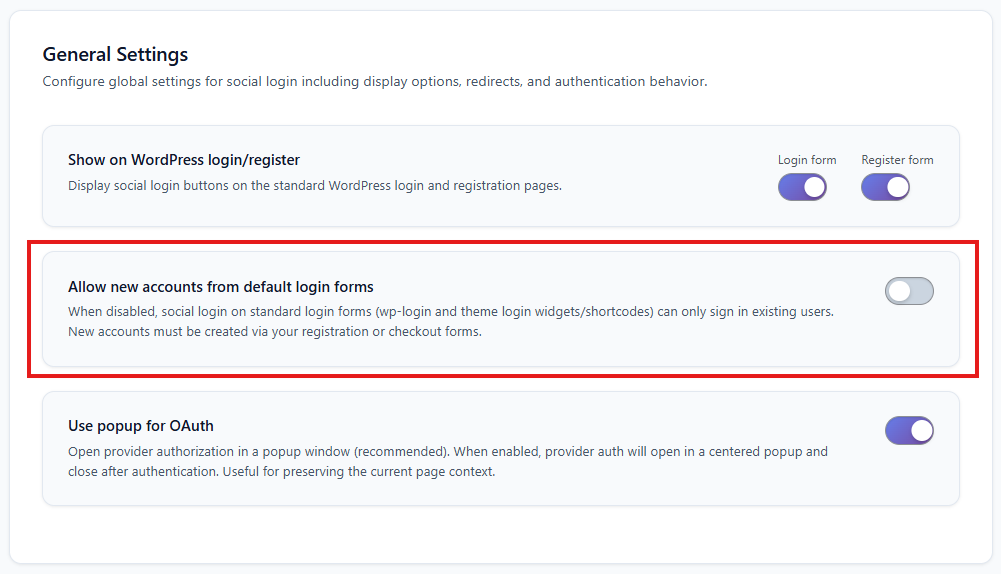
General Settings - Core guardrail toggle
wp-login.php and VentraConnect login widgets can:
- ✅ Log in existing users
- ✅ Create new users via social / Magic Link / OTP
Those same login forms become existing users only:
- ✅ Existing users can log in with social / Magic / OTP
- ❌ New emails can't create users from those login screens
- New users must come from: WooCommerce checkout, A dedicated registration page, LMS or membership flows
This alone kills a huge amount of "random login screen registrations" and matches what your guardrails article explains for core login.
2. WooCommerce guardrail (Pro): protect My Account login, not checkout
For WooCommerce you have an extra guardrail just for the My Account login page.
Toggle (in Account linking rules): "Allow new account creation from WooCommerce login page"
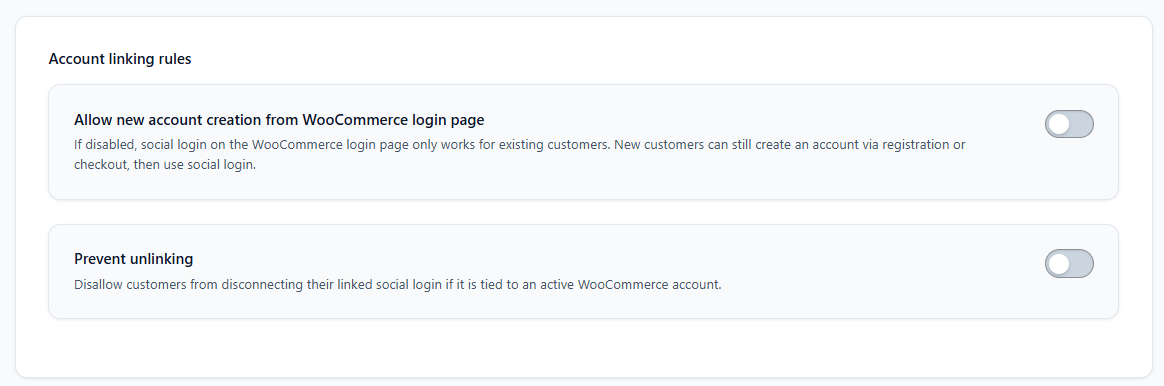
WooCommerce account linking rules
This guardrail:
- Controls only the My Account login screen (/my-account/ when used as login)
- Applies to social login, Magic Link, and Email OTP on that page
- Does not affect checkout - WooCommerce checkout registration is deliberately kept separate
My Account login can:
- ✅ Log in existing customers
- ✅ Create new customers when someone logs in with a new email via social/Magic/OTP
This is the classic "login = sign up here too" mode.
My Account login becomes "existing customers only":
- ✅ Social, Magic Link, OTP can log in existing WooCommerce customers
- ❌ They cannot create new WooCommerce customers from the My Account login page
Checkout still behaves exactly like normal WooCommerce:
- New customers can be created there
- You can show social/Magic/OTP on checkout and let them participate in a real purchase flow
In other words:
My Account login = login only. Checkout = where new customers are born. That's the exact split your guardrails article is designed around.
3. Magic Link & Email OTP (Pro): passwordless that respects guardrails
Magic Link login is part of the VentraConnect Pro add-on and follows the same guardrails as social login. Email OTP login is also a Pro feature and follows the same guardrails.
VentraConnect Pro adds two passwordless login methods:
- Magic Link (one-click link via email)
- Email OTP (one-time code via email)
You can enable them on:
- WooCommerce login
- Checkout login area
- My Account login
- Core WordPress login
- Anywhere you use VentraConnect's login UI
Each has a global registration mode: login_and_register or login_only
VentraConnect → Login Methods → OTP
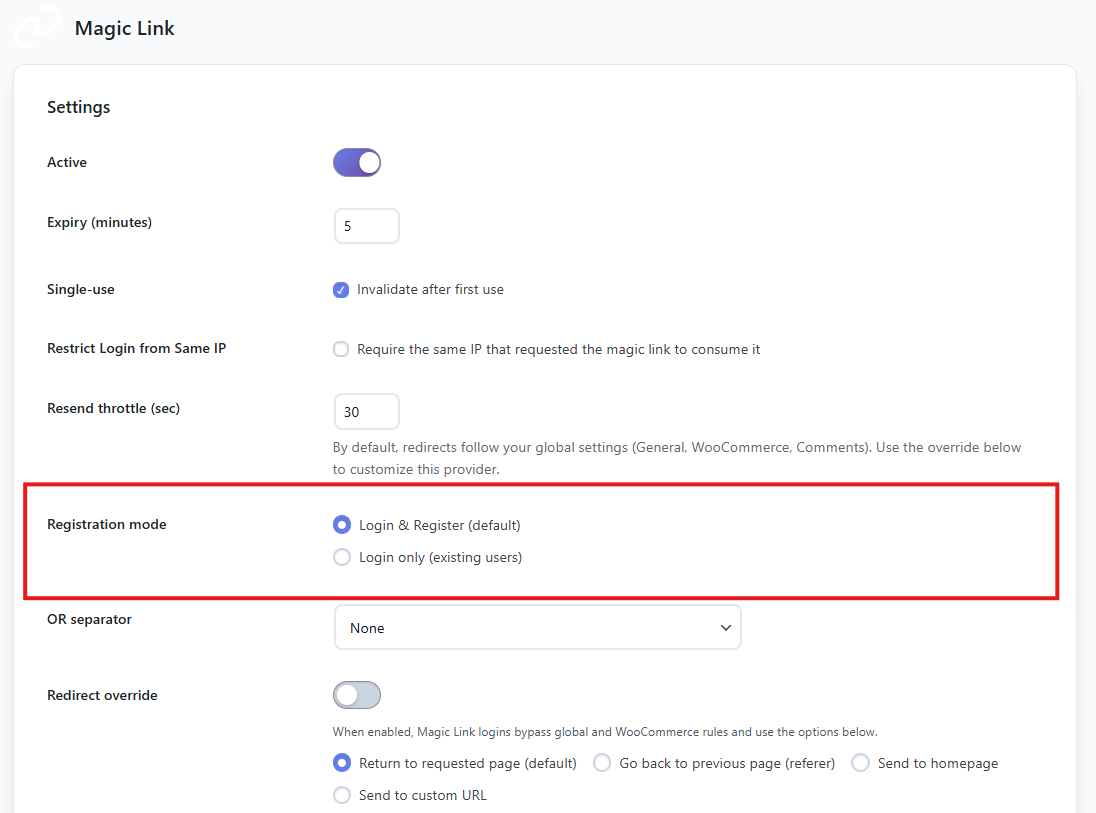
Magic Link and OTP registration mode settings
login_and_register (default)
Magic/OTP:
- ✅ Can log in existing users
- ✅ Can create new accounts only where guardrails allow new users
If a form is "open" according to guardrails, Magic/OTP can register there. If a form is "locked", a new email hitting that form with Magic/OTP will be blocked and shown a friendly message.
login_only (strict)
Magic/OTP:
- ✅ Can log in existing users
- ❌ Never creates new accounts anywhere, even on open forms
So the model is:
- Guardrails decide where account creation is allowed
- Registration modes decide if a method is ever allowed to create accounts at all
They stack, not fight.
Putting It Together: One Clean WooCommerce Social Login Setup
Here's a truthful setup you can recommend that lines up with your guardrails model and works for most stores.
Goal:
- Checkout is easy: social + passwordless welcome
- My Account and core login are not random sign-up surfaces
- New customers only appear where it makes sense (checkout / intentional registration)
1. Core WordPress guardrail (free)
Go to VentraConnect → Settings → General
Turn OFF "Allow new accounts from default login forms"
Result: wp-login.php + any VC login widgets become login-only
2. WooCommerce guardrail (Pro)
Go to VentraConnect → WooCommerce
Turn OFF "Allow new account creation from WooCommerce login page"
Result: My Account login is existing customers only. Checkout registration works normally.
3. WooCommerce placements (UI only)
Still in VentraConnect → WooCommerce:
- Login form placement: Above the login form (so social/passwordless is the primary option)
- Register form placement: Above the register form (if you use it)
- Checkout placement: e.g. "Between customer details and order summary" (balanced visibility)
- Account details: Below the account form (so already-logged-in customers can link social later)
These placements don't change guardrail behaviour - they just define where the buttons show.
4. Passwordless modes (Pro)
In Login Methods:
Magic Link: Enable it where you want (login + checkout). Start with login_and_register if you want it to help create accounts on legitimate registration/checkout screens.
Email OTP: Same as Magic Link - enabled where useful, mode login_and_register.
Because both obey guardrails: They can't suddenly start creating customers on wp-login.php or My Account while those are locked. They behave consistently with social login on every screen.
If a store owner wants absolute strictness, they can switch Magic Link & OTP to login_only and keep WooCommerce registration fully in Woo's hands. Guardrails still prevent login screens from ever acting as registration endpoints.
How This Compares to Typical WooCommerce Social Login Plugins
Most WooCommerce social login plugins stop at two things:
- Adding social buttons to login and checkout pages
- Auto-creating customers from any login form they touch
VentraConnect Pro goes further:
- Social login, Magic Link and Email OTP in one plugin - no need to juggle three different login plugins.
- A single Guardrails engine that decides who can be created as a customer, and from which screens.
- One place to manage login rules that apply across WooCommerce, LMS and membership plugins at the same time.
- Typically treat every hooked login form as a registration surface
- Often do not distinguish clearly between login screens vs registration/checkout screens
- Many bolt on Magic Link or OTP (if available) with separate logic, so each method behaves differently
- Gives you social + Magic Link + Email OTP under one unified rules engine
- Has a core guardrail for wp-login & default login forms (free)
- Adds a WooCommerce guardrail just for My Account login (Pro)
- Applies guardrails equally to social, Magic, OTP - no sneaky exceptions
- Lets WooCommerce itself handle checkout registration so you don't fight the platform
End result:
You still get "Login with Google / Discord / LinkedIn", one-click Magic Link login, and OTP login for people who hate passwords. But you don't get thousands of junk "customers" who never ordered, LMS "students" who never enrolled, or members who never went through your membership flow. You configure where new accounts are allowed, once, and all login methods respect that.
For a plugin-by-plugin breakdown, see our VentraConnect vs Nextend vs miniOrange comparison.
Getting started on a WooCommerce store (5 minutes)
You don’t have to rewire your whole store on day one. Here’s a safe way to start with VentraConnect on WooCommerce:
- Install the free VentraConnect Social Login plugin from WordPress.org.
- Install and activate the Pro add-on, and enable the WooCommerce integration in the VentraConnect settings.
- Connect one provider — Google is usually the best first choice for most stores.
-
Set up Guardrails:
- Turn off new account creation from default login forms (
wp-login.phpand generic login widgets). - Turn off new account creation from the WooCommerce My Account login page.
- Turn off new account creation from default login forms (
-
Place social login buttons:
- On the WooCommerce login form (above the form).
- On checkout (for example, between customer details and the order summary).
This gives you:
- Social login at the right points in the WooCommerce flow — login and checkout.
- No random account creation from My Account or
wp-login.php. - A clear before/after to see if your failed logins and login-related support tickets drop.
If you don’t like the results, you can disable VentraConnect in one click. There’s no lock-in and no theme hacks to undo.
Quick way to test it on a staging site
If you just want to see how it behaves before touching production, you can run this simple test on a staging or dev copy of your store:
- Install VentraConnect free + Pro, enable the WooCommerce integration and connect one provider (Google is enough for testing).
- Place social / Magic Link buttons on checkout and leave your normal Woo checkout fields as they are.
- Set Guardrails to “existing users only” on login screens (core login + My Account), but keep checkout allowed to create new customers.
- Run two test checkouts: one as an existing customer, one as a brand new email using social or Magic Link.
In a few minutes you’ll see the exact behavior: existing customers log in without passwords, new customers are only born from real checkout flows, and no extra junk users come from random login forms. If it doesn’t fit your store, just deactivate the plugin and your WooCommerce data stays intact.
TL;DR: WooCommerce social login without poisoning your customer table
If you just want the high-level idea, here it is:
- Buttons alone aren’t the solution – most social login plugins happily turn every login form into a signup form.
- Guardrails decide where new accounts are allowed to exist – checkout and real registration flows, not random login screens.
- VentraConnect runs social login, Magic Link and Email OTP through the same rules engine – WooCommerce, LMS and membership logins all follow the same logic.
- WooCommerce stays clean – real customers get easy logins, junk signups and ghost customers get blocked.
Then, when you’re ready to try it:
- Follow the steps in the “Getting started on a WooCommerce store (5 minutes)” section above.
Ready for Clean WooCommerce Social Login?
Get VentraConnect Pro for full WooCommerce integration, Magic Link, Email OTP, and unified account control across your entire store.
View VentraConnect Pro Plans