
Applies to: Pro · Location: VentraConnect → Login Methods → Passkey
The Floating Passkey Setup Panel is a VentraConnect Pro adoption feature that invites signed-in users who have no passkey yet to add one, without forcing them through setup during the initial login or registration flow. Pro
Why it exists: passkeys only improve future login when users actually create one. The panel gives you a visible follow-up prompt once the user is already inside the site.
How it works
- A signed-in user opens one of the pages you selected in Display on pages. It does not matter how they signed in, including with a password.
- If the user has no passkey yet, VentraConnect shows a compact panel after the display delay.
- The user clicks the panel button (default Set up Passkey) and the browser opens the normal WebAuthn authenticator flow, or clicks Not now to hide the panel.
- Not now hides the panel for the snooze period. The snooze is stored in that browser, so the user may see the panel again on another browser or device.
- Once registered, the passkey can be used on supported VentraConnect login surfaces.
This is not the post-purchase prompt. WooCommerce also has a separate “Passkey setup after purchase” prompt on the Thank you page. The floating panel is different: it appears only on the pages you select. See Passkeys in WooCommerce & Integrations.
Settings Pro
Go to VentraConnect → Login Methods → Passkey and find the Floating Passkey Setup Panel card. It requires VentraConnect Pro, the Passkey method set to Active, and PHP 8.2 or higher.
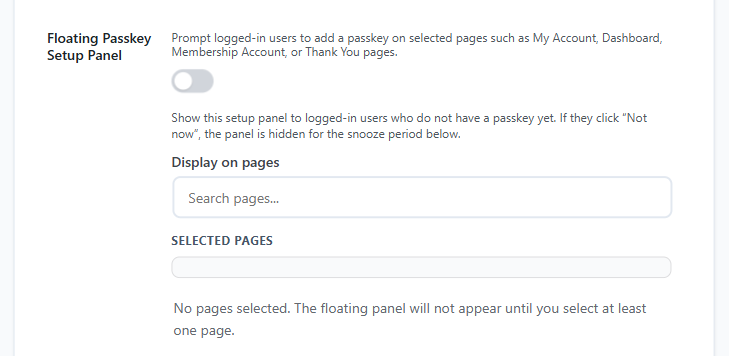
The enable toggle is off by default, and the Display on pages picker is where you choose the pages that show the panel. The screenshot shows both settings:
Default wording. If you leave Panel title, Panel message or Button text empty, visitors see “Sign in faster next time”, “Set up Passkey to use Face ID, fingerprint, or a security key instead of passwords.” and “Set up Passkey”. The grey placeholder text in the settings is only an example: type your own text if you prefer different wording.
Where it helps most
Recommended configuration approach
- Start with a helpful message rather than aggressive wording. Explain that the passkey will make future sign-in faster and safer.
- Keep the prompt secondary to the user’s main task. Choose pages where the prompt will not compete with checkout completion, course access, or account management, and consider a longer display delay.
- Test dismissal and repeat behaviour. Click Not now and confirm the panel stays hidden for the snooze period in that browser, then check how often it returns.
- Keep fallback login methods available during adoption.
Relationship to Password Phaseout
The panel is useful before you make password-based login less prominent. It can help build passkey adoption first, giving more users a modern login method before you enable a stricter Password Phaseout mode.


