
If you have enabled Social Login but the buttons do not appear on your login, checkout, or profile pages, use this checklist to track down the cause.
Applies to: Free (WordPress login/registration and the [ventraconnect_sl_social_login] shortcode on normal pages) · Pro (WooCommerce, LMS, membership, community and comment placements). Without Pro, nothing is shown on those integration pages, including when you use the shortcode there.
In almost every case it is one of these:
- You are logged in (buttons are never shown to signed-in users)
- Provider not active, or its credentials are not saved
- Placement for that form not enabled
- Cache / page builder template hiding the output
- The wrong form (or a custom form) being used
- A conflict or PHP error you are not seeing
This article walks through fixes in the right order.
Confirm You Are Logged Out, and a Provider Is Active
You are logged in. Buttons are never shown to signed-in users (a shortcode shows “You’re logged in via …” instead). Always test in a private window while logged out.
Then make sure you actually have something to render.
- Go to VentraConnect → Login Methods.
- In the left sidebar, choose a provider (for example Google).
- Check that the provider’s Active toggle is On, and that its Client ID and Client Secret (App ID / App Secret for Facebook) are saved.
- Repeat for at least one more provider you care about.
A provider without saved credentials does not show a button. If no providers are active with saved credentials, there is nothing for VentraConnect to show on any form.
Tip: use Verify Settings or Run Diagnostics in the provider’s Verification card to test that it is configured correctly.
Check Placement Settings for the Specific Form
Social Login does not appear everywhere automatically. It only shows where you have enabled it.
WordPress login & registration
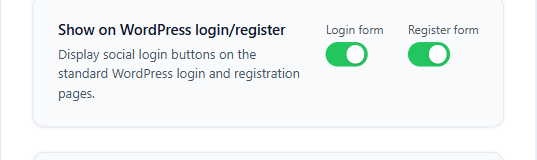
- Go to VentraConnect → Settings → General Settings → Show on WordPress login/register.
- Switch on Login form and/or Register form (if you use the registration form).
The Show on WordPress login/register toggles in VentraConnect → Settings → General Settings.
Then test:
- Visit
/wp-login.phpdirectly in a private/incognito window. - If you do not see buttons there, the problem is at the core WordPress level. Fix that first before worrying about WooCommerce, LMS and the rest.
WooCommerce (Pro)
- Go to VentraConnect → Settings → WooCommerce.
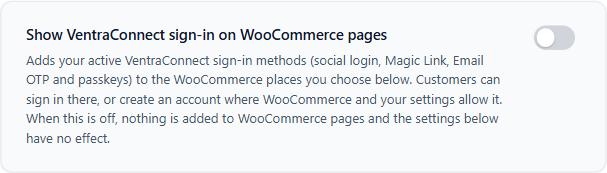
- Turn on Show VentraConnect sign-in on WooCommerce pages. It is off by default.
- Under Login & Registration placement, choose positions for Login form (My Account and checkout) and Registration form (My Account). WooCommerce only shows the registration form when My Account registration is allowed in WooCommerce → Settings → Accounts & Privacy.
- Under Classic checkout & Account details placement, choose a Classic checkout position.
The master switch in VentraConnect → WooCommerce. It is shown here switched off, which is its default state; it must be on before any WooCommerce placement appears.
Classic checkout only. VentraConnect checkout placements work with the classic checkout (the [woocommerce_checkout] shortcode). The WooCommerce Checkout block and Cart block are not supported: nothing is added to a block-based checkout, and VentraConnect shows a warning in its WooCommerce settings. If your checkout page uses the Checkout block, switch it to the classic shortcode to use checkout placements. My Account placements are not affected. If your checkout uses the Checkout block, nothing shows there (the settings screen warns you).
Then test in a private window:
/my-account/– login and registration views.- A full classic checkout flow.
If buttons show on /wp-login.php but not on WooCommerce pages, the WooCommerce settings (or theme template) are the problem.
Memberships & communities
MemberPress, Paid Memberships Pro, Paid Member Subscriptions, Ultimate Member, BuddyPress/BuddyBoss (Pro).
- Go to VentraConnect → Settings → Community & Memberships.
- For your plugin, switch on Enable integration, tick Enable buttons on this form and choose a placement for each form.
- Click Save Integrations.
Then visit the plugin’s own login and signup URLs (not just a custom page built in a page builder) and look for the buttons.
If buttons show on the plugin’s native login page but not on a custom page, you are probably using a layout that is not the real login form. In that case, place the [ventraconnect_sl_social_login] shortcode inside that page instead, on a normal page (it renders nothing on integration-owned pages without Pro).
LMS (Pro)
LearnDash, LearnPress, LifterLMS and Tutor LMS use the same pattern:
- Go to VentraConnect → Settings → Courses & LMS.
- Switch on Enable integration, tick Enable buttons on this form and choose a placement for each form, then click Save Integrations.
- Test on the LMS’s native login / student pages, not just your marketing pages.
Comments (Pro)
If you expect buttons on comments:
- Go to VentraConnect → Settings → Comments.
- Turn on Enable Social Login for Comments and set Show social login buttons on to Above or Below the comment form. Not available in Free.
- Save and test on a single post page with comments enabled.
Require login to comment does not show buttons by itself.
Password Phaseout Does Not Hide the Buttons
Password Phaseout (a Pro tab, formerly called Passwordless Mode before 1.4.0) does not hide VentraConnect buttons. Strict mode only hides password fields. If buttons are missing, check the placement, credential and logged-in items above rather than Password Phaseout.
Clear Cache and Disable “Aggressive” Optimisation
Caching and HTML minification can hide or reorder output, especially on login and checkout pages.
Do this:
- Purge all caches in your caching plugin (for example WP Rocket, LiteSpeed).
- If you are using “Combine JS/CSS”, “Defer all JS”, or HTML minification with script removal, temporarily turn those off and test again.
- If your host has server-level caching (Cloudflare, host-provided full-page cache), purge that as well.
Then test again in a private/incognito window, ideally in another browser too. If buttons return after disabling heavy optimisation, you will need to:
- Exclude your login/checkout pages from some rules, or
- Add VentraConnect scripts to an “ignore”/“do not combine” list.
Confirm You Are Looking at the Real Form
A common trap: the page you are looking at is not the actual WordPress / WooCommerce / membership login form. Examples:
- A page builder template that visually looks like a login, but uses its own custom form.
- A modal login popup from another plugin, not the underlying login page.
- A WooCommerce “login widget” that does not use the normal hooks.
To test:
- For WordPress: use
/wp-login.phpdirectly. If Social buttons appear there, VentraConnect is working. - For WooCommerce: use the default My Account URL (
/my-account/) and a standard classic checkout page without a page builder override. - For membership/LMS: find the plugin’s default login/sign-in URL and test that.
If things work on the native forms but not on your custom layouts, you have two choices:
- Switch those pages back to use the native form template/hooks, or
- On a normal page, place the
[ventraconnect_sl_social_login]shortcode inside your custom layout where buttons should appear. It is the only Free shortcode, and it renders nothing on integration-owned pages without Pro.
Check for PHP Errors or Conflicts in Diagnostics
If everything above looks correct and you still do not see buttons:
- Go to VentraConnect → Settings → Diagnostics & Tools.
- Look at Health overview for any red flags for the integration you expect.
- Use Copy diagnostics and save the output for support (Logs & export).
- For PHP errors, enable
WP_DEBUG_LOGand Settings → Debug mode, then check the PHP error log. Pro adds an event log under Analytics.
VentraConnect does not capture fatal errors from other plugins. Look in your PHP error log for fatal errors from other plugins on login/checkout pages, and for anything referencing your theme overriding login templates. If Health overview flags a missing requirement or inactive plugin, fix that first.
Temporarily Test with a Default Theme and Core Plugins Only
If it still does not show up, you are into conflict-hunt territory. Quick isolation steps:
- Switch the site to a default theme temporarily (for example Twenty Twenty-Four).
- Deactivate all non-essential plugins except WooCommerce (if you are debugging WooCommerce), the relevant membership/LMS plugin (if needed), and VentraConnect (Free + Pro).
- Clear caches again.
- Test Social Login visibility on
/wp-login.php,/my-account/(if WooCommerce), and the native login page for membership/LMS, if applicable.
If buttons appear in this minimal setup, VentraConnect is functioning and the problem is your theme, a specific plugin, or your page builder template. Then reactivate your theme and test, and reactivate non-essential plugins one by one, testing after each until buttons disappear. That is your conflict.
When to Contact Support (and What to Include)
If you have done the steps above and still cannot get buttons to show, include all of this when you contact support:
- A short description: where you expect buttons (which pages) and what you have already tried from this guide
- Whether buttons appear on
/wp-login.php,/my-account/(WooCommerce), and native membership/LMS login pages - The output of Copy diagnostics from VentraConnect → Settings → Diagnostics & Tools (copy-paste)
- Your theme name, and the major plugins involved (WooCommerce, membership/LMS, security, caching, login/modal plugins)
- Any obvious error messages from the browser console or the PHP error log
The more of this you include up-front, the faster the issue can be pinned down.
Quick Checklist Summary
Before you open a ticket, make sure you have:
- Tested while logged out in a private window
- Enabled at least one provider with its credentials saved
- Turned on placement for the specific form (WordPress / WooCommerce master switch / membership / LMS / comments)
- Tested on the native login/checkout pages (classic checkout), not just custom builder layouts
- Cleared caches and turned off aggressive optimisation
- Looked at Diagnostics & Tools for obvious warnings and checked the PHP error log
Do that, and most “buttons not showing” cases are solved without needing advanced debugging.


