
Let users sign in with supported device authentication such as Face ID, fingerprint, Windows Hello, device PIN, password-manager Passkeys, or a hardware security key. VentraConnect adds native WebAuthn Passkeys to supported WordPress login and registration flows — no separate Passkey platform required.
What are Passkeys?
Passkeys are a modern alternative to passwords. A Passkey credential is protected by the user's device, authenticator, or compatible password manager. When the user signs in, the browser asks that authenticator to verify them using an available device-security method.
Depending on the device, this may include:
Device biometrics
Other device methods
Before you begin
Make sure your site meets the following requirements before enabling Passkeys.
Where Passkeys work in VentraConnect Free
VentraConnect Free provides native Passkey support for supported standard WordPress flows. A standard WordPress site can offer Social Login, native Passkeys, Magic Link, and Email OTP without needing a separate authentication service.
Supported flows
Third-party integrations
Enable Passkeys in VentraConnect
To enable Passkeys, follow these steps from your WordPress dashboard.
- Go to VentraConnect → Settings → Login Methods.
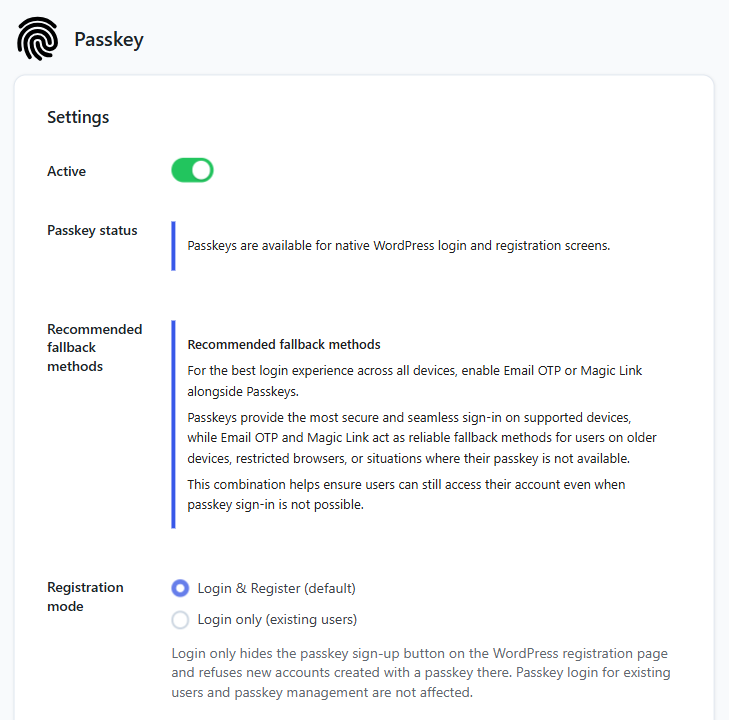
- Select Passkey and switch it to Active (requires PHP 8.2+).
- Choose a Registration mode — Login & Register (default) or Login only (existing users) — and, if needed, the OR separator, helper messages and redirect behavior.
- Click Save Changes.
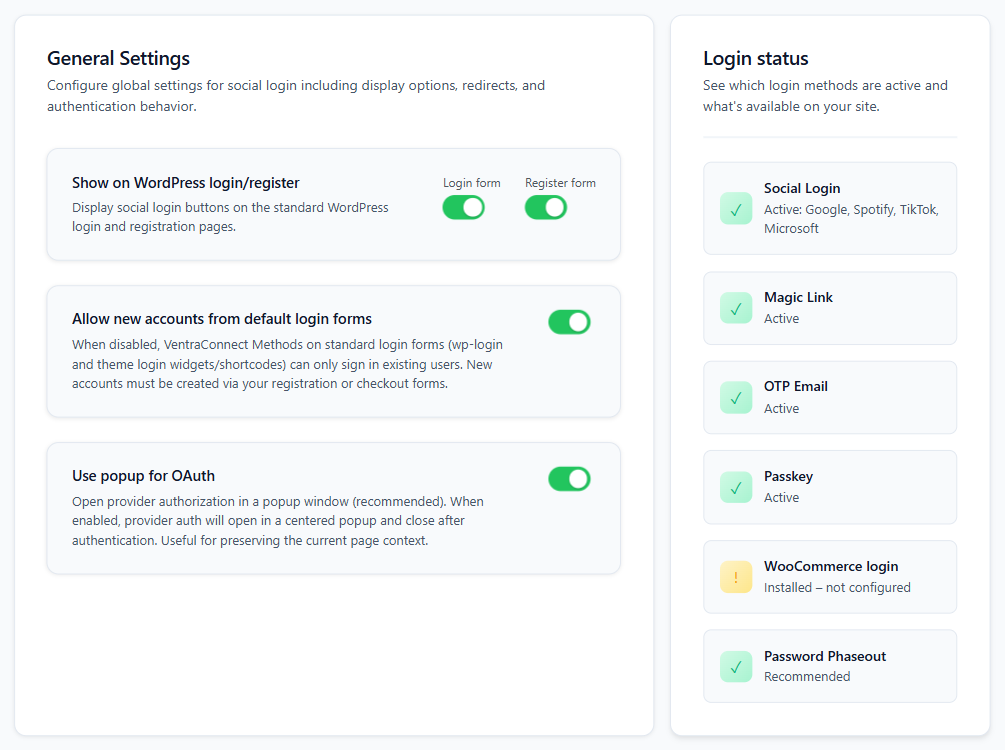
- In the Settings tab, make sure Show on WordPress login/register has Login form turned on (and Register form, if you want passkey sign-up). Drag methods in Login Methods to set the button order.
How users create their first Passkey
Most users will create their first Passkey from their WordPress profile after signing in to an existing account.
- Sign in to your WordPress account using your password, Social Login, Magic Link, or Email OTP.
- Open your WordPress profile.
- Find the Passkeys section.
- Select the option to add a new Passkey.
- Confirm the browser or device prompt using a fingerprint, Face ID, device PIN, screen lock, or supported security key.
Passkey sign-up on the WordPress registration page
When a visitor opens wp-login.php?action=register, VentraConnect shows a “Set up Passkey” button only if: (1) Settings → General → Anyone can register is on in WordPress, (2) VentraConnect Settings → Show on WordPress login/register → Register form is on, and (3) the Passkey Registration mode is “Login & Register (default)”.
The visitor enters their email address and always sees “If this email can create a passkey, we will send instructions to continue.” — no email is sent if the address already belongs to an account. The email (subject “Confirm your email to create a passkey”) contains a link valid for 30 minutes; after clicking it the visitor sees “Create your passkey”, and the WordPress account is created with your default role only after the passkey has been created. Set Registration mode to “Login only (existing users)” to hide the button and refuse new passkey accounts. Existing users always add passkeys from their profile.
How users sign in with a Passkey
Once a user has registered a Passkey, they can use it to sign in from supported login screens. The exact prompt may look different depending on the browser, device, and password manager being used.
- Open the WordPress login page.
- Select Continue with Passkey.
- Confirm the browser or device prompt.
- Verify using the available security method.
- The user is signed in without entering their password.
Manage Passkeys from the WordPress profile
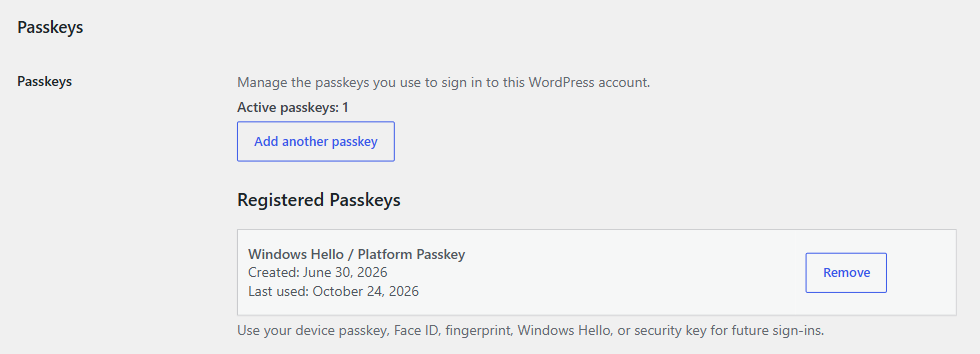
In VentraConnect Free, users manage passkeys in Users → Profile → Passkeys: add a passkey, see when each was created and last used, and remove it (passkeys cannot be renamed). Administrators viewing another user’s profile see a read-only list — users must add passkeys from their own account. With Pro, customers and members can also manage passkeys from WooCommerce My Account → Passkeys, supported LMS/membership profile pages, or any page containing [ventraconnect_passkey_manage].
What users can do from their profile
Example: one user, multiple devices
Prompt logged-in users to set up a Passkey
Enabling Passkeys gives users a better way to sign in, but many people will not think to visit their profile and create one. The Floating Passkey Setup Panel helps turn Passkey availability into real adoption by prompting eligible users while they are already signed in and active on your site.
With VentraConnect Pro, you can show a small, configurable setup prompt on selected logged-in pages. It appears only for users who do not yet have a Passkey and gives them a direct path to add one without hunting through account settings.
Turn availability into adoption
Show it where members are active
How the Floating Passkey Setup Panel works
- A logged-in user visits one of the pages you selected in the panel settings.
- VentraConnect checks whether that user already has a Passkey.
- If they do not, the panel appears after the display delay you configured.
- The user selects the panel button (Set up Passkey by default, or your custom button text) and completes the normal browser or device verification prompt.
- After setup, the Passkey is linked to their account and can be used for future sign-ins on supported login flows.
Configure the panel
In VentraConnect → Settings → Login Methods → Passkey (VentraConnect Pro), you can enable the Floating Passkey Setup Panel and control when, where, and how it appears. The panel is off by default and appears only on the pages you select; if no page is selected it never appears.
Configure the Floating Passkey Setup Panel in Login Methods → Passkey.
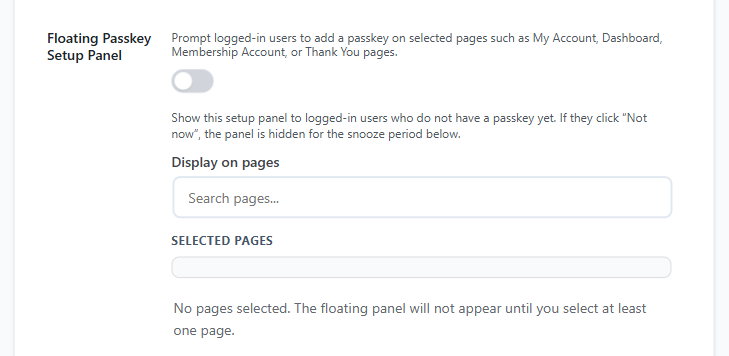
Choose selected pages, customize the panel message and button, set the position and delay, and decide how many days “Not now” hides the prompt in that browser (default 7).
Use Passkeys with Social Login, Magic Link, and Email OTP
Passkeys do not replace the other login methods provided by VentraConnect. Users can continue to sign in using any available method. This gives users a choice and creates a more flexible login experience without forcing every user into one authentication method.
Available login options
Why this matters
Someone who prefers Google login can still use Social Login. Someone without a Passkey can request a Magic Link or Email OTP instead.
For site owners, this creates a modern authentication foundation without needing a separate hosted identity platform.
Use Passkeys on a custom login page
Add [ventraconnect_sl_social_login] to any normal page to show all active methods, or [ventraconnect_sl_social_login providers="passkey"] for the passkey button only. The shortcode shows passkey sign-in for existing passkeys; it needs Passkey set to Active and “Login form” turned on in VentraConnect Settings. New users create a passkey from the WordPress registration page or, once signed in, from their profile.
Use case
This is useful when you want to create a custom login page that matches your site design while still offering modern sign-in methods including Passkeys, Social Login, Magic Link, and Email OTP.
Why native Passkeys matter
Many WordPress sites rely on traditional passwords alone. Passwords can be forgotten, reused across websites, entered incorrectly, or exposed through phishing attempts. They also create friction for returning users, especially on mobile devices.
The traditional approach
The modern alternative
Important limitations
VentraConnect Free provides the native Passkey foundation for supported standard WordPress flows. The following placements require VentraConnect Pro.
Troubleshooting
The Passkey option does not appear
Check the following: Passkey is set to Active in Login Methods and “Login form” is on in VentraConnect Settings. Your server runs PHP 8.2 or later. Your website uses HTTPS. You are testing a supported WordPress login, registration, profile, or shortcode flow. Your browser and device support Passkeys. Your login page is not being served from an outdated page cache.
Passkeys are not available in VentraConnect settings
Native Passkeys require PHP 8.2 or later. The rest of VentraConnect runs on PHP 7.4+, but on PHP versions below 8.2 the Passkey settings are disabled and the Passkey pane shows “Passkeys require PHP 8.2 or higher. Update PHP to enable passkey login and registration.”
The browser does not show a Passkey prompt
This usually means the browser, device, device security settings, or password manager does not currently support Passkeys for that user. Ask the user to try a modern browser, a device with a screen lock enabled, a supported password manager, or another device such as a phone or laptop.
No Passkey is found for this account
The user may not have created a Passkey for that account yet. They may also have created the Passkey on another device or saved it in a different password manager. The user can sign in with another available method, then create a Passkey from their WordPress profile.
The user cancelled the Passkey prompt
Cancelling a Passkey prompt does not lock the user out. They can try again or use another available sign-in method such as their WordPress password, Social Login, Magic Link, or Email OTP. They can create a Passkey later after signing in.
My website does not use HTTPS
Passkeys require HTTPS in normal production use. Install a valid SSL certificate and make sure your WordPress Address and Site Address use https://.
Need Passkeys inside WooCommerce or membership flows?
VentraConnect Free provides native Passkeys for supported WordPress login, registration, profile, and shortcode flows. VentraConnect Pro extends Passkeys into supported WooCommerce, membership, community, and LMS experiences, with additional setup prompts and rollout controls.


