
How to Add Passkeys, Social Login, Magic Link & Email OTP to Paid Member Subscriptions
VentraConnect Pro brings your enabled login methods into supported Paid Member Subscriptions (PMS) login, registration, account, and signup experiences. Give members a faster way to return without replacing the membership flow that handles plans, checkout, and access rules.
What the Paid Member Subscriptions integration does
Paid Member Subscriptions uses shortcode-owned pages for common membership journeys, including member login, registration, account, and recovery screens. VentraConnect Pro recognises those PMS experiences and lets you place the login methods you have enabled in the places where members already sign in or join.
Depending on your VentraConnect configuration, members can use any enabled method alongside the normal PMS username-and-password experience.
One integration, flexible sign-in
Keep the membership flow in control
Before you begin
Confirm the following before enabling the integration.
Open the PMS integration settings
In your WordPress dashboard, open the VentraConnect integrations area and select Paid Member Subscriptions. When PMS is active, VentraConnect detects the plugin and shows its available settings.
- Sign in to WordPress as an administrator.
- Open VentraConnect in the WordPress dashboard.
- Open theCommunity & Membershipstab.
- Select Paid Member Subscriptions.
- Configure the forms, account rules, and redirect behaviour that fit your membership flow.
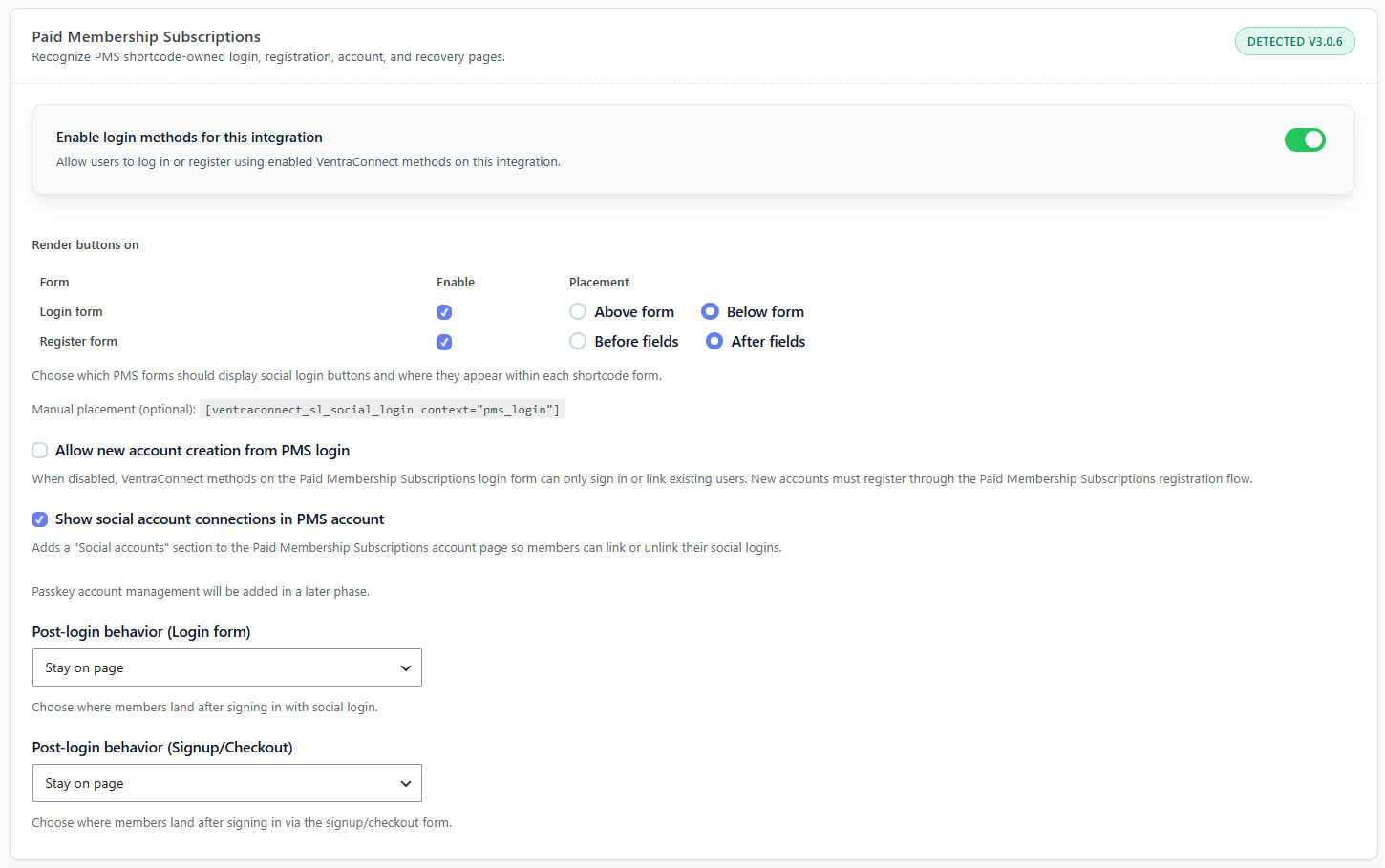
Enable login methods for this integration
Turn on Enable login methods for this integration to allow the VentraConnect methods enabled on your site to appear on supported PMS experiences.
Use VentraConnect on PMS forms
Members can see and use your chosen authentication methods on the PMS forms you enable below.
Pause PMS placement only
The integration stops rendering on PMS forms, while your global VentraConnect setup can remain active on other supported WordPress flows.
Choose which PMS forms display login methods
Under Render buttons on, choose the PMS forms where VentraConnect should appear and select the position that best fits the page layout.
Help returning members sign in faster
Enable this option to show your selected login methods on the PMS login form.
Offer a lower-friction signup path
Enable this option to show your selected login methods on the PMS registration or signup form.
Which placement should you use?
Below login and after registration fields
This preserves the familiar PMS fields and makes alternative sign-in methods clearly available without overpowering the membership form.
Above login and before registration fields
This gives Passkeys, Social Login, Magic Link, and Email OTP more prominence when you are intentionally moving members away from passwords.
Control new account creation from the PMS login form
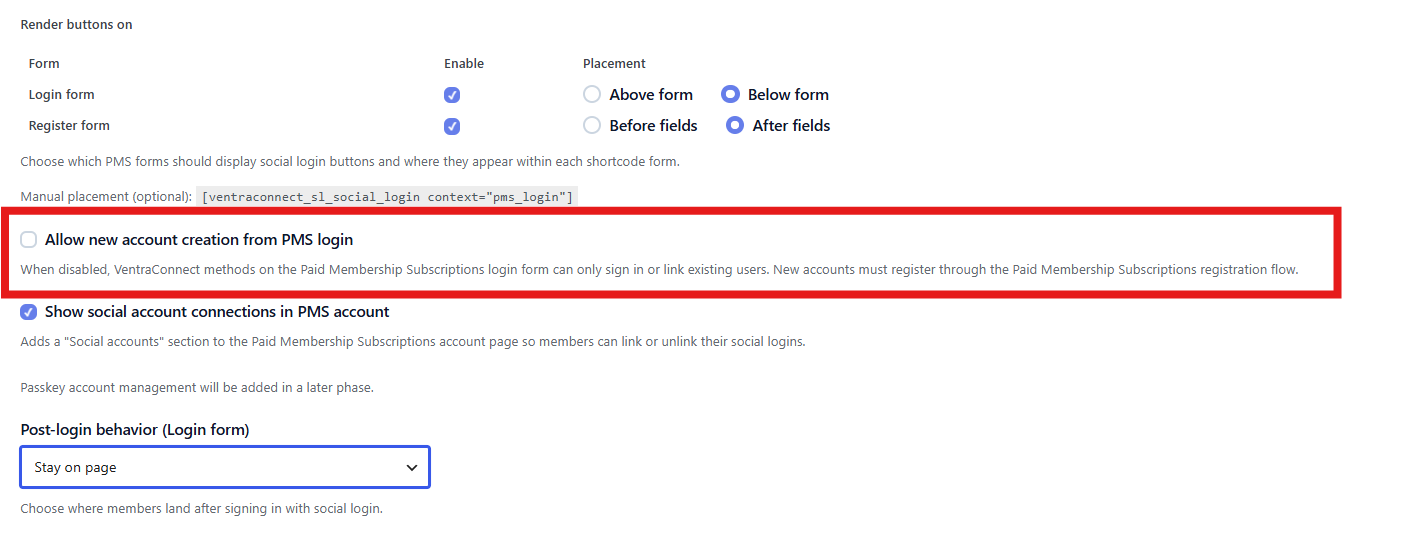
The Allow new account creation from PMS login setting controls whether visitors can create a new WordPress account when they use Social Login, Magic Link, or Email OTP from the PMS login form.
Keep registration inside PMS
When disabled, Social Login, Magic Link, and Email OTP on the PMS login form can only sign in or link existing users. New visitors must complete the normal PMS registration or signup flow.
Allow account creation from login
When enabled, visitors can create a new WordPress account through Social Login, Magic Link, or Email OTP directly from the PMS login form.
Let members manage linked social accounts and Passkeys
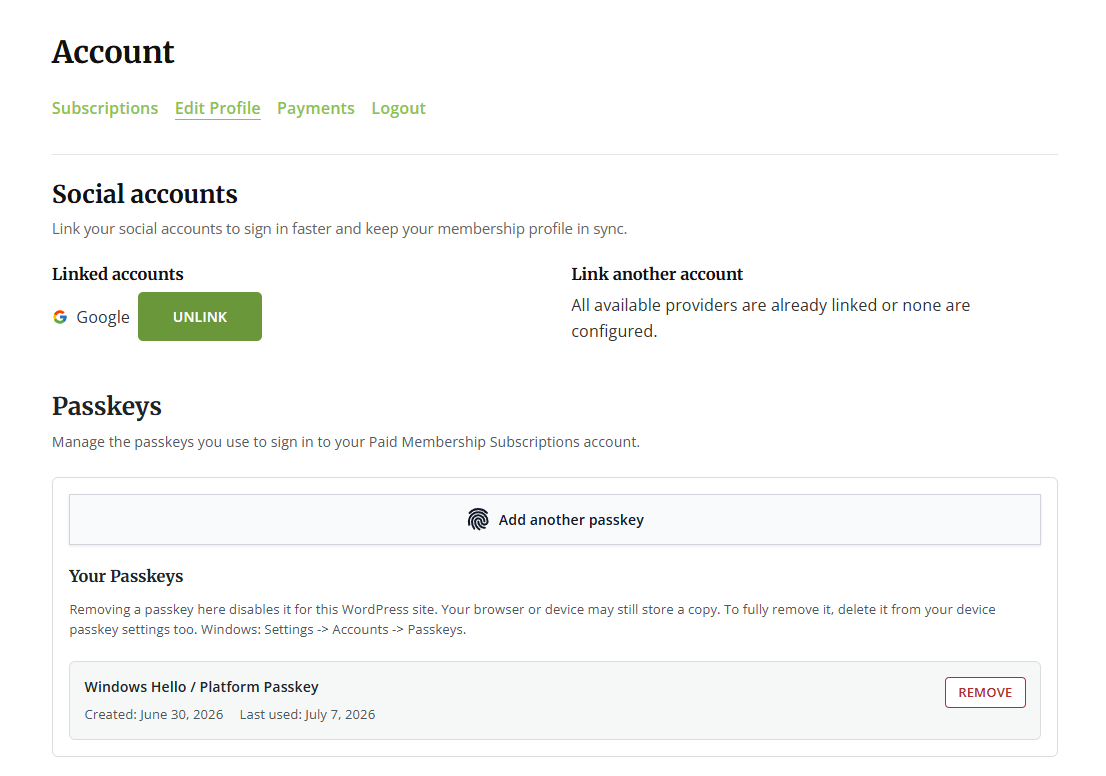
The PMS account experience can give members control over the authentication methods attached to their account. This lets them adopt faster sign-in methods after registration instead of forcing everything to happen at the first visit.
Show social account connections in PMS account
Enable this setting to add a dedicated Social accounts section to the Paid Member Subscriptions account page.
Manage Passkeys from the PMS account area
Members can manage their Passkeys from their PMS account experience.
Use manual placement for a custom PMS layout
Use the optional manual-placement shortcode when your PMS page uses a custom template, page builder layout, or design where the automatic placements are not in the right spot.
PMS login shortcode
Place this where you want VentraConnect login methods to appear in a custom PMS login layout:
[ventraconnect_sl_social_login context="pms_login"]
Place methods above PMS login
[ventraconnect_sl_social_login context="pms_login"]
[pms-login]
Place methods below PMS login
[pms-login]
[ventraconnect_sl_social_login context="pms_login"]
Configure post-login behaviour
PMS has separate post-login behaviour settings for the Login form and the Signup/Checkout flow. This keeps ordinary member sign-in separate from the more sensitive membership-registration journey.
Where returning members go
Choose where members land after signing in through the PMS login form. Staying on the same page is useful when the current screen already has PMS messaging or access logic. A member dashboard or account page is often better for a dedicated login page.
Do not interrupt membership completion
Use this setting for the registration, signup, or checkout journey. Keep members on the page while PMS still needs to process a plan choice, billing step, confirmation, or required profile information.
Recommended setup for most paid membership sites
This configuration gives returning members faster login choices while keeping account creation and payment inside the PMS flow that owns those responsibilities.
Test the full member journey before going live
Membership integrations fail in the gaps between login, user creation, payment, redirects, and access rules. Test the exact member journeys your site relies on before enabling the integration for everyone.
Troubleshooting
VentraConnect methods do not appear on my PMS form
Confirm that Paid Member Subscriptions and VentraConnect Pro are active, the PMS integration toggle is enabled, the correct Login form or Register form option is enabled, and at least one login method is enabled globally. Then clear page and object caches and verify that you are testing the actual PMS shortcode-owned page rather than a copied static layout.
Login methods appear twice
This usually means the automatic PMS placement and the manual shortcode are both active on the same page. Disable one approach for that form.
New visitors can create an account from the PMS login page, but I do not want that
Disable Allow new account creation from PMS login. VentraConnect methods on that page will then sign in or link existing users only, while new members must use the PMS registration or signup flow.
Members are sent to the wrong page after signing in
Review both PMS redirect settings: Post-login behavior (Login form) and Post-login behavior (Signup/Checkout). Also check whether PMS, your theme, a redirect plugin, or another membership plugin applies a competing redirect rule.
A member cannot see social accounts or Passkey management
Confirm that the user is viewing the genuine PMS account area, not a custom profile page. For Social Login, make sure Show social account connections in PMS account is enabled. For Passkeys, confirm that Passkeys are enabled, the site uses HTTPS, and the server meets the PHP 8.2 requirement.
Passkey login does not appear or the browser does not show a prompt
Passkeys require HTTPS, PHP 8.2 or later, a supported browser and device, and a Passkey-capable authentication setup such as a device screen lock, biometrics, or a compatible password manager. Test in a current browser and clear page cache before assuming the integration is at fault.
Give PMS members a faster way to return
VentraConnect Pro brings Passkeys, Social Login, Magic Link, and Email OTP into supported Paid Member Subscriptions login, registration, account, and signup experiences while keeping your membership flow in control.


