
This guide helps you get VentraConnect working fast on WordPress. VentraConnect Free gives you four modern ways to let users sign in: Social Login with providers like Google, Facebook, GitHub, Microsoft and more; Passkeys using device biometrics or security keys; Magic Link through a secure email link; and Email OTP using a short one-time code. Pro extends that authentication foundation into supported WooCommerce, LMS, membership, community and comments flows, and adds advanced controls such as Password Phaseout, inline passwordless forms, branded emails, advanced Passkey placements, analytics and deeper diagnostics.
Before you start
- VentraConnect is installed and activated
- You can access the plugin settings in WordPress admin
- You know which login method you want to set up first
- If using Social Login: you have access to the provider's developer or app console
- If using Passkeys: your site uses HTTPS in production and you have a compatible browser/device
- If using Magic Link or Email OTP: your WordPress site can send emails reliably
Choose Your Quick Start Path
Pick the login method you want to get working first. Start with one, test it properly, then come back for the others.Option 1 — Social Login
Let users sign in with an existing account from Google, Facebook, GitHub, Microsoft and other supported providers.Option 2 — Passkeys
Native WebAuthn login using supported device biometrics, platform authenticators or security keys — no password required.Option 3 — Magic Link
One-click passwordless login through a secure email link. No password or manual code entry required.Option 4 — Email OTP
Short one-time code sent by email. A familiar verification flow for users who prefer entering a code.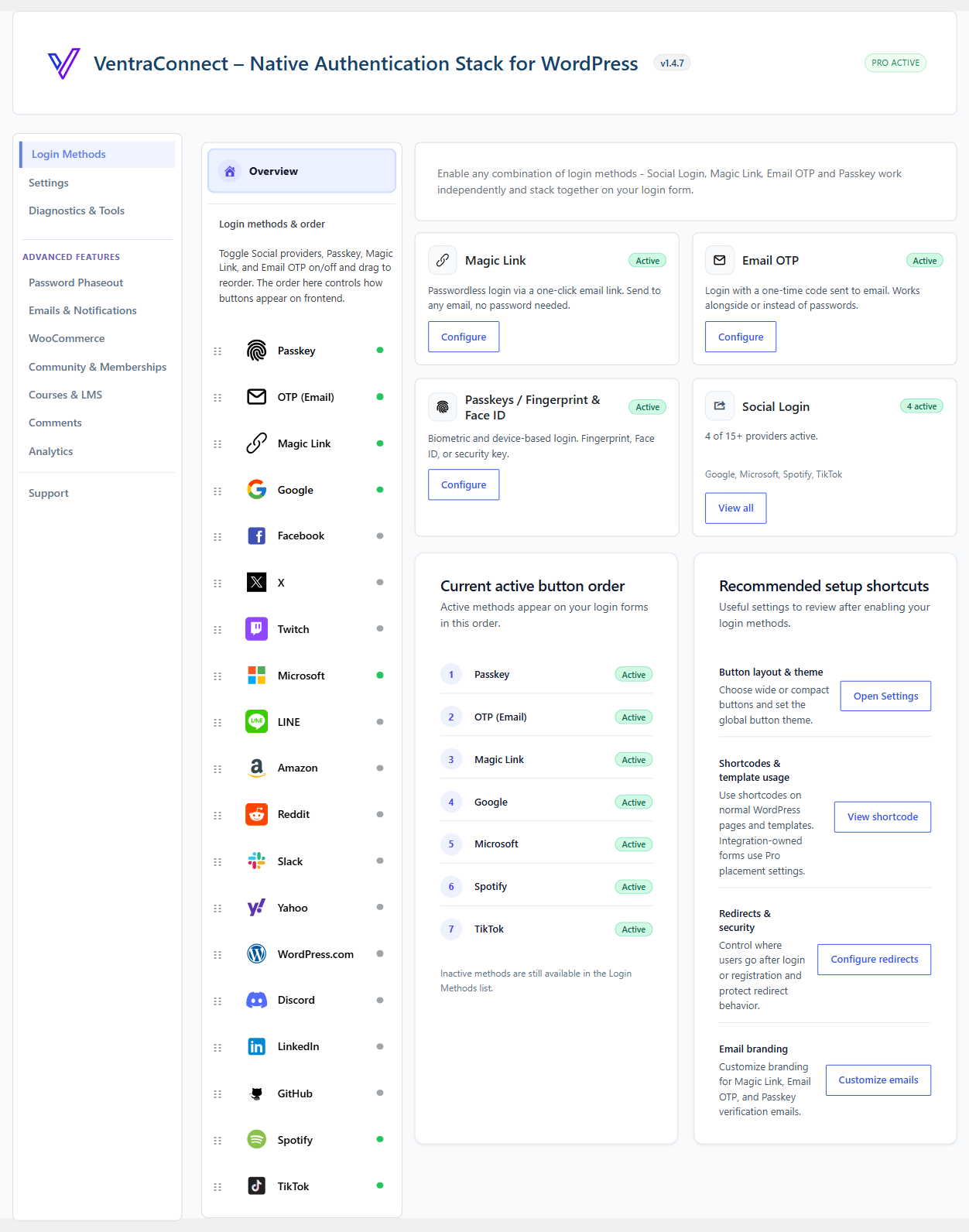
1
Option 1: Social Login
- Open Login Methods. In WordPress admin, go to the VentraConnect settings and open Login Methods.
- Enable one provider. Choose one provider to start with, such as Google, Facebook, GitHub or Microsoft. Do not enable several providers until you have verified one is working.
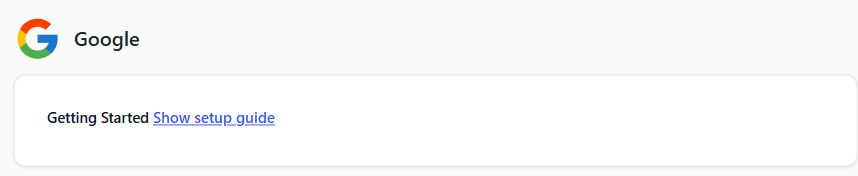
- Add provider credentials. Open that provider's settings panel and enter the required credentials, such as Client ID and Client Secret. VentraConnect displays the callback or redirect URI that must be registered in the provider's app console.
- Verify the provider settings. Use the built-in verification or diagnostics tools to confirm the provider is configured correctly. Fix any errors before moving on.
- Review account creation. Decide whether this method should allow new accounts or only authenticate existing users. Social providers do not have their own registration setting. To stop new accounts being created from the standard WordPress login form, go to Settings → General Settings and turn off Allow new accounts from default login forms. Existing users can still sign in.
- Choose where buttons appear. Go to Settings → General Settings and, under Show on WordPress login/register, turn on Login form and/or Register form. This switch applies to all active VentraConnect login methods. For a custom page, add the shortcode
, or useproviders="all"to show every active method.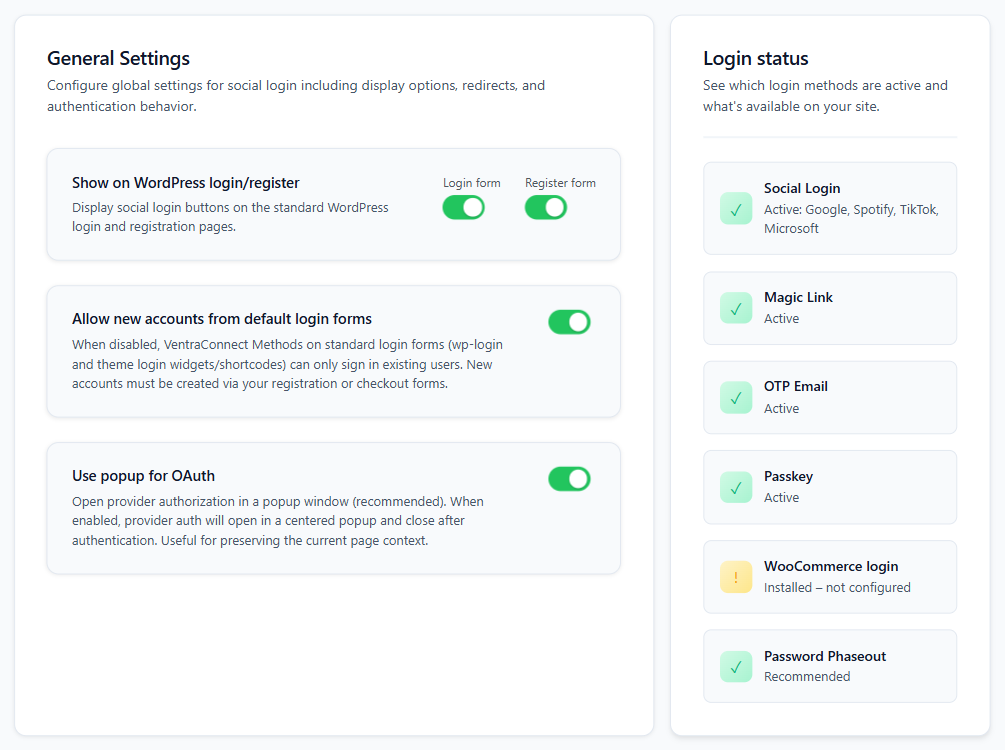
- Test the full login flow. Open a private or incognito browser window and test with a real account for that provider. Confirm the button appears where expected, login completes without errors, account creation behaves correctly, and the redirect lands on the right page.
Adding more providers: Once one provider is working, add others using the same credential, callback and verification process. Each provider is configured independently.
2
Option 2: Passkeys
HTTPS is required for normal production use. Passkeys depend on the browser's secure WebAuthn environment. Make sure your live site loads correctly over HTTPS before testing Passkey registration or login.
- Open Login Methods. Go to the VentraConnect settings and open Login Methods.
- Enable Passkeys. Open the Passkey panel and turn on the Active toggle.
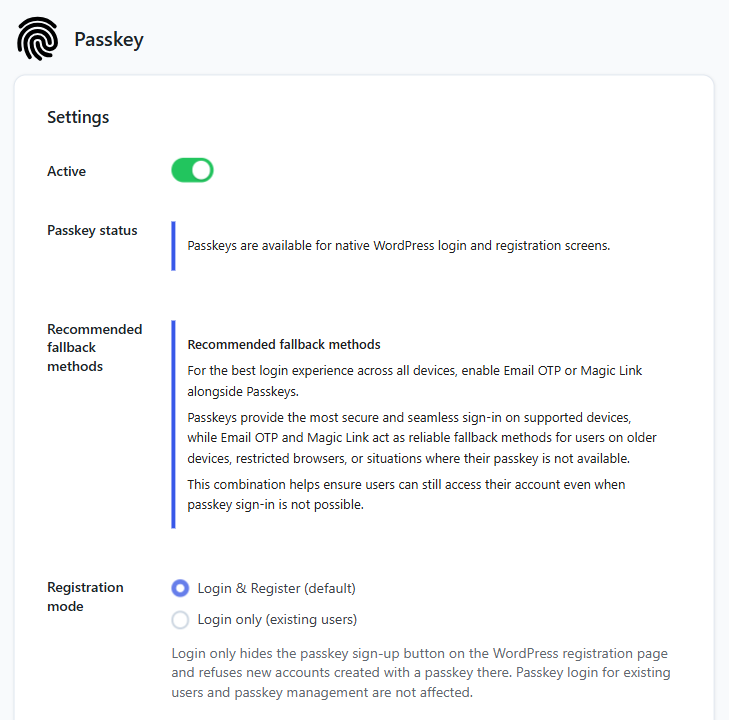
- Choose where Passkeys appear. Passkeys appear on the standard WordPress login and registration pages when Settings → General Settings → Show on WordPress login/register is turned on for those forms. For a custom page, use
. - Register a Passkey for an existing account. Sign in normally, open the user's supported profile/account Passkey area, and add a Passkey. Complete the browser/device confirmation when prompted.
- Confirm the Passkey is listed. Make sure the newly registered credential appears in the user's Passkey management area. If your device allows naming or identifying multiple credentials, use clear labels so they are easier to manage later.
- Test logged-out Passkey login. Open a private or incognito window, go to the login page and use the Passkey option. Complete the device prompt and confirm you are signed into the correct WordPress account.
- Test fallback access too. Before relying heavily on Passkeys, confirm the user can still access an appropriate fallback method such as Social Login, Magic Link, Email OTP or a password where your site's configuration allows it.
Free vs Pro: Native Passkeys for supported standard WordPress login, profile and shortcode flows are included in VentraConnect Free. Pro extends Passkeys into supported WooCommerce, LMS, membership and community experiences and can add advanced Passkey setup prompts such as the Floating Passkey Setup Panel.
3
Option 3: Magic Link
Email delivery must work first. Before setting up Magic Link, confirm your WordPress site sends transactional emails reliably. Use the built-in test email option before expecting real users to receive Magic Links.
- Open Login Methods. Go to the VentraConnect settings and open Login Methods.
- Enable Magic Link. Turn on Magic Link.
- Configure the basic settings. Review the available options:
- Link expiry time
- Single-use link behavior
- Same-IP restriction, if you want the additional restriction
- Resend throttle
- Registration mode — Login & Register or Login Only
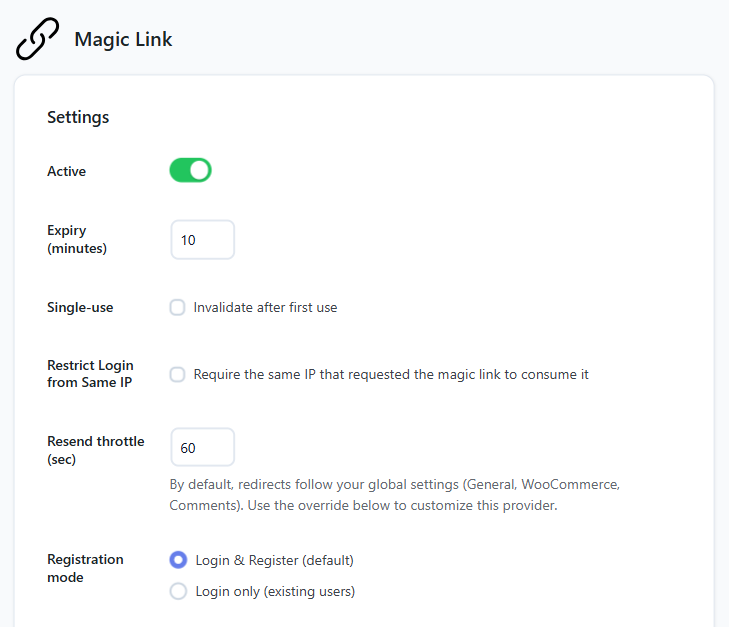
- Review account creation and Guardrails. If you do not want new accounts created through Magic Link, set Registration mode to Login only. Magic Link will then sign in existing users only.
- Configure redirect behavior (optional). By default, Magic Link follows your global redirect settings in Settings → Redirects & Security, plus WooCommerce or Comments rules where they apply. To send Magic Link users somewhere specific, turn on Enable redirect override and choose Return to requested page, Go back to previous page (referer), Send to homepage or Send to custom URL.
- Configure the email content. Set the sender name, subject line and message content. Start with the defaults and refine them later if needed.
- Send a test email. Save your changes first, then click Send test email next to Save Changes. VentraConnect sends a real Magic Link to your site's WordPress administration email address (Settings → General in WordPress). If the test does not arrive, fix email delivery before launching.
- Choose where Magic Link appears. On the standard WordPress login and registration pages, Magic Link follows Settings → General Settings → Show on WordPress login/register. To show Magic Link on its own on a custom page, use
. Inline Magic Link forms for custom layouts are available in Pro. - Test the full flow. Open a private or incognito window. Request a Magic Link with a real email address, receive the email, click the link and confirm login completes correctly. Verify the email arrives promptly, the link works once as expected, account creation follows your configuration and the redirect is correct.
4
Option 4: Email OTP
Email delivery must work first. Confirm your WordPress site sends transactional emails reliably before launching Email OTP. Use the built-in test email option to verify delivery.
- Open Login Methods. Go to the VentraConnect settings and open Login Methods.
- Enable Email OTP. Turn on Email OTP.
- Configure the basic settings. Review the available options:
- Code length
- Code expiry time
- Resend throttle
- Maximum verification attempts
- Registration mode — Login & Register or Login Only
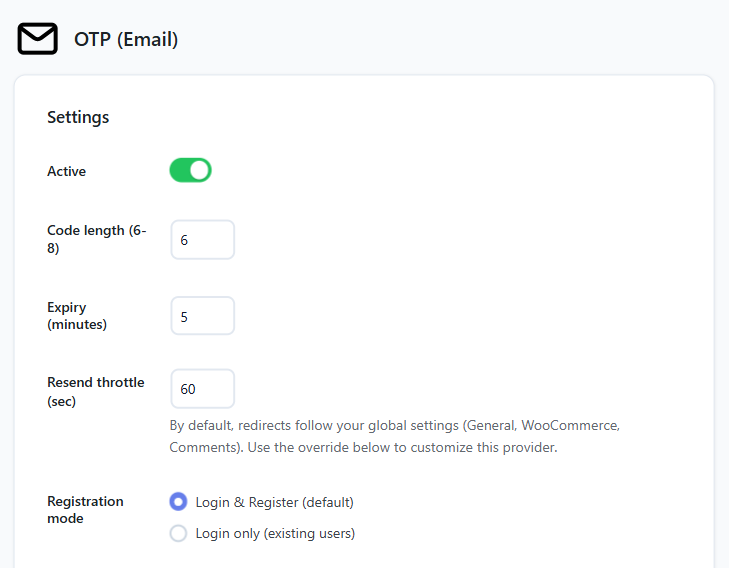
- Review account creation and Guardrails. Decide whether a previously unknown email address should be allowed to create an account through OTP or whether the method should be limited to existing users. To limit it to existing users, set Registration mode to Login only.
- Configure redirect behavior (optional). By default, Email OTP follows your global redirect settings in Settings → Redirects & Security, plus WooCommerce or Comments rules where they apply. To send OTP users somewhere specific, turn on Enable redirect override and choose Return to requested page, Go back to previous page (referer), Send to homepage or Send to custom URL.
- Configure the email content. Set the sender name, subject line and message content. Start with the defaults and improve them later if needed.
- Send a test email. Save your changes first, then click Send test email next to Save Changes. VentraConnect sends a real one-time code to your site's WordPress administration email address (Settings → General in WordPress). Do not launch Email OTP if email delivery is unreliable.
- Choose where Email OTP appears. On the standard WordPress login and registration pages, Email OTP follows Settings → General Settings → Show on WordPress login/register. To show Email OTP on its own on a custom page, use
. Inline Email OTP forms for custom layouts are available in Pro. - Test the full flow. Open a private or incognito window and run through the complete process. Confirm the email arrives, the newest code is accepted, expiry and attempt limits behave correctly, account creation follows your settings, and login redirects correctly after success.
Understand Account Creation Before You Launch
Authentication and account creation are related, but they are not the same thing. A login method can authenticate an existing user while your site blocks new-account creation through that same login surface.
Login Only: Use this when a method should authenticate existing WordPress users but should not create a new account for an unknown email address. Set it with Registration mode → Login only in the Magic Link, Email OTP or Passkey settings. For Passkeys, Login only removes the Passkey sign-up option from the WordPress registration page.
Login & Register: Use this when the method may create a new WordPress account when registration is permitted by the relevant VentraConnect and site rules.
Guardrails: VentraConnect can apply account-creation rules to supported authentication flows so you can prevent unwanted registrations without disabling authentication for users who already have an account. In the settings, Guardrails are controlled by Allow new accounts from default login forms (Settings → General Settings), which blocks new accounts started from the standard WordPress login form without changing your registration page, and by each method's Registration mode. To stop Magic Link or Email OTP creating accounts wherever they appear, set that method to Login only. Pro integrations add their own account-creation options, such as the WooCommerce new-account setting. Passkey registration has its own lifecycle because a Passkey must ultimately belong to a WordPress user account.
Where You Can Use These Login Methods
VentraConnect Free provides the authentication foundation for supported standard WordPress flows. Pro extends those methods into supported third-party platforms and adds deeper placement and control options.
Free plugin: Social Login, native Passkeys, Magic Link and Email OTP for supported WordPress login, registration, profile/account and shortcode flows, depending on the method.
Pro adds: supported WooCommerce login, registration, checkout and My Account placements · LMS, membership and community integrations · comments authentication · advanced Passkey placements and setup prompts · inline Magic Link and Email OTP forms · branded passwordless emails · Password Phaseout · analytics and deeper integration diagnostics.
First Test Checklist
Before calling your setup done, confirm each of these basics in a private or incognito browser window:Before you launch
- The login method is enabled in settings
- It is visible where you expect it to be
- Provider credentials and callback URLs are valid when using Social Login
- HTTPS and browser/device support are working when using Passkeys
- Emails are being delivered reliably when using Magic Link or Email OTP
- The method works while you are genuinely logged out
- Login succeeds without errors
- Redirect behavior after login is correct
- New-account creation matches your site's intended registration policy
- Existing users still have an appropriate fallback sign-in method
Do not skip real testing. A method that looks enabled in admin but fails in a real browser is not set up. Always test while logged out, preferably in a private or incognito window.
Recommended First Setup Strategy
If you are not sure where to begin, use one of these starting points.Easiest visible first win
Start with one Social Login provider. It is easy to recognize, quick to test, and immediately reduces password friction.Modern device-first login
Start with Passkeys if your users are comfortable with device biometrics or security-key prompts and your site already runs cleanly over HTTPS.Email-first passwordless
Start with Magic Link when you want the simplest email-based experience with no manual code entry.Familiar verification flow
Start with Email OTP when your users are comfortable entering a short code and you want an explicit verification step.
Whatever you choose, do not launch every method at once unless you have tested each one properly and confirmed the account-creation rules make sense together.
Common first-time mistakes to avoid
- Enabling too many providers or methods before testing one end to end
- Forgetting to register the correct callback or redirect URI in a social provider's app console
- Skipping the built-in provider verification or diagnostics step
- Trying to test Passkeys on an incorrectly configured non-HTTPS production site
- Registering a Passkey but never testing a real logged-out Passkey login
- Assuming WordPress email delivery is reliable without testing it first
- Enabling Magic Link or OTP before verifying real email delivery
- Testing while already logged in to WordPress
- Not checking redirect behavior after successful authentication
- Allowing account creation without first deciding whether the site should accept new registrations from that login flow
- Confusing Password Phaseout in Pro with basic Passkey, Magic Link or Email OTP setup in Free


